
Download Email Report From Compliance Portal
Instead of exporting the full set of search results from a Content search in the Microsoft Purview compliance portal (or from a search that's associated with a Microsoft Purview eDiscovery (Standard) case), you can export the same reports that are generated when you export the actual search results.
When you export a report, the report files are downloaded to a folder on your local computer that has the same name as the Content Search, but that's appended with _ReportsOnly. For example, if the Content Search is named ContosoCase0815, then the report is downloaded to a folder named ContosoCase0815_ReportsOnly.
Note: You MUST use Microsoft Edge to download this report. An EXE is generated that will only work with Edge, and no other browsers.
1. Go to https://compliance.microsoft.com/
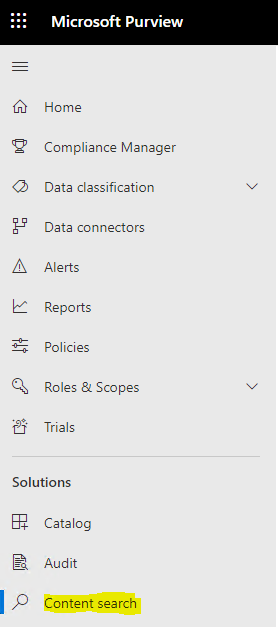
2. Click on Content Search in the left pane
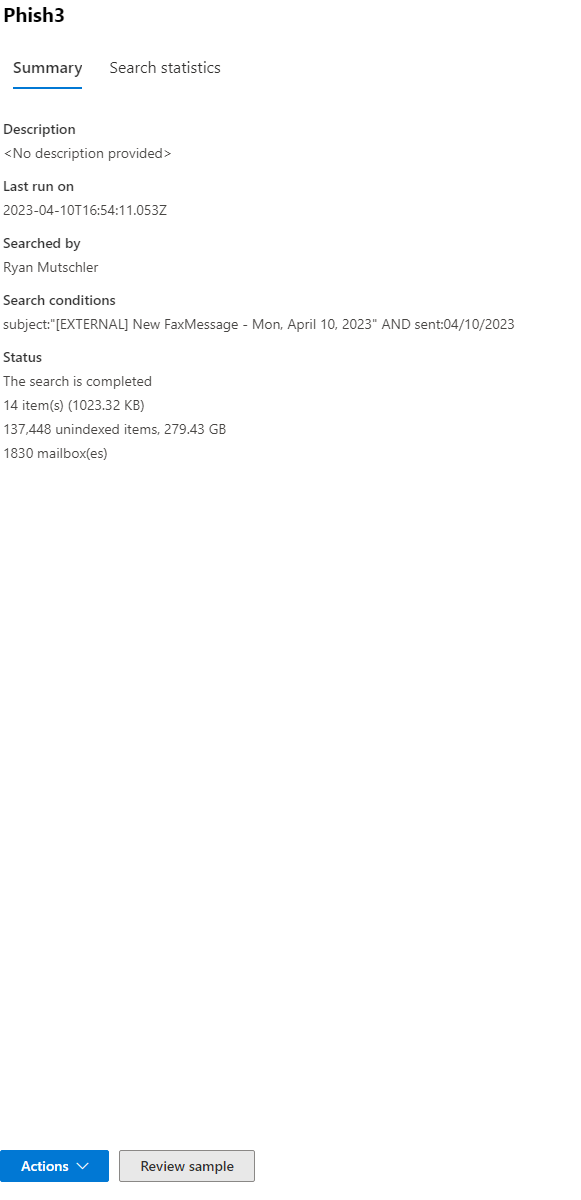
3. Click the report that was generated and click the Actions button within the new window that pops up
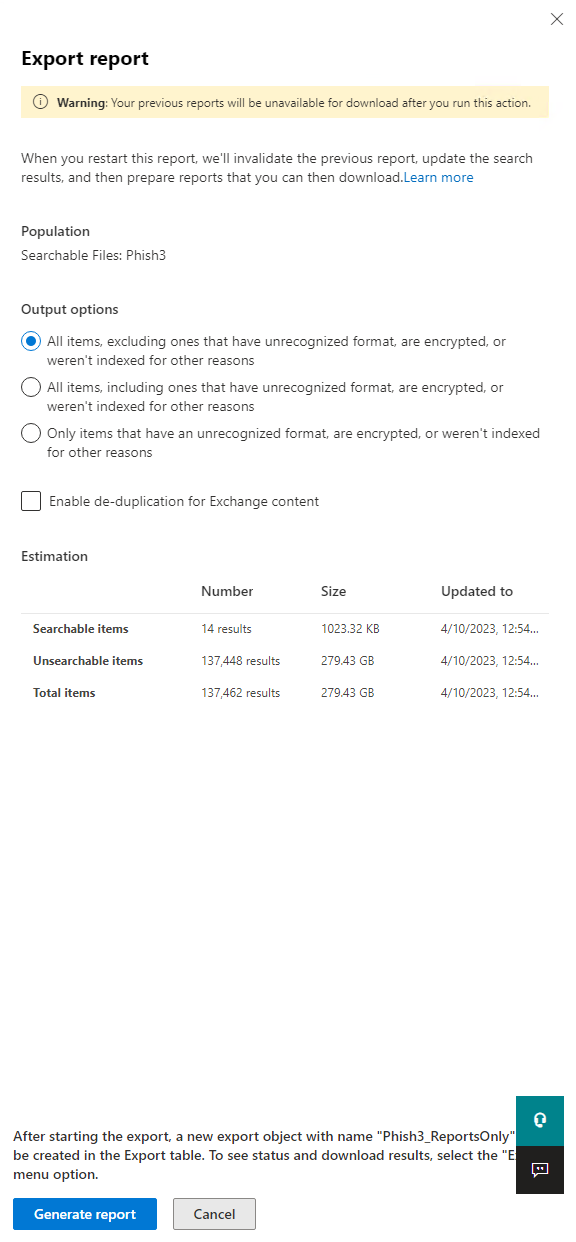
4. Make sure "All items, excluding ones that have unrecognized format, are encrypted, or weren't indexed for other reasons" then click "Generate Report"
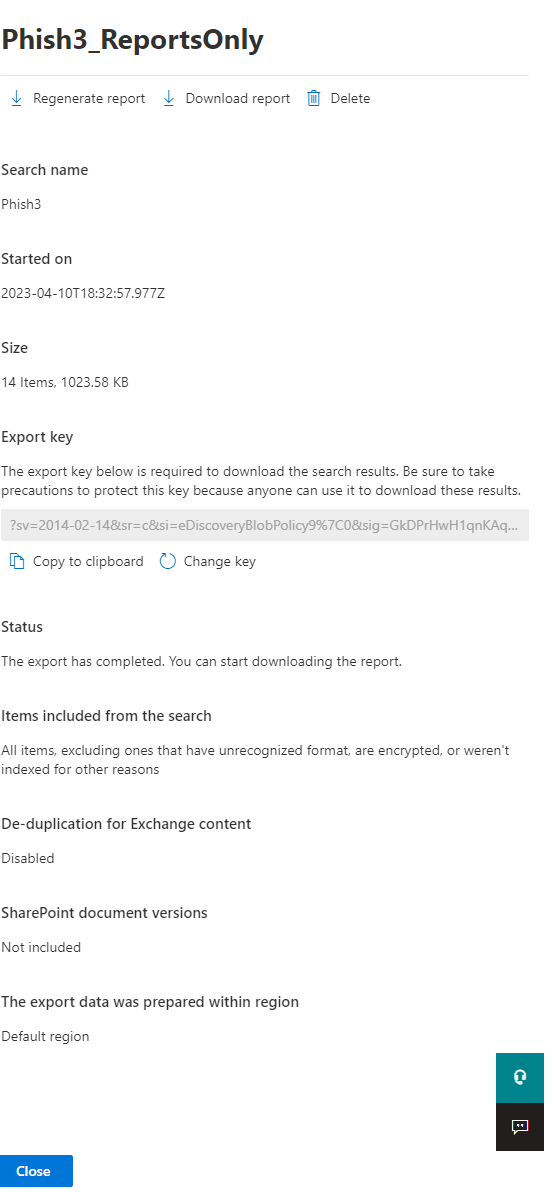
5. The report will then be generated under the "Export" tab, click that and choose the report you just created. Once the new window opens, ensure you are using Microsoft Edge, then click on "Download Report". In this same dialog box, click the button below to Copy to Clipboard.
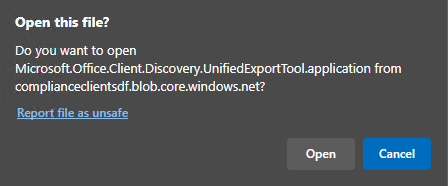
6. You may be prompted to Open "Microsoft.Office.Client.Discovery.UnifiedExportTool". Click yes on this prompt.
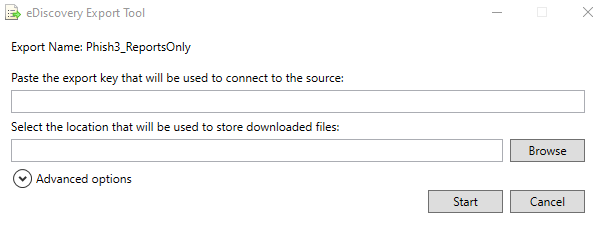
7. It will run a program and prompt you with a dialog for the eDiscovery Export Tool. In the top box, paste the string you copied to your clipboard in step 5, and selected a location to store your files in the bottom box.
¶8. You can then open the location you chose to store these files, and there will be a file called Results.csv that you can open and display your export.
No comments to display
No comments to display