
Rollback Windows Update Patch
Download the Show or Hide Updates Tool
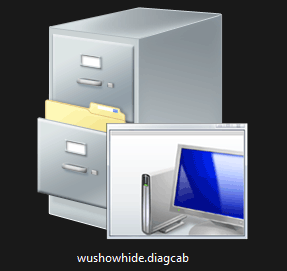
Download Show or hide updates from Microsoft. The downloaded file is named wushowhide.diagcab. Your web browser may report it as a virus or malware. But it is not. You should keep downloading it.
Run Show or Hide Update to Block Certain Updates
You don’t need to install this tool using the downloaded package. You just need to open the downloaded file to run the Show or hide updates troubleshooter on your PC. Here is how to use it to block specific updates on your Windows 10/11/Server computer.
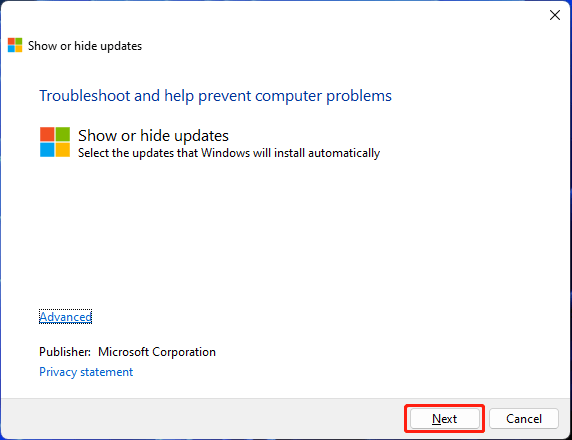
Step 1: Double-click the downloaded file to open the Show or hide updates troubleshooter.
Step 2: Click the Next button to continue.
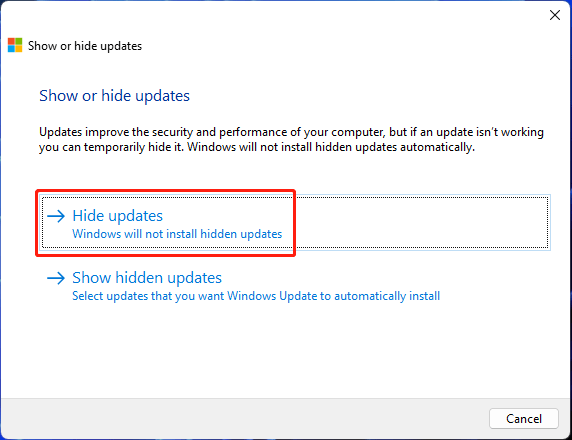
Step 3: On the next page, click Hide updates to continue.
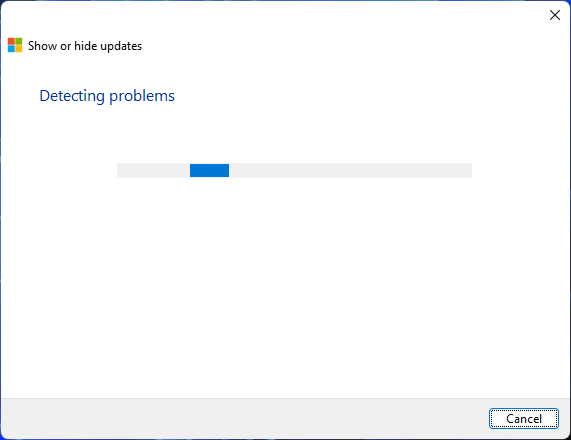
Step 4: The Show or hide updates troubleshooter will begin to detect problems related to the Windows updates.
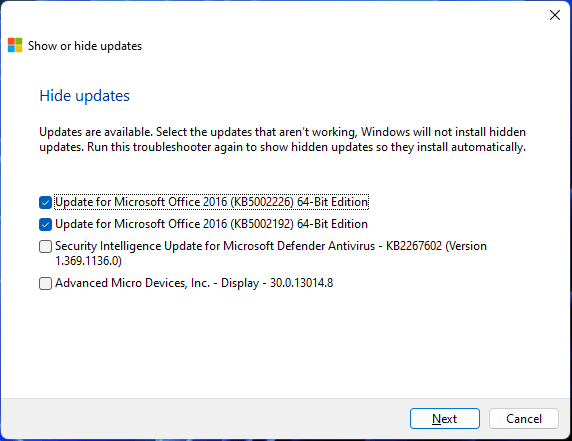
Step 5: When the detecting process ends, this tool will show all the updates that are available on your device. Then, you need to select the buggy update(s) you want to block or the updates you don’t want to install. After that, click Next to continue.
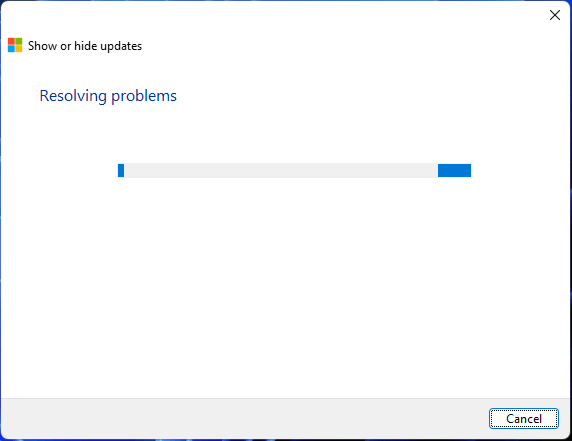
Step 6: This tool begins to resolve the problems. You should wait patiently until the process completely ends.
Step 7: When the troubleshooting is completed, you will see the following interface on which you can see which updates are hidden.
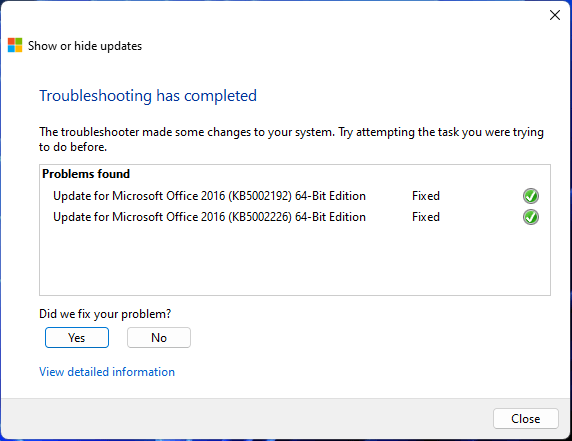
Step 8: Click the Close button to exit this tool.
This tool will hide your selected updates and your system will not install them on your device.
How to Show Hidden Updates on Windows 10/11?
You can also use the Show or hide updates troubleshooter to show hidden updates on your Windows 10/11 PC:
Step 1: Open Show or hide updates.
Step 2: Click Next.
Step 3: Click Show hidden updates.
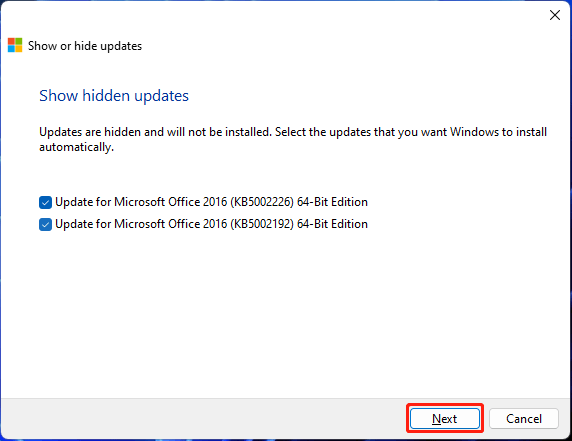
Step 4: This tool will show the hidden updates. Then, you need to select the update(s) you want to install.
Step 5: Click Next.
Step 6: When the process ends, click Close to exit this tool.
No comments to display
No comments to display