
Integrate a Sharepoint Site into Teams as a Homepage

If you wish to better aggregate and disseminate information within an organization, it is best to integrate as much as possible into existing systems.
Microsoft Teams made a strong advance over the past year and is today a starting place for users. Every day, everyone starts up their computer and automatically logs into Microsoft Teams.
In this blog, I explain how you can integrate your internal information via SharePoint can integrate into Microsoft Teams.
This blog post belongs to the Microsoft SharePoint training series
#1 Preparing for a SharePoint test environment, how to create a Office 365 tenant ?
#2 Tutorial: How to create a communication site in sharepoint online ?
#3 Integrate a SharePointsite in Microsoft Teams tab as start page
#4 Apply default templates to SharePoint Online - Template chooser
#5 How To Move Or Copy Files In SharePoint Or Microsoft Teams
1. Open the desired SharePoint Site
Copy the URL of your SharePoint site from the browser.
2. Open Microsoft Teams
Select the desired channel - press + at the top.
3. Select SharePoint in Microsoft Teams
Press the SharePoint icon/tab.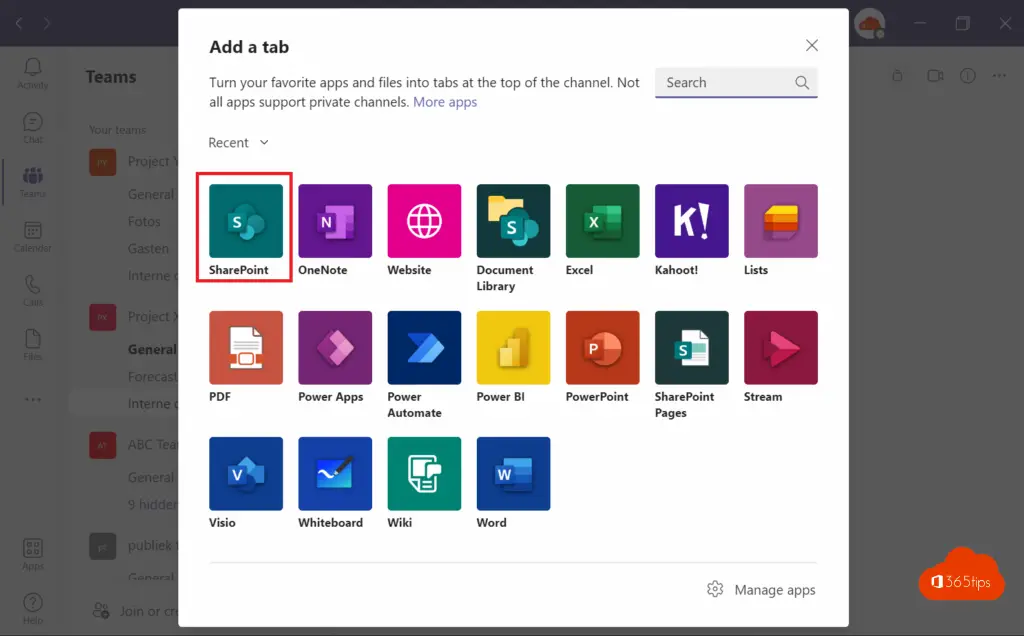
4. Copy or select the SharePoint page URL

5. Your SharePoint site is now available to everyone in Microsoft Teams!

Also read
Sharing options are grayed out when sharing from Microsoft Teams, SharePoint or OneDrive
Tutorial: How to create a page in Microsoft SharePoint Online ?
Apply default templates to SharePoint Online - Template chooser
Tutorial: How to create a communication site in SharePoint Online ?
How to rename teams-channel and corresponding SharePoint-folder name at the same time
No comments to display
No comments to display