
Powershell Master Cheatsheet
Get LAPS Password
Get-LapsADPassword mut7gpc202 -AsPlainTextHide a user from the Global Address List
Set-ADUser paulie -Replace @{msExchHideFromAddressLists=$true}Unhide a user from the Global Address List
Set-ADUser paulie -Replace @{msExchHideFromAddressLists=$false}Return Deleted Users From Azure AD
connect-msolservice
Get-MsolUser -ReturnDeletedUsers
Remove Object From Azure Recycle Bin
Remove-MsolUser -UserPrincipalName user3453@mutschlerhome.com -RemoveFromRecycleBinSet Azure User Immutable ID
#$credential = Get-Credential
#Connect-MsolService -Credential $credential
$ADUser = "user"
$365User = "user@mutschlerhome.com"
$guid =(Get-ADUser $ADUser).Objectguid
$immutableID=[system.convert]::ToBase64String($guid.tobytearray())
Set-MsolUser -UserPrincipalName "$365User" -ImmutableId $immutableID
Set Azure Group mS-DS-ConsistencyGUID ID
Set-ADGroup -Identity 'CN=Service Accounts - Deny Interactive Logon,OU=To Move,DC=corp,DC=mutschlerhome,DC=com' -Replace @{'mS-DS-ConsistencyGuid'='2155c959-564f-405e-bea9-395632aba1d1'} -ErrorAction StopList all users hidden from the GAL
Get-ADUser -Filter {msExchHideFromAddressLists -eq "TRUE"} |Select-Object UserPrincipalName
Remove Object From Active Directory Recycle Bin
-
Run Powershell as an
admin - Check first to verify you only get the user you want from the following command.
Get-ADObject -Filter 'isDeleted -eq $True -and Name -like "*username*"' -IncludeDeletedObjects- Once you verified the only result is the user you want to delete permanently, run the following command.
Get-ADObject -Filter 'isDeleted -eq $True -and Name -like "*username*"' -IncludeDeletedObjects | Remove-ADObject
AD Health Check With Email
Active Directory List Users In Groups
$Members = @()

$domains = (Get-ADForest).domains

foreach ($domain in $domains) {

$Groups = Get-ADGroup -Filter { Name -like "Enterprise Admins" } -Server $domain | Get-ADGroupMember -Server $domain


$Members += $Groups
                               }

$Members | Export-CSV -Path C:\Temp\Admins.csv -NoTypeInformation
Custom Intune Detection Script
Disconnect Disconnected Users
$pc = qwinsta /server:dcwipvmhsj001 | select-string "Disc" | select-string -notmatch "services"

if ($pc)
{
  $pc| % {

  logoff ($_.tostring() -split ' +')[2] /server:SERVERNAME

  }
}
Distribution List Modification
Export Local Group Membership
net localgroup “Administrators” > C:\Servers.txt
Get CPU and RAM Usage
Get Drive/Folder Owner
GET-ACL “$Path”| select path, Owner -expand access | select @{n=”Path”;e={$_.Path.replace(“Microsoft.PowerShell.Core\FileSystem::”,””)}}, Owner, IdentityReference, FileSystemRights, AccessControlType, IsInherited
Get Groups From AD User
Get-ADPrincipalGroupMembership adminrgastineau | select nameGet List of Members in a Group
Net localgroup administratorsMust use ActiveRoles Management Shell for Active Directory
get-qadmemberof -indirect "GROUPNAME" -sizelimit 0 | Select-Object Name | ConvertTo-Csv -NoTypeInformation | Out-File c:\temp\users.csvGet USERID From SID
$objSID = New-Object System.Security.Principal.SecurityIdentifier ("S-1-5-21-2484819571-2125529598-2454565363-2184915")
$objUser = $objSID.Translate( [System.Security.Principal.NTAccount])
$objUser.Value
Get User SID
$objUser = New-Object System.Security.Principal.NTAccount("USERNAME")
$strSID = $objUser.Translate([System.Security.Principal.SecurityIdentifier])
$strSID.Value
How to Change the Owner of an Azure Active Directory Device
Install Elastic Defend on Windows
Install within Powershell, NOT Powershell ISE.
New-Item -ItemType Directory -Force -Path C:\Temp | Out-Null
cd C:\Temp
Invoke-WebRequest -Uri https://artifacts.elastic.co/downloads/beats/elastic-agent/elastic-agent-8.7.0-windows-x86_64.zip -OutFile elastic-agent-8.7.0-windows-x86_64.zip
Expand-Archive .\elastic-agent-8.7.0-windows-x86_64.zip -DestinationPath .
cd C:\temp\elastic-agent-8.7.0-windows-x86_64
.\elastic-agent.exe install --url=https://192.168.1.191:8220 --insecure --enrollment-token=U1phc3ZZY0JPV053QmVvVGxGNHU6TFR1XzdGMDNSSUdrdklObTJLS2RiQQ==
Mass Service Kill
Get-Content c:\scripts\servers.txt | .\Restart-Service –ServiceName dnscacheMass Task Kill
taskkill /F /IM 'wmiprvse.exe(Get-Content 'c:\Temp\Computers.txt') | ForEach-Object {
Get-WmiObject -computer $_ -class win32_process -filter "name = 'wmiprvse.exe'" -credential $cred| %{$_.terminate()} | out-null
}
RSAT Install
Remove Ghost Devices
Test gMSA Account on DCs
View/Delete Local Profile List
Get Unique Departments From Active Directory
get-aduser -filter * -property department | select -ExpandProperty department | sort-object -uniqueGet ACL for Files and Folders
The first PowerShell cmdlet used to manage file and folder permissions is get-acl; it lists all object permissions. For example, let’s get the list of all permissions for the folder with the object path \\fs1\shared\sales
Get-acl \fs1sharedsales | fl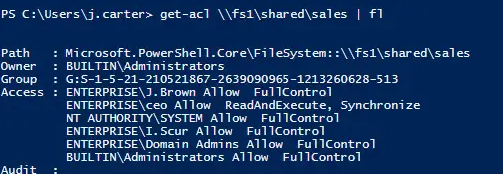
Revoke Azure Token
- Connect to Azure
Connect-AzureAD- Revoke Token
Revoke-AzureADUserAllRefreshToken -ObjectId johndoe@contoso.comPing With Timestamp and Log
Remove line 1 from each code block to remove the logging to file.
The script below pings the target 10 times.
Start-Transcript -Force -Path "C:\temp\ping.log"
Test-Connection -Count 10 -ComputerName COMPUTERNAME | Format-Table @{Name='TimeStamp';Expression={Get-Date}},Address,ProtocolAddress,ResponseTime
The script below pings the target the maximum number of times for Powershell Versions below 7.2.
Start-Transcript -Force -Path "C:\temp\ping.log"
Test-Connection -Count 2147483647 -ComputerName COMPUTERNAME | Format-Table @{Name='TimeStamp';Expression={Get-Date}},Address,ProtocolAddress,ResponseTime
The script below pings the target indefinitely.
Requires Powershell Version 7.2 at minimum.
Start-Transcript -Force -Path "C:\temp\ping.log"
Test-Connection -Repeat -ComputerName COMPUTERNAME | Format-Table @{Name='TimeStamp';Expression={Get-Date}},Address,ProtocolAddress,ResponseTime