
Welcome to MutschlerHome
Introduction
Welcome to
The section below will give some information about Plex, what it is, and how to use it. It will also provide suggestions on players to use for the best experience. Enjoy!
What's Plex?
So what is Plex anyway?
You can think of Plex as a streaming service like Netflix or Amazon Prime Video that is operated by someone you know instead of a huge company. What this means is that they have complete control over what content is available, and can often obtain shows and movies that you're looking for.
Is Plex free?
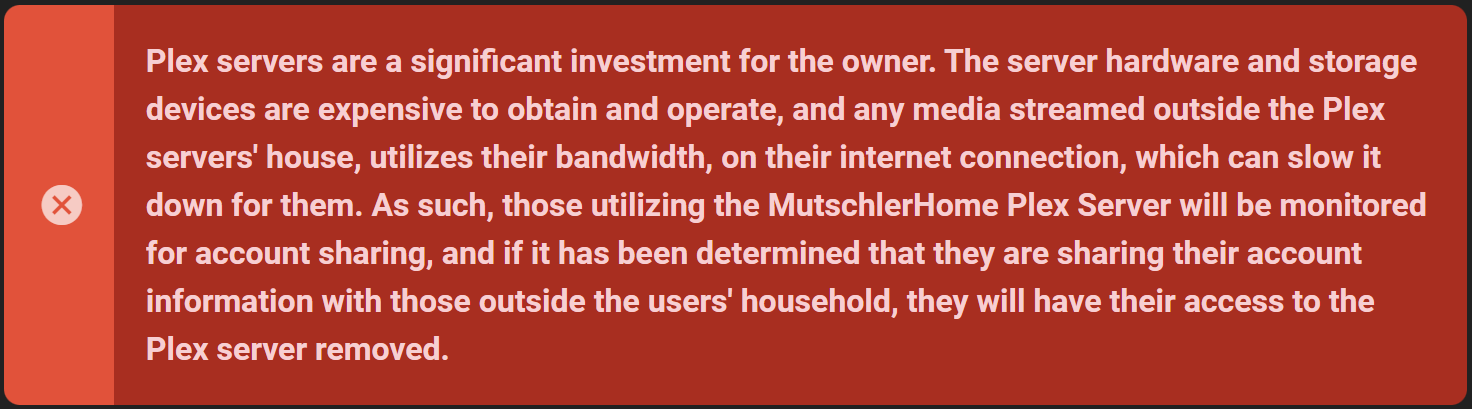
Server owners typically provide access to close friends and family only and don't charge for it.
Many server operators do pay a monthly or yearly fee for some additional features known as Plex Pass from the company that makes the Plex software. This helps to support ongoing efforts to make the Plex software better.
As a viewer, you can connect to and watch content on Plex servers for free through the Plex.tv web site. However viewing on the website often requires that the server transcode the media for you (more on that later). By using a Plex player that's specific to your hardware and platform, you'll get a better playback experience. On some platforms like iPhone and iPad as well as Android phones and tablets, you will have to pay a small one-time fee (around $5 US) to activate the Plex player on your iTunes or Google Play account. This will unlock the player on all the devices you use on your account.
Sharing Plex Accounts
Is Plex legal?
Plex is just a collection of software encompassing servers and clients. Plex itself is perfectly legal.
You can use Plex to stream content nearly anywhere without worrying about copyright notices or the need to use a VPN or other means to hide your traffic.
Depending on where the server is located and how the available media on the server was obtained, there is a large grey area of legality surrounding copyright issues.
Getting Started
If you're here, you were probably invited to join my Plex server. The first step if you haven’t already, is to send me the email address you will use to create your free Plex account.
Shortly after you'll receive an email inviting you to join my server. Click the link in the email to accept the invitation and create your account at Plex.
Now's the time to connect your playback devices to your new account. Depending on what you're using, you may need download and install a Plex client for your device, or one may have come pre-installed. Whether you have an iPhone, Android, Roku, Smart TV, Xbox, or other device, you will want to download a Plex App from their website or the device’s app store. When on the Plex Downloads page, check the list of apps and follow the instructions for your preferred device.
Upon first use for most of these platforms, you will either have to log in with your username and password, or link the device with your account when prompted. To link your account, your Smart TV or streaming device will show you a code made of 4 letters or numbers. Simply visit plex.tv/link and enter the code (you may have to sign in first if you're not already). This linking process saves you from having to enter your username and password on your TV which can be frustrating.
Once you've entered the code, your streaming device should sign in automatically after a few moments.
You can visit the Plex Downloads page to see a list of platforms on which the Plex player is available and be directed on how to install it for your device.
For convenience, Plex provides an online web client you can use to watch content at app.plex.tv. This makes it easy to catch up on your favorite shows while travelling or away from your preferred devices. However, using the web client should be avoided when possible as it is inefficient and puts unnecessary strain on the Plex server hardware.
Playback Quality
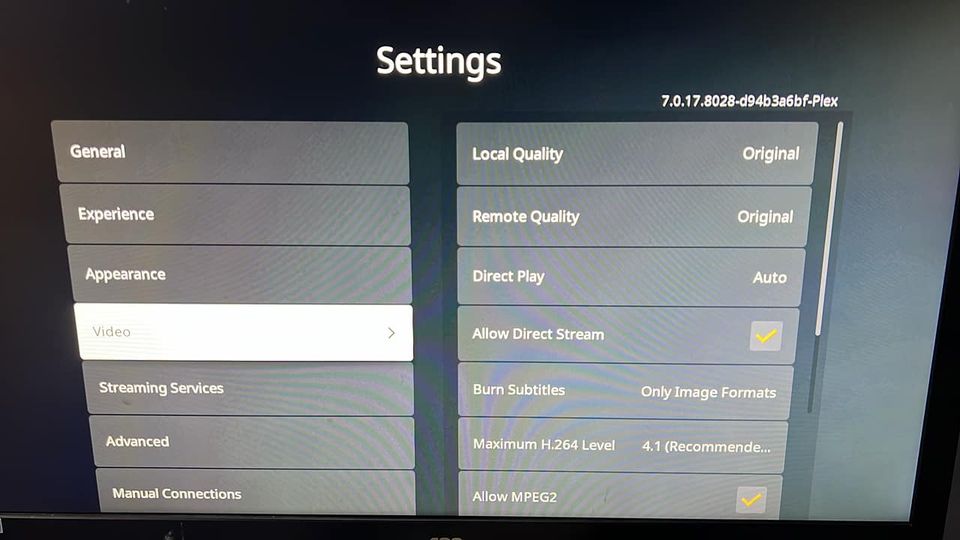
Plex playback quality is dynamic and tries to adjust to the capabilities of your player and to the available internet bandwidth of the person hosting the Plex server. However out of the box, the quality settings in most Plex players are very conservative. Please use the images below, as well as my bullet points as a guide on how to setup your player for the best experience possible.
Roku Settings Explained
 |
|---|
| Quality Settings for a Roku |
- As shown in the picture above, please ensure
Local QualityandRemote Qualityare set to original.Direct Playshould be set toAuto, andAllow Direct Streamshould be checked.
 |
|---|
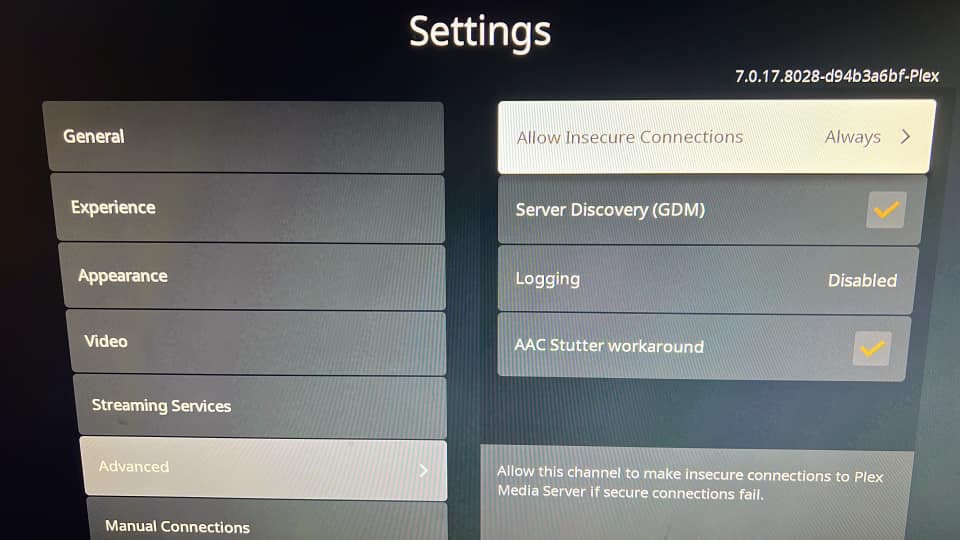
| Connection Settings for a Roku |
- Ensure that
Allow Insecure Connectionsis set to always.
Plex Web App Settings Explained
 |
|---|
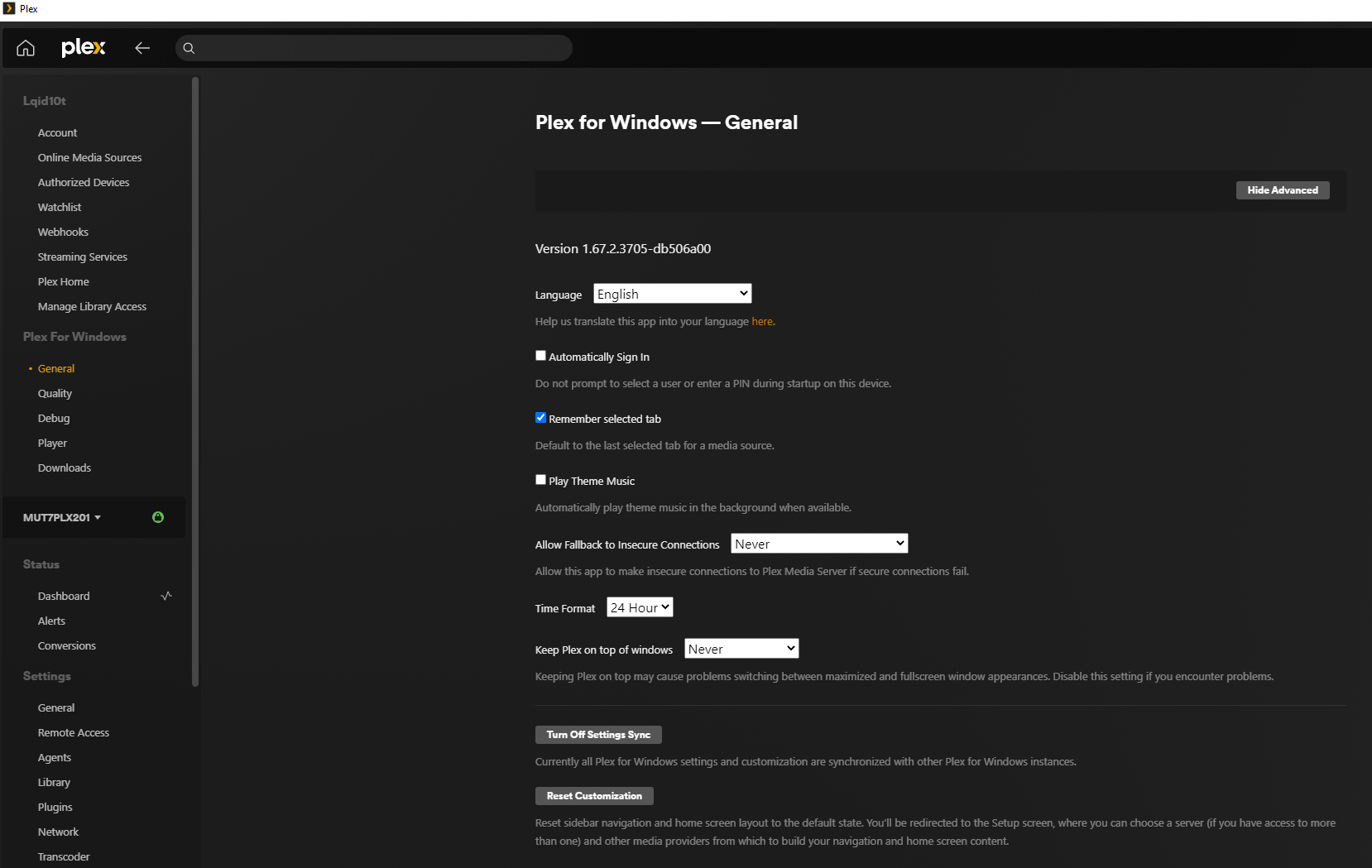
| Connection Settings for Plex for Windows |
- In the General section, ensure that
Allow Fallback to Insecure Connectionsis set toAlways
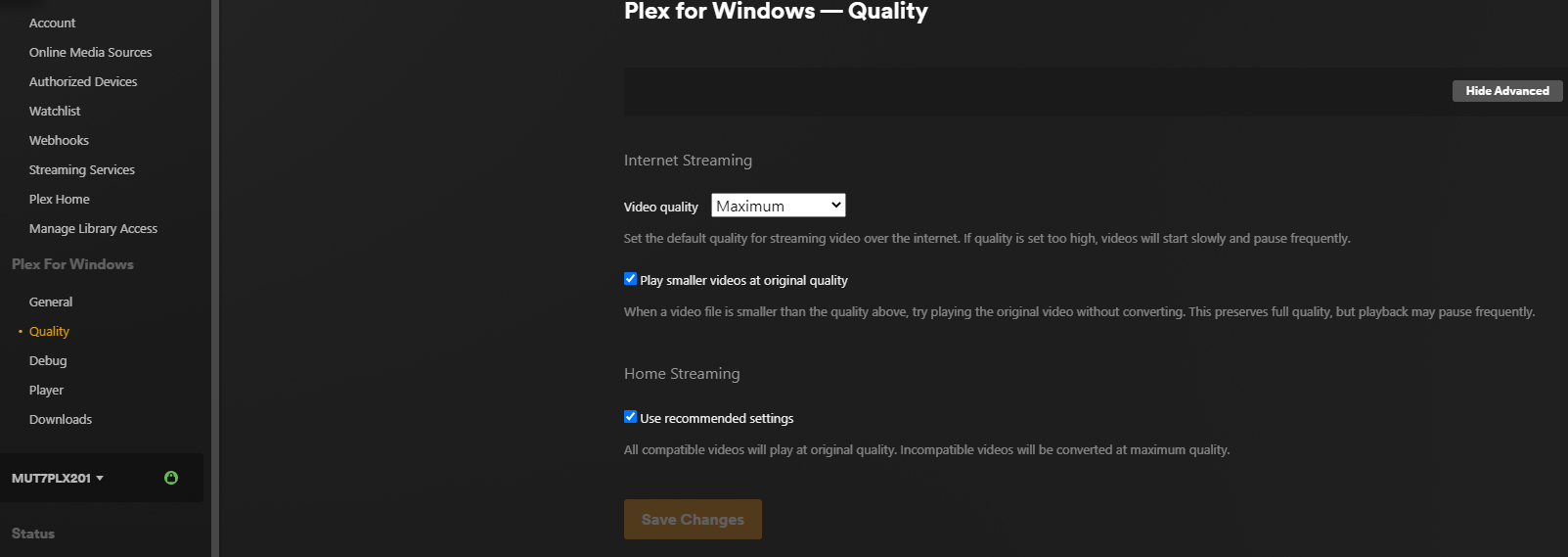 |
|---|
| Quality Settings for Plex for Windows |
- In the Quality section, ensure that
Video Qualityis set toMaximum,Play Smaller Videos at Original Qualityis checked, and under "Home Streaming,Use Recommended SettingsisUnchecked, andVideo Qualityis set toMaximum.
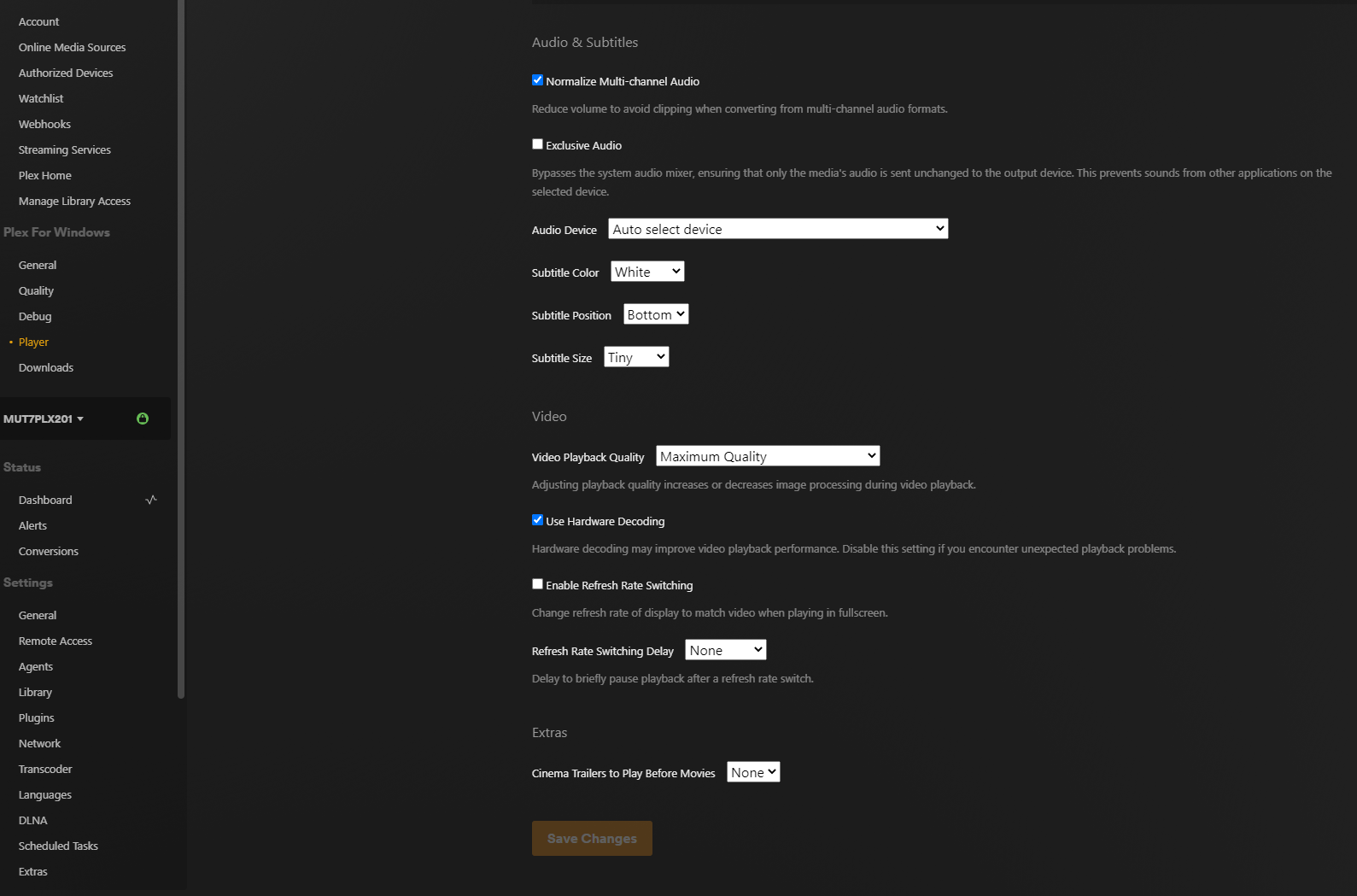 |
|---|
| Player Settings for Plex for Windows |
- In the Player section, under
Audio & Subtitles, make sureExclusive Audiois checked if you are utilizing any form of Surround Sound and/or a receiver/sound bar to produce your sound. Also make sure underAudio Devicethe proper windows device is set so that it doesn't change if devices are added/removed. UnderVideo Settingsensure thatVideo Playback Qualityis set toMaximum,Use Hardware Decodingis checked if you are using an Nvidia/AMD GPU, or the onboard graphics of an Intel CPU.
Since I do not have all of the other possible devices that can play Plex, I will leave links to the settings explanation page for each of them. Please use the above screenshots if necessary to make sure the changes above are made on the players I do not have screenshots for for maximum quality.
Settings: Plex for Android (mobile)
Settings: Android TV
Settings: Plex for Apple TV
Settings: Plex for iOS
Settings: PlayStation
Settings: Xbox
Please also see Recommended Devices below that outlines the best players to use for the best experience.
Libraries
Plex servers are organized with Libraries in order to accomplish a number of things. Foremost this helps viewers locate the content they're looking for. Broad categories like TV Shows and Movies also enable the Plex server to obtain the correct information to fill in the details about content such as the synopsis, actors and other information about the media.
Libraries are often further separated into subjects like Anime, Comedy or US Animation to facilitate finding what you want to watch.
Note: The Plex creators recently added a new Library that appears for all users called Movies & TV On Plex. Users should know that the ad-supported content in this special library is not provided by the owner of the Plex server and is available through a deal between Plex software and a number of movie studios. Plex server owners have no control over the content of this library. In most Plex players, you can find an option to Unpin this library from your list so it doesn't appear.
Navigation
Depending on what device or platform you're using Plex from, the interface can vary slightly, but typically you will find a list of the Libraries on the server located in a table on the left side of the display. Clicking or tapping the name of a Library will change the content view on the bulk of the page to that Library. Along the top of the main view you can switch between Recommended, Library or Playlist.
Recommended
This is a view of content the server selects that contains a mix of items in this library that are new or popular.
Library
This view shows the full contents of the Library. In alphabetical order by default. But you can use filters and sorting to change how the list is presented.
Playlists
If the server owner has curated playlists of content - such as all the films in a series - they may be presented here. It is normal if this page is empty.
Playback
Playback works very similar to how it does on other streaming services.
On streaming devices, if you push the play button on a title, playback should begin immediately. If you press select/OK/enter, you'll be taken to the information page about a title. For movies this will include a summary and other information. For a TV show, this will go to a list of seasons. And from there you can select a season to view the list of individual episodes.
On a desktop client, when the mouse is over the title image, a Play button will be visible - if you click that, playback should begin. If you click elsewhere, the process will be similar to selecting on a streaming device.
Requests
If you find that I don’t have something you would like to watch, I do provide the ability for you to request new movies and TV shows. To do so, go to OmbiOverseerr and login with your Plex account. Once logged in, there will be a search bar at the top of the screen that you can use to search for your desired TV show or movie. When you click the request button on the page with your media, you may see an advanced options menu. Feel free to leave the defaults and just click request. When specifically requesting a TV show, it will ask you if you want specific episodes, all seasons, first season, or newest season. Feel free to click all seasons, as I prefer to have TV shows complete.
Once requested, the system will automatically search for you and grab the files. Once completed, it will also let you know via the email address you use for your Plex account.
Recommended Devices
After speaking with a number of my users, and hearing of the many issues they all can sometimes face, I wanted to provide some input on the best clients to use to access Plex, as not all are created equal, and you WILL get better performance out of specific devices vs others. After demoing numerous devices I have come to the following conclusions on which devices are the best for Plex use, and will give you the most stable and consistent results. Below are comparisons for common devices that run Plex. In bold will me my suggestions for each product, and whether or not I suggest using them. Please be warned, if you are not using a device that I have recommended, your experience with Plex may vary, and I cannot ensure that every TV Show or Movie will work properly with your device.
Apple TV
I have some users that have used these devices including myself, but I have heard a decent amount of complaints about the quality when used. Most complaints are about the stuttering, or the videos not even loading. Apple may make decent hardware, but they typically make terrible decisions when it comes to support for the recognized formats widely in use. This is apparent in especially the older versions of these devices, as they primarily only accept MP4 formats, although the newer versions are opening up support for more.
If you have one of the newest AppleTVs, I can recommend them wholeheartedly. If you have one of the older ones though, you'll more than likely struggle.
It should also be stated, that the Plex app is in pretty rough shape on these. There is however a third party app called Infuse also here for more information that I highly recommend. It utilizaes its own player instead of the one Plex uses which offers more support for various playback formats and typically will allow your media to play at higher qualities. The biggest downside to Infuse, is there is an additional cost either monthly, or a lifetime subscription for $.99/month, $9.99/yearly, or $74.99/lifetime (prices subject to change) to get the full features. This is the absolute best way to watch Plex on an Apple device though, and your subscription can also be passed to family members with Apple Family Sharing.
Nvidia Shield
If you want the absolute best experience you can possibly have with Plex, this is the best device to get. That experience comes at a cost though, as these tend to be more than double to triple the cost of any other device on this list. The benefit that you get from that cost is options. If you care about Plex, but love gaming, this is the device for you. Not only is it a traditional Android TV device, so it supports all kinds of apps, but it also has the horsepower to stream games, either from your own PC, or places such as GeForce NOW. It can run Retroarch and most games up to the PS1/PSP level without issue natively. This device can do pretty much anything, and even allows you to hook up XBOX 360 and PS4 controllers to play games with. Like I said though, all these features come at a premium, with retail price being $149.99, and a sale on Amazon at time of writing $129.99. This is the absolute best overall device for Plex andcan do WAY more than streaming just media.
Roku
Rokus are the most consistent devices I’ve found, that provide the best results for the least money. They also have the ability to stream cable services, as well as many other streaming services with zero issues. If I were to make a recommendation on picking out a device specifically for consistent Plex usage when considering cost, I would suggest these. There are small differences in the ones I am about to link below, but each of these has more than enough horsepower to provide a stable experience for cheap. There have been issues lately with not being able to play some content, and this appears to be an issue that only Roku's have. Since I have updated my server, it seems a lot of these have gone away, but in case it comes back, I cannot address most of the issues with playback on these devices if you get a similar error to the picture below, as the issue is with the profile that Plex has created for Roku devices, and I cannot edit that.
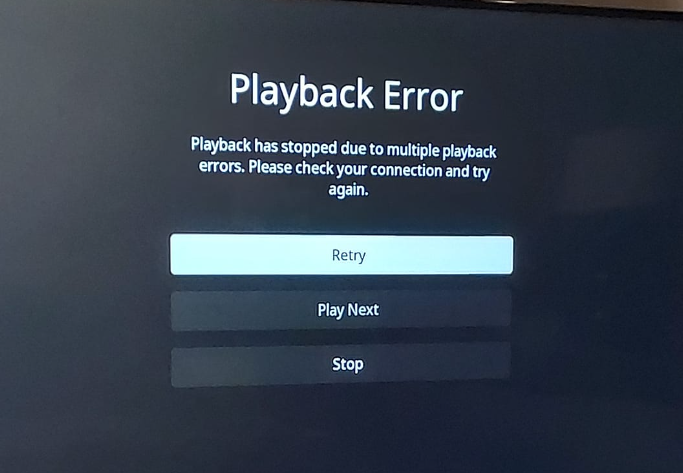 |
|---|
| Roku Error |
Roku Premeire
This device is the cheapest I would go with a Roku. They are WiFi only, but have the ability to hardware decode any file on my server. What this means for you, is that it should be able to directly stream any file with no transcoding(for those of you that don’t know, transcoding is a bad thing, and wastes resources on my server, and requires more time to get to you). These retail for about $40, but can regularly be found for $20 or $30 on amazon. The downside with this device, is that is has an outdated WiFi protocol, and may not be fast enough for streaming 4k Netflix and similar unless you have a REALLY good WiFi connection.
Roku Streaming Stick + - This device is what I would suggest everyone pick up. It has everything the above Roku has, with a MUCH better WiFi interface. These typically retail for around $50, but have been known to go on sale on Amazon and Target for around $35-$40. Pick this up for the best value for your money.
Roku Ultra – This device would be the best of the best when it comes to Roku. This has a good WiFi interface(not as good as the Streaming Stick +), and the ability to use an ethernet line for a hardlined connection. If you have the money to spend, this is the best Roku you can get with the absolute most stable experience. It also allows you to plug in headphones to the remote, and listen through that instead of your TV. I would not buy this version however, if you don’t plan on using a wired connection, as technically, the Streaming
Stick+ has better WiFi. This is much more on the pricey end though, and because of it, I wouldn’t suggest picking this one up. This retails for $100, with a current sale at Amazon for $84.
Devices That Are Untested or Not Recommended
Amazon Fire TV/Stick
As of writing this, I currently cannot recommend a single Amazon device. I personally use a Fire device built into my TV and have had zero issues with it, but it’s also hardlined into my network, so it has zero issues with WiFi. That being said, I have seen more people have issues with Amazon Fire Sticks dropping the network at random times, and having various issues with stability. They also cannot decode everything that my server has on it, and therefore will transcode most files from my server, resulting in slow downs, buffering, and general instability. The interface in my opinion is also pretty trash. In general I would completely avoid these devices, as even the 4k version with a broader range of media support still struggle with network issues.
Google Chrome Browser/Chromecast/Other internet Browsers
As of this moment, my server will kick you from playing anything using a web browser. I have had enough complaints about things not working or quality issues that I've stopped supporting them. I may allow them in the future if things change with them, but currently you cannot use a web browser for playback.
I can’t recommend these at all for any reason, other than temporary convenience. They are the absolute WORST devices on here, and most media will not play on these at all. Use at your own risk.
PS4/Xbox
These are in a very similar spot as the Google Chrome devices. The application that is built for these does not have a large amount of support, and only the Xbox can even take advantage of some hardware decoding functionality which is spotty at best. I can almost guarantee you’ll transcode every TV Show or Movie, leaving you with stuttering and buffering experiences. I would use these ONLY if you have nothing else.
Unlisted Devices
Anything I have not listed above is untested by me personally, and therefore I cannot recommend them. If you want to spend the money to test them and potentially be unhappy, go for it. It’s just really not wise when a Roku Premiere regularly costs around $30, and will provide a MUCH better all-around experience.
Finally
For requests, please place a request in one of the different versions of Ombi listed here.
For support, please create a support ticket here
If you would like to donate to help keep my servers running, please donate here