
Team Missing From Teams Admin Center
Cause:
An attribute on the underlying modern group isn't correctly populatedpopulated.
Replace {groupid} in the Query for the actual GroupId in question, which you can get via the Exchange Online powershell, with the "Get-UnifiedGroup" cmdlet, as the "ExternalDirectoryObjectId" attribute.attribute or by looking the group up within Entra.
1.
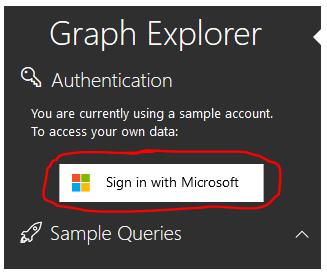
Access Graph Explorer2. Sign in to Graph Explorer on the top right-hand side menu:

3. Change the query line to: PATCH > v1.0 > https://graph.microsoft.com/v1.0/groups/{groupid}

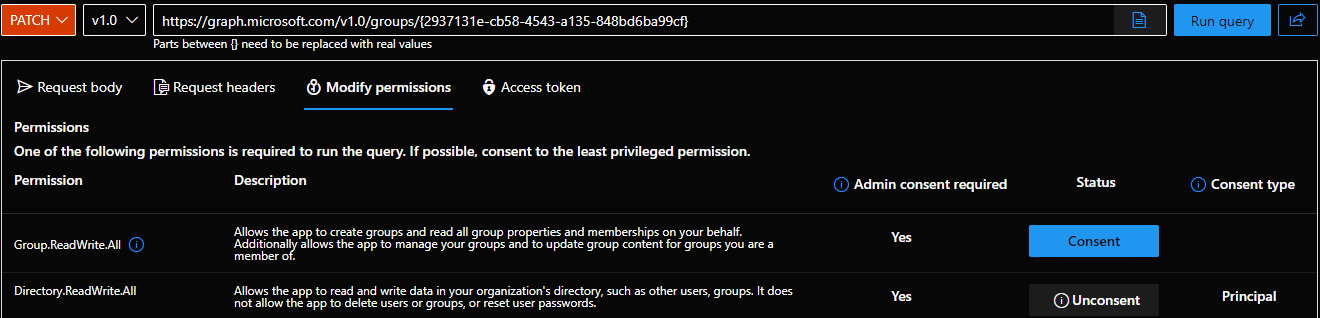
4. Click the Modify Permissions tab and consent to any permissions required ( you do not need to consent for the whole organization).
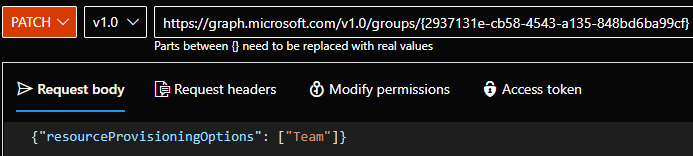
4.5. Add the following value on the request body: {"resourceProvisioningOptions": ["Team"]}
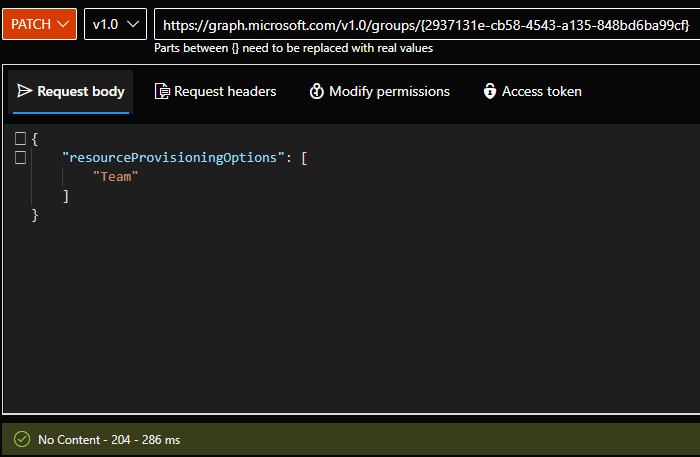
5.6. Confirm you receive a 204 response in the middle of the page.
6.7. Confirm the team appears correctly back on the Skype & Teams Admin Center - Team Overview.
Note:If the steps fail with a 403 and all permissions are correctly setup, please verify if the group is assignable to role, which will be expectedly failing.