Reset Password on Server 2016
This potentially works with other versions of Windows server as well since adding an admin command prompt to Windows is relatively universal. Overview
Disclaimer
These instructions are provided AS IS ! Use it at your own risk !!! We are not encouraging you to crack or hack systems where you have no authorized access. This post is intended for educational purposes.
Step 1 – Boot from Window ISO
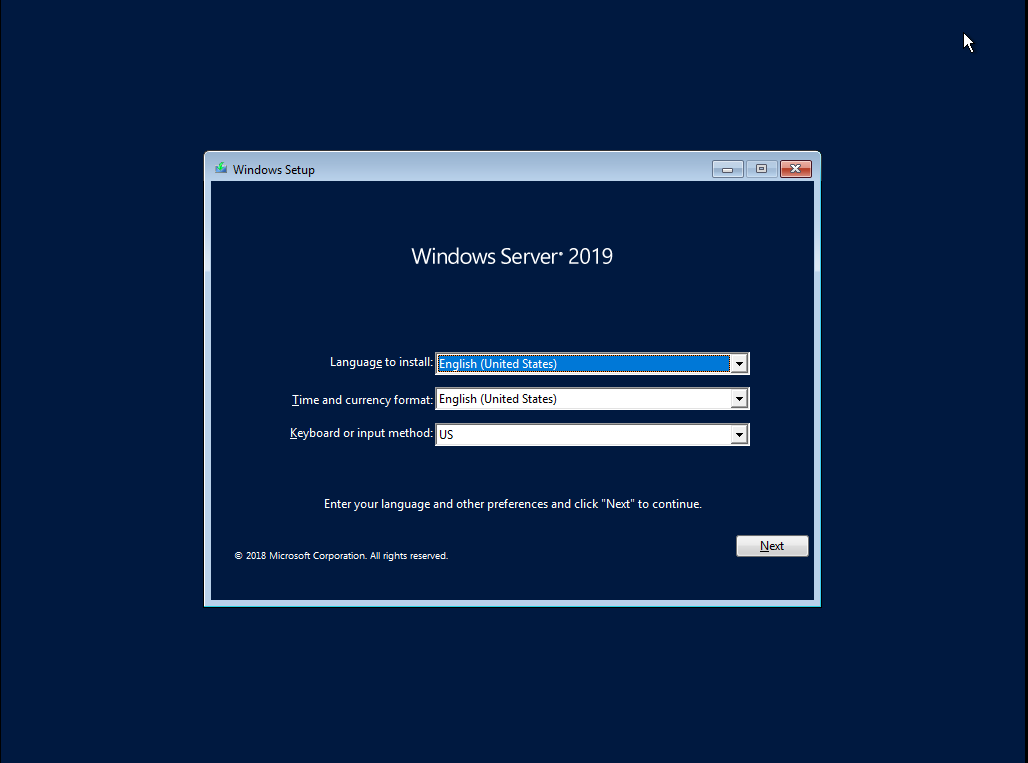
Depending your scenario (physical machine or virtual machine), you will need to boot from you Windows ISO Bootable image. When the installation wizard start, set your settings as required and press Next
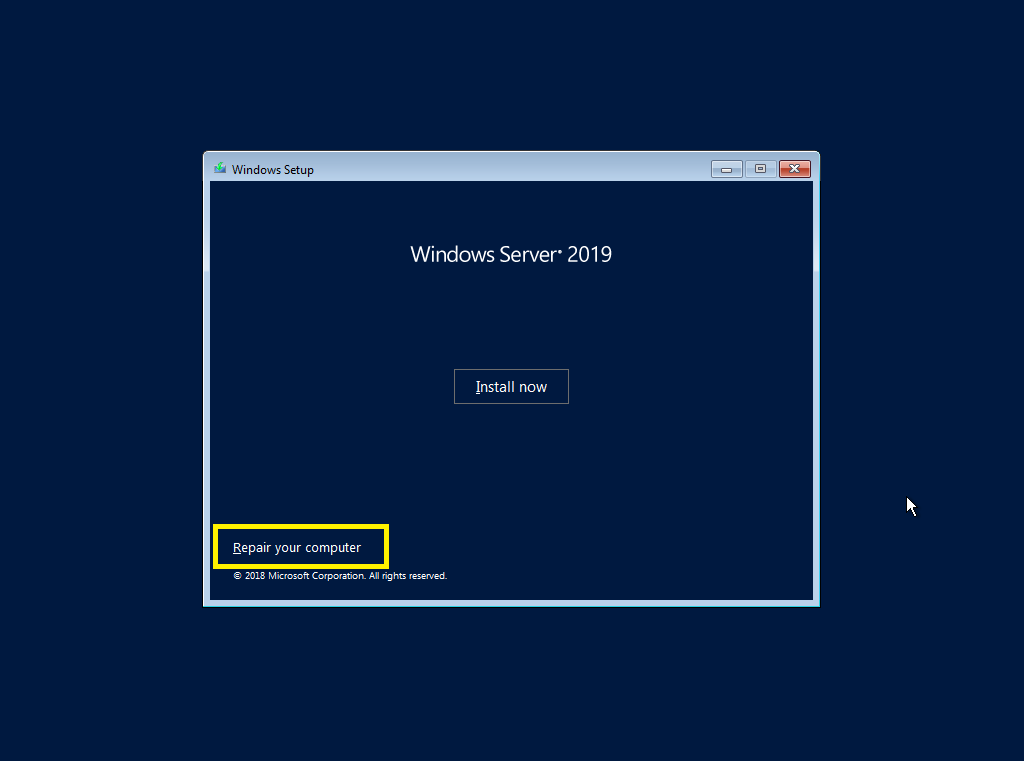
In the next installation screen, click on the Repair your Computer link in order to have access to the command line tool we will use to perform the necessary change
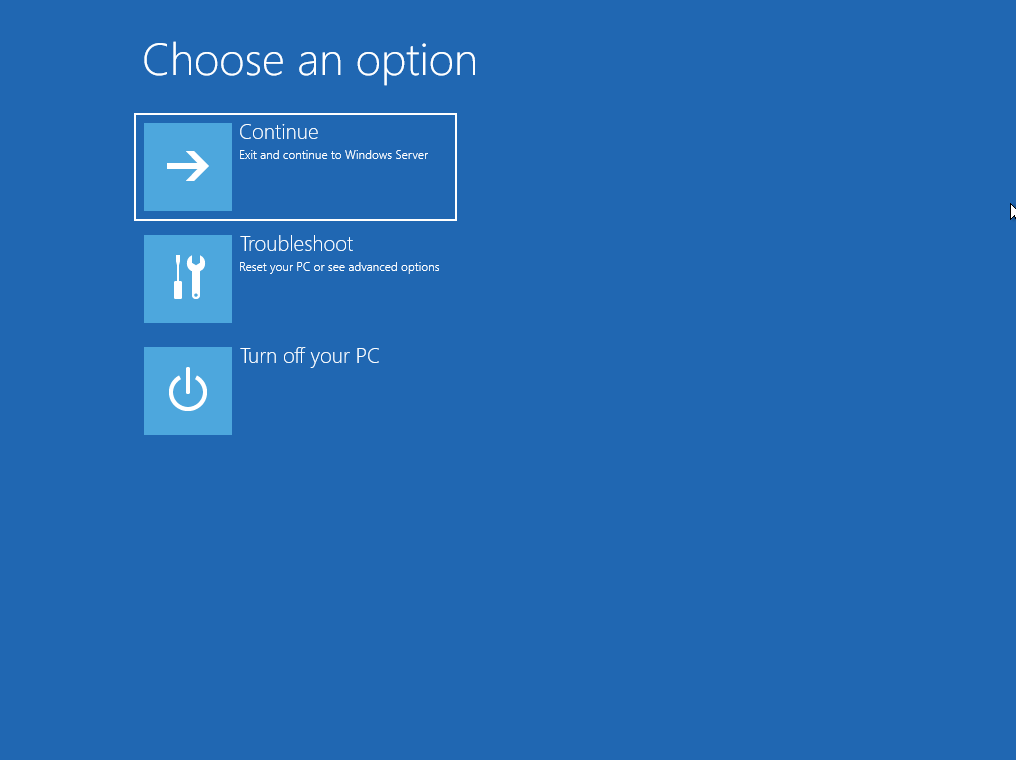
In the Choose an option screen, Select the option Troubleshoot (so the second option on the screenshot !!!)
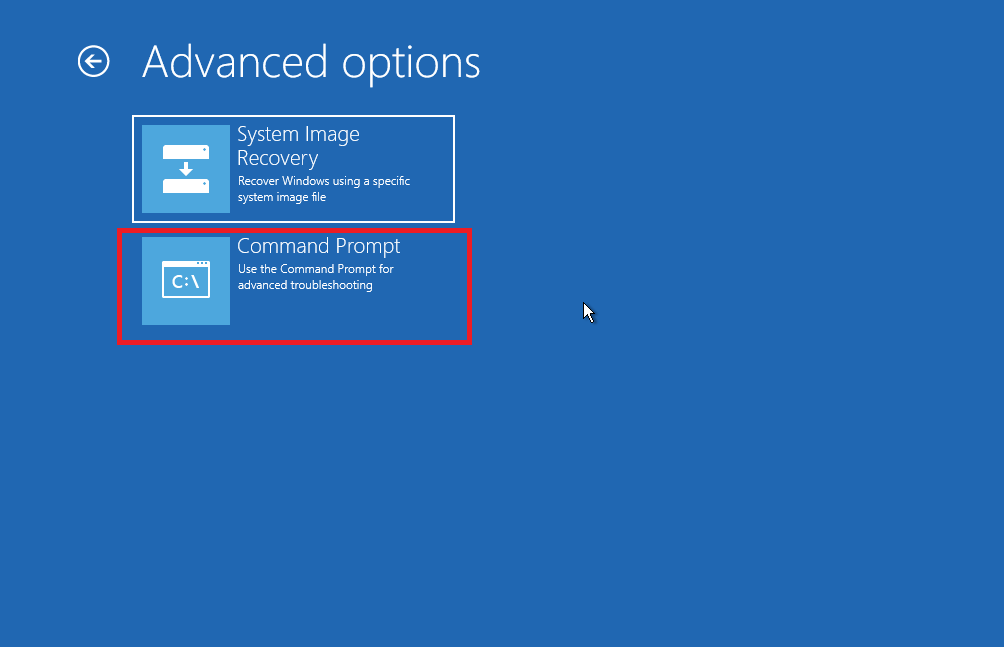
Finally, in the Advanced Settings Page, select the option Command Prompt
After clicking on the command Prompt, you can see that indeed we have access to a nice command line interface
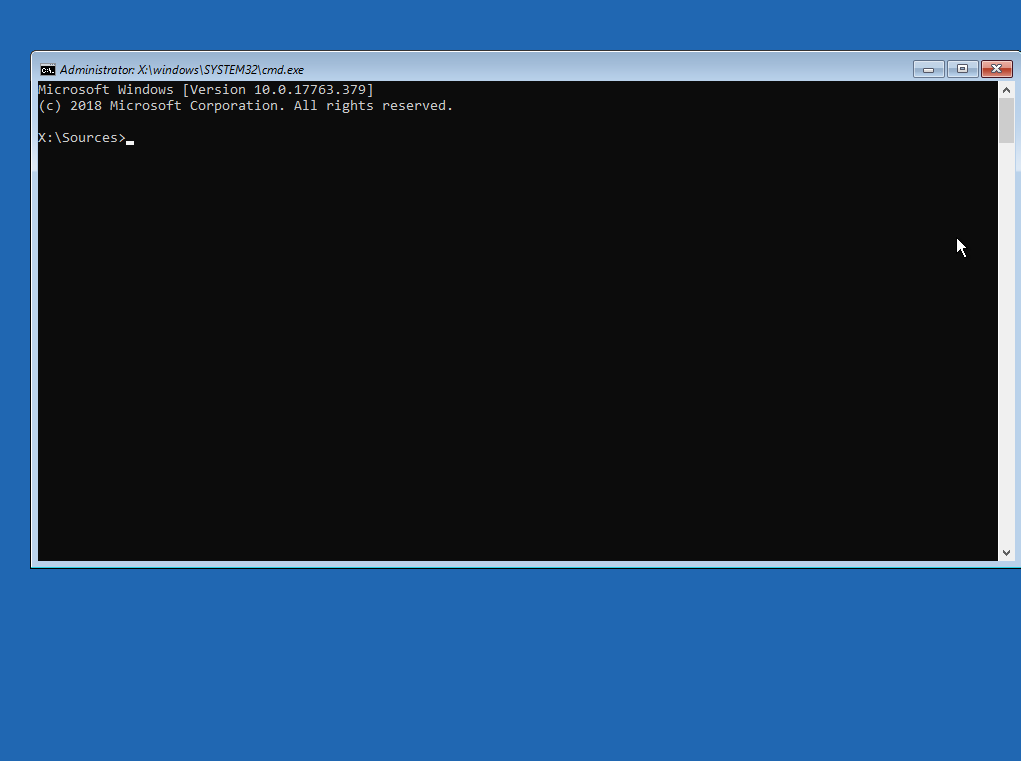
Step 2 – Modify “Offline Registry”
In the command prompt, you will issue the follow command : regedit. This will open the registry editor.
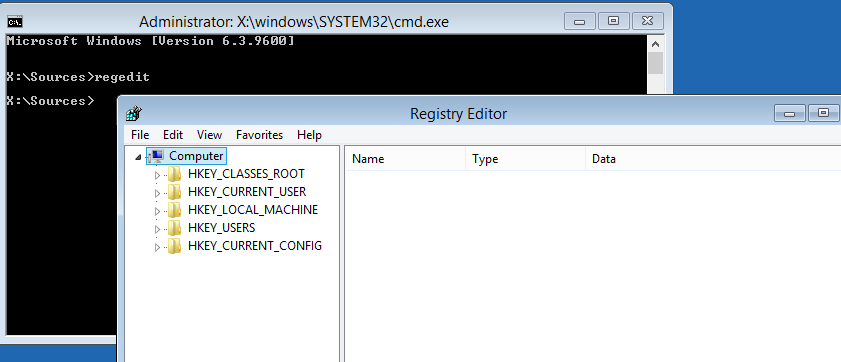
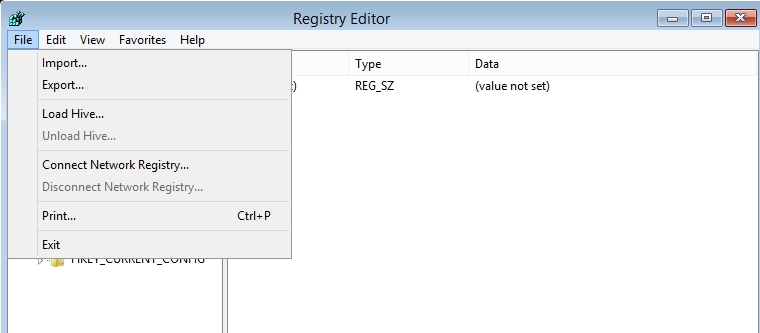
In the registry editor, Select on the HKEY_LOCAL_MACHINE Node and from the File menu, Select Load Hive
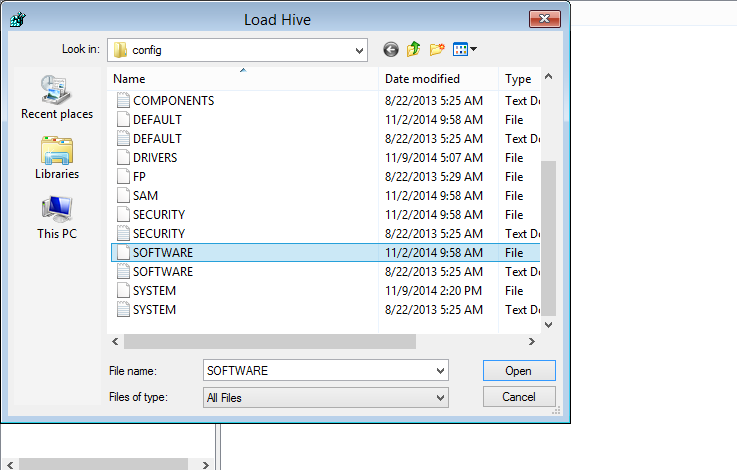
In the dialog box, find your os partition and navigate to c:\Windows\System32\config. From the location, select the file Software (not the software.txt file but the software file)
Provide a new name to the hive and press OK
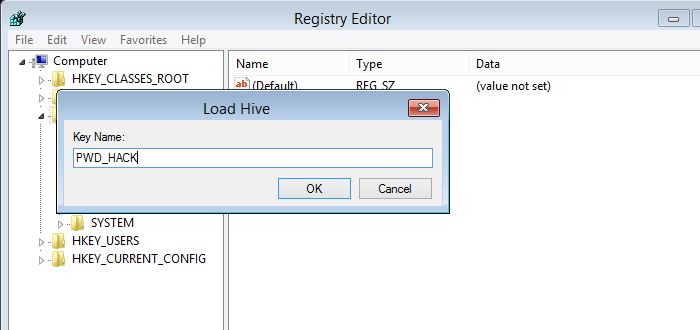
Expand the newly created folder (i.e. PWD_HACK) and browse to the following location : HKLM\<%Name of loaded HIVE>\Microsoft\Windows NT\CurrentVersion\Image File Execution Options
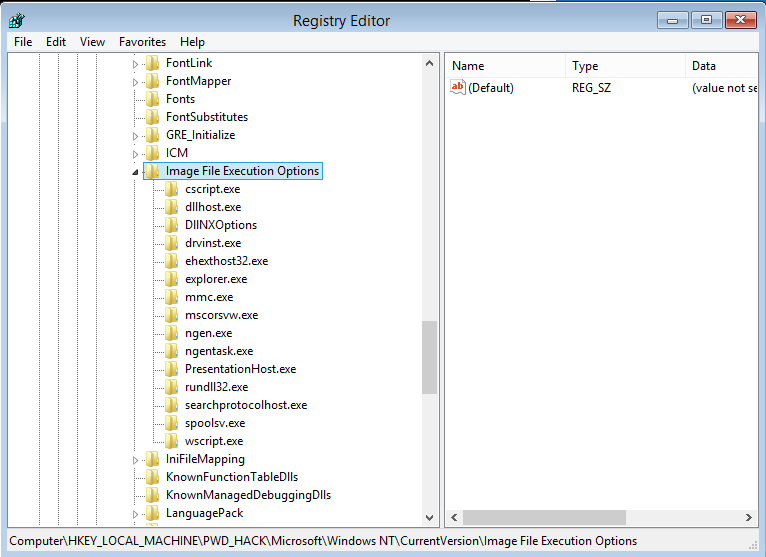
Under the Image File Execution options, create a new key called LogonUI.exe
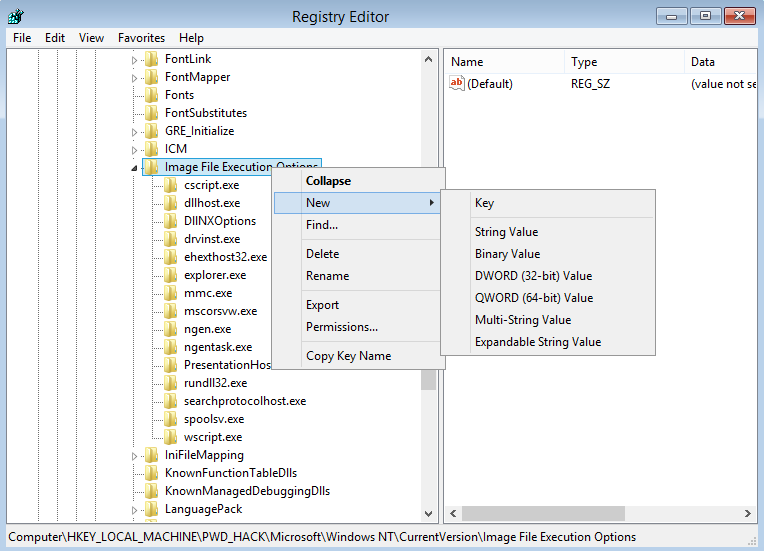
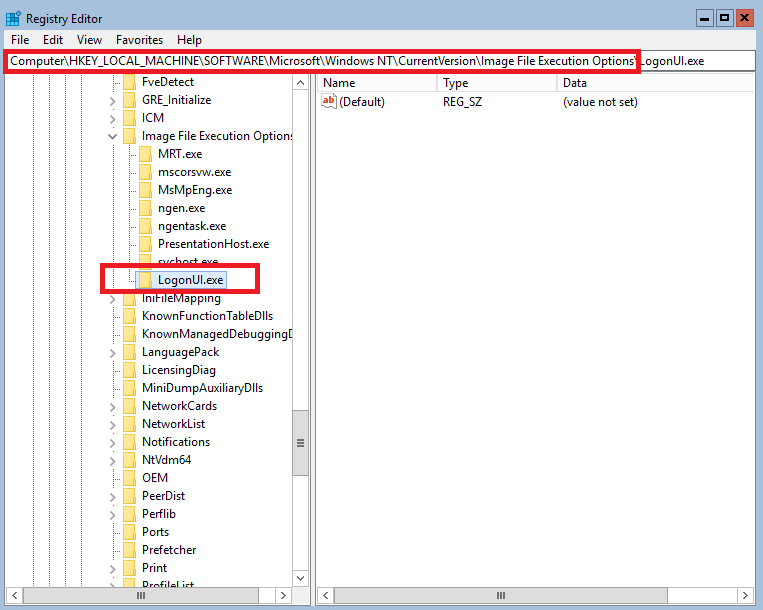
Select the LogonUI.exe key and create a new REG_SZ (String Value) called Debugger. Select the String Value Debugger, double-click on it and put as value the following c:\Windows\system32\cmd.exe.
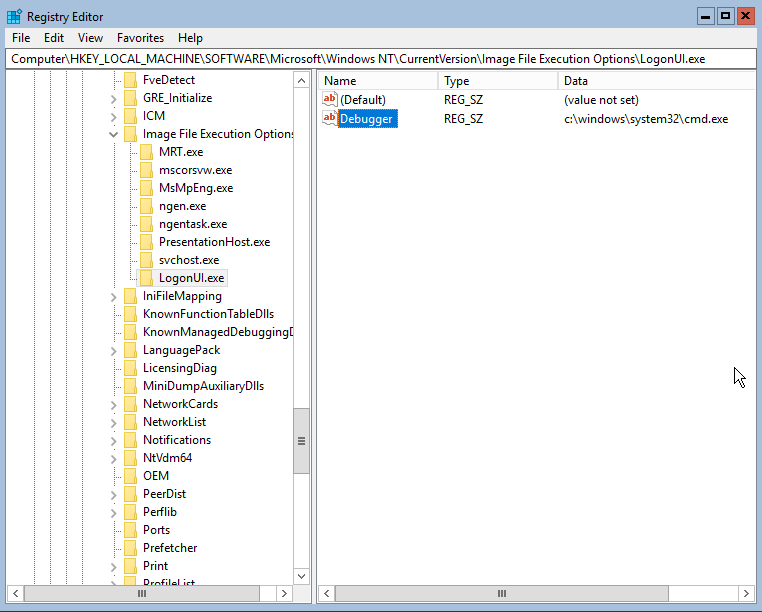
When done, you can reboot your machine….
Step 3 – Recover your Password !
The change we have made in the registry will basically start a command prompt with Admin rights instead of the login shell where you would need to enter your username and password… You have to do nothing, the prompt is there and you are ready to reset or create a new user account with admin rights in order to restore your lost access….
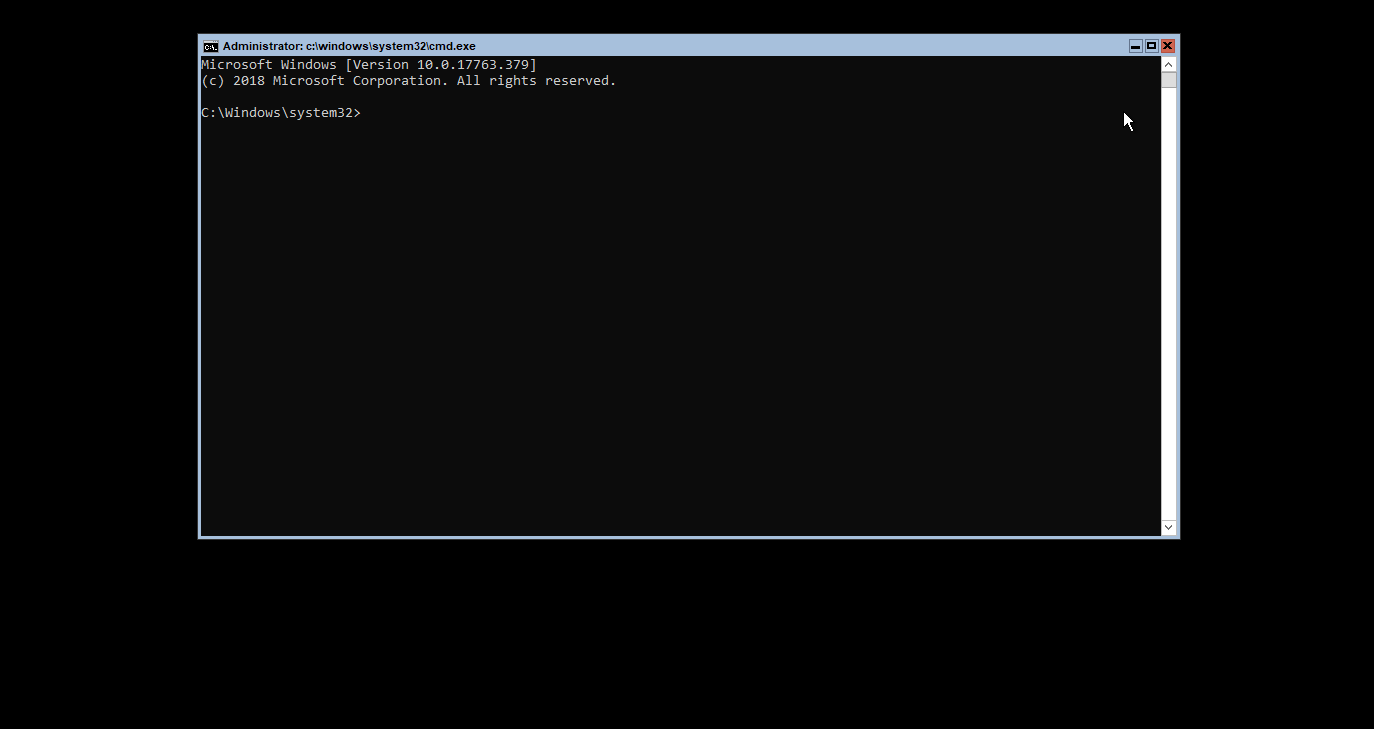
To reset the password of the administrator; type in the command prompt net user administrator <%newPassword%>
You can also create a new admin user with the commands below.
net user newuser01 newPassword /add
net localgroup administrators newuser01 /add
Step 4 – Revert your Changes while logged in
Since we are already on the machine and since we have reset the admin password, we can already revert the changes we have made. We simply need to start registry again and delete the key we have created under HKLM\Software\Microsoft\Windows NT\CurrentVersion\Image File Execution Option
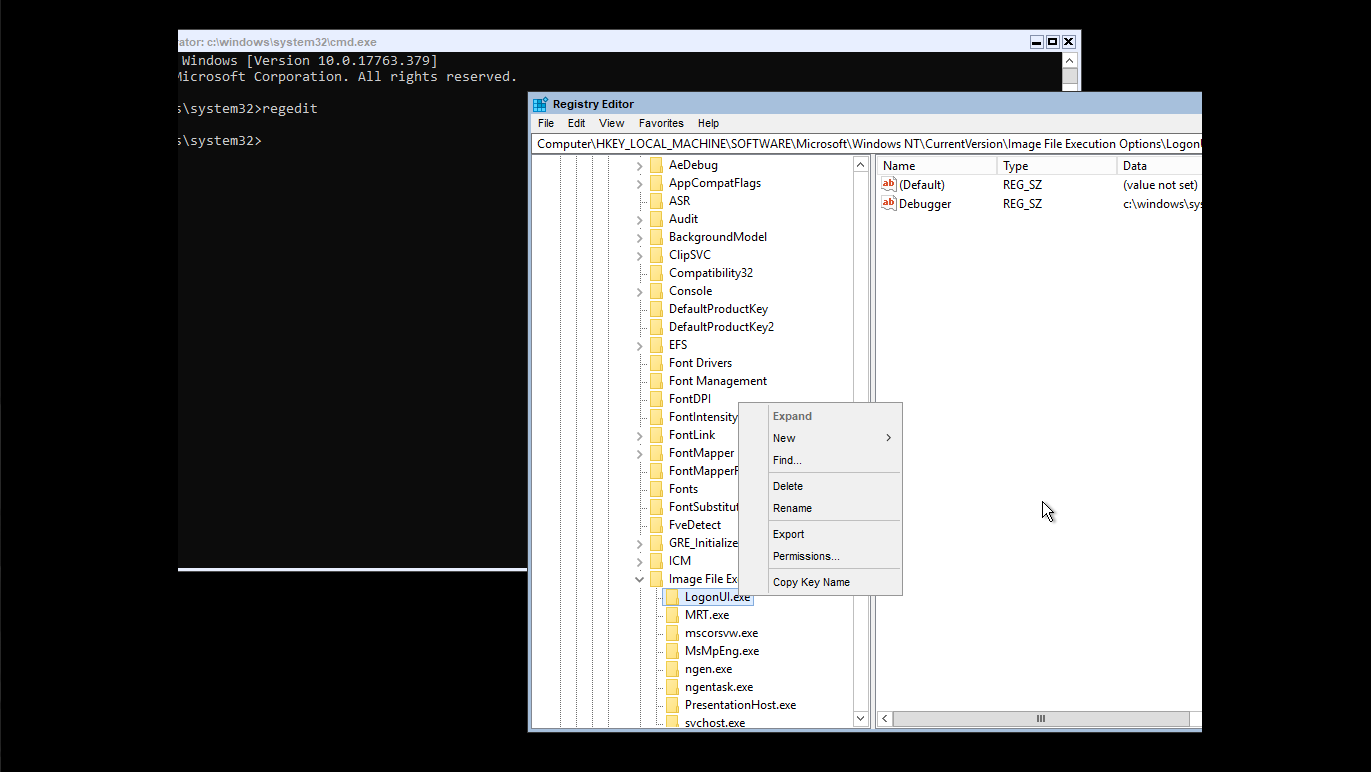
Wait a few minutes and normally the standard Login shell will be displayed.
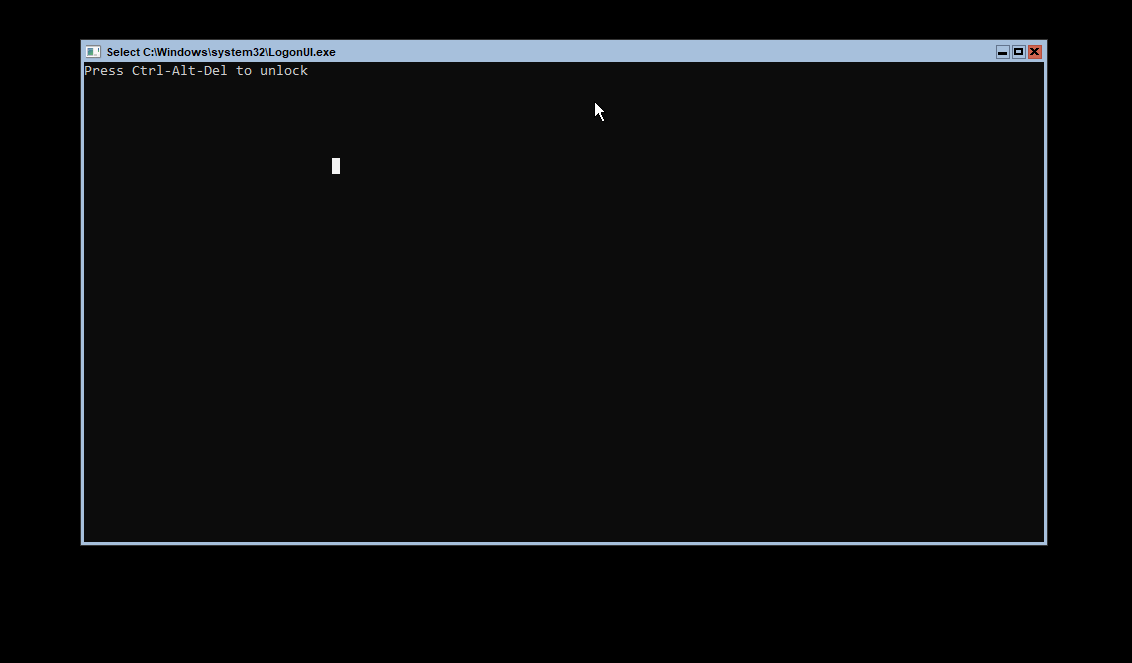
At this stage, you can try to login into your system with the newly password you have set and you can perform whatever action is needed to restore services on this specific machine.