# Windows Server and Client

# Create Recovery Partition

#### **<span lang="EN-US">\#1. Create Recovery Partition Manually</span>**

<span lang="EN-US">First, verify there is no recovery partition.</span>

1. <span lang="EN-US">Open Disk Manager by right clicking the start menu, and choosing **`Disk Manager`.**</span>
2. <span lang="EN-US">Verify you don't already have a recovery partition created. They will typically be under 1GB and next to the health status will be labeled **`(Recovery Partition)`**. If there is one created, follow [these](https://wikipedia.mutschlerhome.com/books/windows-walkthroughs/page/delete-recovery-partition "Delete Recovery Partition") instructions to delete the partition.</span>[![image.png](https://wikipedia.mutschlerhome.com/uploads/images/gallery/2024-04/scaled-1680-/AiZqalufSzXFQRzI-image.png)](https://wikipedia.mutschlerhome.com/uploads/images/gallery/2024-04/AiZqalufSzXFQRzI-image.png)
3. Open an admin command prompt and enter the following command to verify the recovery partition is disabled. ```powershell
    reagentc /info
    ```
    
    [![image.png](https://wikipedia.mutschlerhome.com/uploads/images/gallery/2024-04/scaled-1680-/EK1BXgz0uVL7Xat1-image.png)](https://wikipedia.mutschlerhome.com/uploads/images/gallery/2024-04/EK1BXgz0uVL7Xat1-image.png)
    
    <p class="callout info">If the recovery partition is not disabled, run this command to disable it.  
    </p>
    
    ```powershell
    reagentc /disable
    ```
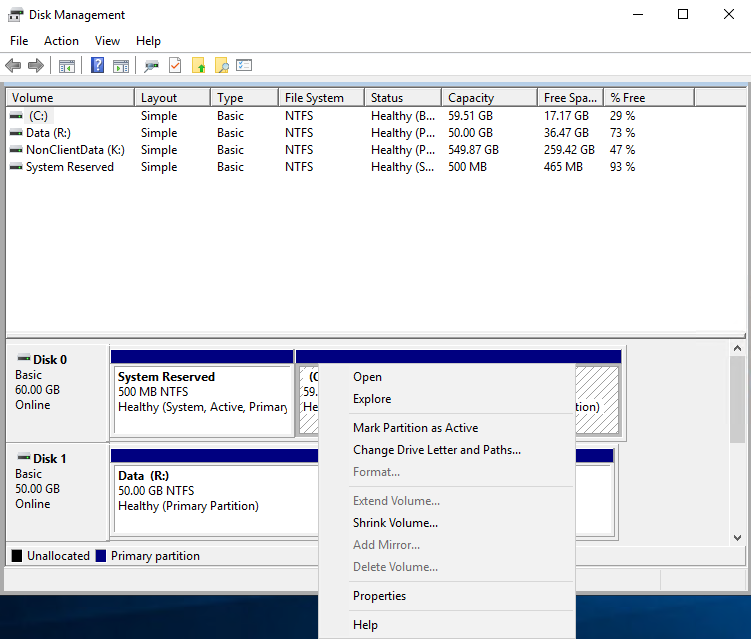
4. Using Disk Manager, choose and shrink the existing Windows partition to create space for the new recovery partition. [![image.png](https://wikipedia.mutschlerhome.com/uploads/images/gallery/2024-04/scaled-1680-/utXhldoK9LOHJ5j0-image.png)](https://wikipedia.mutschlerhome.com/uploads/images/gallery/2024-04/utXhldoK9LOHJ5j0-image.png)
5. In the **`Shrink`** options, in the "`<strong>Enter the amount of space to shrink in MB:</strong>`" field, enter 1024 and click **`Shrink`**. [![image.png](https://wikipedia.mutschlerhome.com/uploads/images/gallery/2024-04/scaled-1680-/7LQqLaBs4QYKI1NE-image.png)](https://wikipedia.mutschlerhome.com/uploads/images/gallery/2024-04/7LQqLaBs4QYKI1NE-image.png)
6. Once there is now enough space on the C drive to create a recovery partition, open an admin command prompt and enter. ```powershell
    diskpart
    ```
    
    [![image.png](https://wikipedia.mutschlerhome.com/uploads/images/gallery/2024-04/scaled-1680-/2hOfk2eqInHSVC1G-image.png)](https://wikipedia.mutschlerhome.com/uploads/images/gallery/2024-04/2hOfk2eqInHSVC1G-image.png)
7. List the disks within diskpart by typing the following command. ```powershell
    list disk
    ```
    
    [![image.png](https://wikipedia.mutschlerhome.com/uploads/images/gallery/2024-04/scaled-1680-/W8TSW0M9bcNz7Clk-image.png)](https://wikipedia.mutschlerhome.com/uploads/images/gallery/2024-04/W8TSW0M9bcNz7Clk-image.png)
8. Select the disk that you edited the partition for in step 5 using the following command (replace the number with the correct disk). ```powershell
    select disk 0
    ```
    
    [![image.png](https://wikipedia.mutschlerhome.com/uploads/images/gallery/2024-04/scaled-1680-/k2YM5P3FllW1HONR-image.png)](https://wikipedia.mutschlerhome.com/uploads/images/gallery/2024-04/k2YM5P3FllW1HONR-image.png)
9. List the partitions on the chosen drive so you can select the partition you created in step 5 by using the following command. ```powershell
    list partition
    ```
    
    [![image.png](https://wikipedia.mutschlerhome.com/uploads/images/gallery/2024-04/scaled-1680-/CIlZucY8MHQcNZrS-image.png)](https://wikipedia.mutschlerhome.com/uploads/images/gallery/2024-04/CIlZucY8MHQcNZrS-image.png)
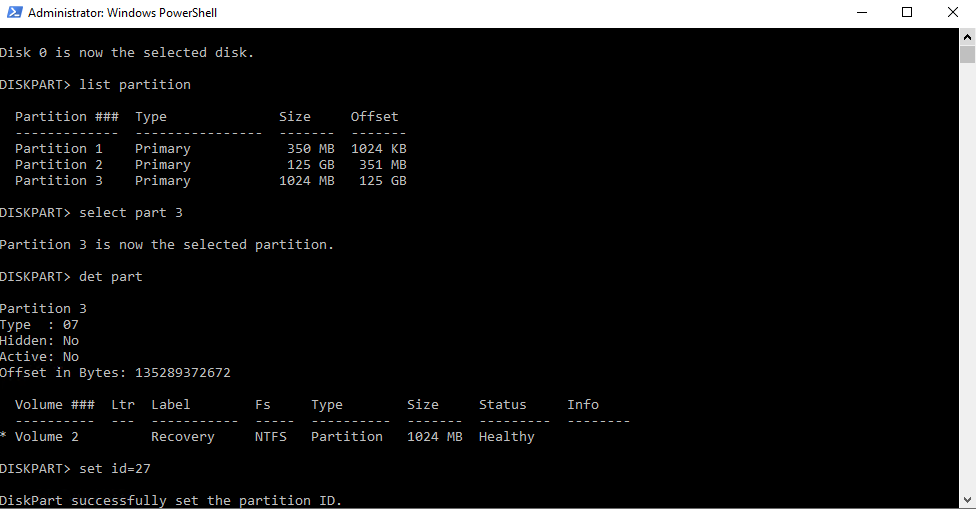
10. Select the partition you created in step 5 by using the following command. ```powershell
    select partition 3
    ```
    
    [![image.png](https://wikipedia.mutschlerhome.com/uploads/images/gallery/2024-04/scaled-1680-/GM1Tzbf4OvjRRw5s-image.png)](https://wikipedia.mutschlerhome.com/uploads/images/gallery/2024-04/GM1Tzbf4OvjRRw5s-image.png)
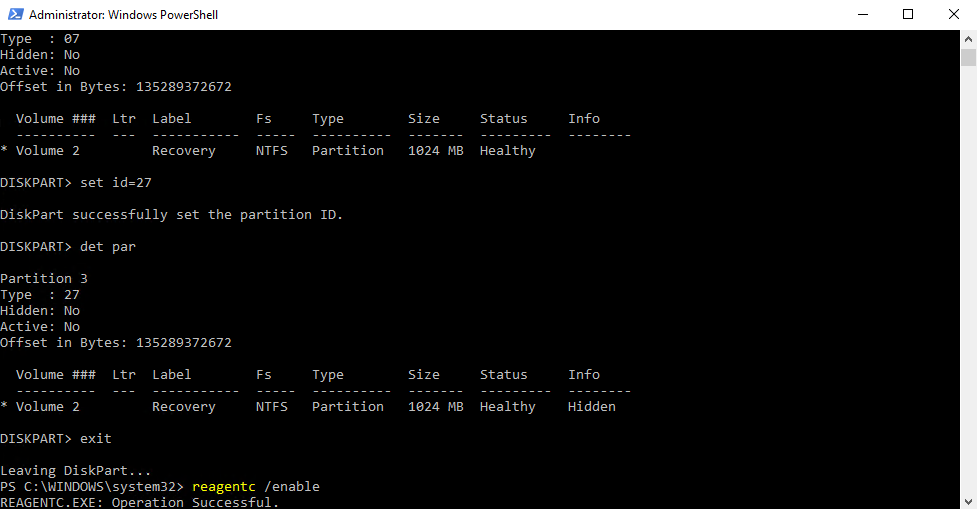
11. Set the partition ID based on the type of disk it is with the following command. For MBR disks:
    
    ```powershell
    set id=27
    ```
    
    For GPT disks:
    
    ```powershell
    set id="de94bba4-06d1-4d40-a16a-bfd50179d6ac"
    ```
    
    <p class="callout info">The disk will have an asterisk under the Gpt column in the section you listed the disk if it is GPT.</p>
    
    [![image.png](https://wikipedia.mutschlerhome.com/uploads/images/gallery/2024-04/scaled-1680-/qIwEHOJikPzlCLr7-image.png)](https://wikipedia.mutschlerhome.com/uploads/images/gallery/2024-04/qIwEHOJikPzlCLr7-image.png)
    
    <p class="callout info">For GPT disks, you will also have to set the GPT Attributes using the following command.</p>
    
    ```powershell
    gpt attributes=0x8000000000000001
    ```
12. Exit diskpart and run the following command to enable the recovery partition. ```powershell
    reagentc /enable
    ```
    
    [![image.png](https://wikipedia.mutschlerhome.com/uploads/images/gallery/2024-04/scaled-1680-/8P8PQdKNIfX2b9rD-image.png)](https://wikipedia.mutschlerhome.com/uploads/images/gallery/2024-04/8P8PQdKNIfX2b9rD-image.png)
13. After these steps, the PC will need to be rebooted. At this time, reboot the PC.

#### **<span lang="EN-US">\#2. Create/Delete Recovery Partition while Creating Recovery Drive</span>**

<span lang="EN-US">There is another way to help you delete the partition. This trick appears during the process of creating a USB recovery drive.</span>

1. <span lang="EN-US">Click “Search” icon, and enter `<strong>recovery drive</strong>` in the search box, and then select `<strong>Create a recovery drive</strong>`.</span>

[![Create a Recovery Drive](https://www.ubackup.com/screenshot/en/others/create-a-recovery-drive.png)](https://www.ubackup.com/screenshot/en/others/create-a-recovery-drive.png)

<p class="callout info">Depending on your version of Windows, it may be listed as simply "Recovery Drive".</p>

2. <span lang="EN-US">After the recovery drive tool opens, make sure the “**Back up system files to the recovery drive**” is selected, and then select **Next**.</span>

[![Recovery Drive](https://www.ubackup.com/okr/images/create-recovery-partition-on-windows-10-0326i/recovery-drive.png)](https://www.ubackup.com/okr/images/create-recovery-partition-on-windows-10-0326i/recovery-drive.png)

3. <span lang="EN-US">Insert a USB flash drive into your PC that's at least as large as the size indicated on the screen. Select the USB flash drive connected you connected and click “**Next**” to continue.</span>

[![Select USB](https://www.ubackup.com/okr/images/create-recovery-partition-on-windows-10-0326i/select-usb.png)](https://www.ubackup.com/okr/images/create-recovery-partition-on-windows-10-0326i/select-usb.png)

4. <span lang="EN-US">Click “**Create**” to begin creating the recovery drive.</span>

[![Create](https://www.ubackup.com/okr/images/create-recovery-partition-on-windows-10-0326i/create.png)](https://www.ubackup.com/okr/images/create-recovery-partition-on-windows-10-0326i/create.png)

5. <span lang="EN-US">When the process is done, do not select Finish. Select **Delete the recovery partition** to remove the recovery partition from your PC and free up disk space. Then click on **Delete**. This will free up the disk space used to store your recovery image. When the removal is done, select **Finish**.</span>

<p class="callout info"><span lang="EN-US">**Note✍:** Some PCs do not provide an option to delete the recovery partition. If you encounter this situation, it means that your PC does not have a recovery partition that uses additional disk space.</span></p>

# Delete Recovery Partition

1. Open an admin command prompt and enter. ```powershell
    diskpart
    ```
    
    [![image.png](https://wikipedia.mutschlerhome.com/uploads/images/gallery/2024-04/scaled-1680-/2hOfk2eqInHSVC1G-image.png)](https://wikipedia.mutschlerhome.com/uploads/images/gallery/2024-04/2hOfk2eqInHSVC1G-image.png)
2. List the disks within diskpart by typing the following command. ```powershell
    list disk
    ```
    
    [![image.png](https://wikipedia.mutschlerhome.com/uploads/images/gallery/2024-04/scaled-1680-/W8TSW0M9bcNz7Clk-image.png)](https://wikipedia.mutschlerhome.com/uploads/images/gallery/2024-04/W8TSW0M9bcNz7Clk-image.png)
3. Select the disk that contains the recovery partition using the following command (replace the number with the correct disk). ```powershell
    select disk 0
    ```
    
    [![image.png](https://wikipedia.mutschlerhome.com/uploads/images/gallery/2024-04/scaled-1680-/k2YM5P3FllW1HONR-image.png)](https://wikipedia.mutschlerhome.com/uploads/images/gallery/2024-04/k2YM5P3FllW1HONR-image.png)
4. List the partitions on the chosen drive so you can select the recovery partition using the following command. ```powershell
    list partition
    ```
    
    [![image.png](https://wikipedia.mutschlerhome.com/uploads/images/gallery/2024-04/scaled-1680-/0sNajrUqEdTN2lBh-image.png)](https://wikipedia.mutschlerhome.com/uploads/images/gallery/2024-04/0sNajrUqEdTN2lBh-image.png)
5. Select the partition you believe is the recovery partition by using the following command. ```powershell
    select partition 1
    ```
    
    [![image.png](https://wikipedia.mutschlerhome.com/uploads/images/gallery/2024-04/scaled-1680-/okrk8vnbAy7Y5m8a-image.png)](https://wikipedia.mutschlerhome.com/uploads/images/gallery/2024-04/okrk8vnbAy7Y5m8a-image.png)
6. List the partition details with the following command to verify it's the recovery partition. <p class="callout info">For GPT disks, the `<strong>Type</strong>` will be **`de94bba4-06d1-4d40-a16a-bfd50179d6ac`.** For MBR disks, the `<strong>Type</strong>` will be `<strong>27</strong>`.</p>
    
    ```powershell
    det part
    ```
    
    [![image.png](https://wikipedia.mutschlerhome.com/uploads/images/gallery/2024-04/scaled-1680-/AVr6cRYJ80myCLzo-image.png)](https://wikipedia.mutschlerhome.com/uploads/images/gallery/2024-04/AVr6cRYJ80myCLzo-image.png)
7. After confirming the selected partition is the recovery partition, use the following command to delete it. ```powershell
    delete partition override
    ```

# How to Repair (Rebuild) the WMI Repository on Windows

Every experienced Windows administrator has encountered with problems with the <u>Windows Management Instrumentation (WMI)</u> service and its components. WMI is an important subsystem of Windows, and if it malfunctions, the computer may be unable to run services, get system information from WMI providers, run scripts, or third-party apps. This article describes how to diagnose WMI health on Windows, troubleshoot and fix common problems when the WMI repository is corrupted.

<span id="bkmrk--1"></span>

<div class="post-entry blockquote-style-1" id="bkmrk-contents%3A-troublesho"><div class="inner-post-entry"><div class="content-text"><div id="bkmrk-contents%3A">Contents:</div>- [Troubleshooting WMI Connectivity and Common Issues on Windows](https://woshub.com/wmi-troubleshooting/#h2_1)
- [Repair the WMI Repository and Recompile the MOF files](https://woshub.com/wmi-troubleshooting/#h2_2)
- [Rebuilding the WMI Repository in Windows](https://woshub.com/wmi-troubleshooting/#h2_3)

</div></div></div>The following problems can indicate corruption of the WMI repository:

<div class="post-entry blockquote-style-1" id="bkmrk-wmi-query-processing"><div class="inner-post-entry">- - WMI query processing errors in system and application logs (`0x80041002 - WBEM_E_NOT_FOUND`, `WMI: Not Found`, `0x80041010 WBEM_E_INVALID_CLASS`, `Failed to initialize WMI class`, `Invalid class` or `Invalid namespace`);
    - WMI-related [GPO processing errors](https://woshub.com/group-policy-processing-failed-windows/) (incorrect operation of [Group Policy WMI filters](https://woshub.com/group-policy-filtering-using-wmi-filters/), etc.)
    - Slow execution of WMI queries
    - Errors during installation or operation of SCCM/SCOM agents;
    - Errors in scripts (VBS or PowerShell) that access the WMI namespace (scripts with` Get-WmiObject`, `Get-CimInstance`, etc.).

</div></div>[![wmi error invalid class in powershell command](https://woshub.com/wp-content/uploads/2021/03/powershell-wmi-error-invalid-class.jpg.webp)](https://woshub.com/wp-content/uploads/2021/03/powershell-wmi-error-invalid-class.jpg)

## Troubleshooting WMI Connectivity and Common Issues on Windows

First, verify that the Windows Management Instrumentation (`winmgmt`) service is installed and running on Windows. Check the service status in the `services.msc` console or by using PowerShell:

`Get-Service Winmgmt | Select DisplayName,Status,ServiceName`

![check that the Winmgmt service (Windows Management Instrumentation) is running](https://woshub.com/wp-content/uploads/2014/11/check-that-the-winmgmt-service-windows-management.png.webp)

If the Winmgmt service is running, test the WMI health by running a simple WMI query. Execute a WMI query from the command prompt or PowerShell. For example, the following command lists the programs installed on Windows:

`wmic product get name,version`

Simple PowerShell command to get [Windows version and build information](https://woshub.com/check-windows-version-build-number/) through WMI:

`get-wmiobject Win32_OperatingSystem`

![test wmi using powershell cmdlet get-wmiobject ](https://woshub.com/wp-content/uploads/2014/11/test-wmi-using-powershell-cmdlet-get-wmiobject.png.webp)

As you can see, the WMI service responded to the query correctly. If Windows returns an error when running such a WMI query, the WMI service is most likely not working properly, the WMI repository is corrupt, or there are some other problems with the WMI classes.

Run the command to enable logging of WMI calls in the Event Viewer:

`wevtutil set-log Microsoft-Windows-WMI-Activity/Operational /enabled:true`

Then open the Event Viewer console (`eventvwr.msc`) and go to **Applications and Service Logs -&gt; Microsoft -&gt; Windows -&gt; WMI Activity**. The event description in <u>EventID 5858</u> includes the WMI namespace and the class being accessed that is causing the error. If this is a special WMI class of a particular program, then that program may not have been installed correctly, or its files may be corrupted.

In my case, the error is related to the system-wide WMI class <u>root\\cimv2 : Win32\_OperatingSystem</u>, which means that the WMI database is corrupted.

[![Check for WMI errors in Event Viewer ID 5858](https://woshub.com/wp-content/uploads/2021/03/event-viewer-wmi-activity-error-5858.jpg.webp)](https://woshub.com/wp-content/uploads/2021/03/event-viewer-wmi-activity-error-5858.jpg)

```
A Windows Management Instrumentation (WMI) query has failed. The WMI repository may be corrupted or it works incorrectly.
```

Open the WMI Control properties in the Computer Management snap-in (`compmgmt.msc`). In my case there is an error here:

```
Failed to initialize all required WMI classes
Win32_Processor. WMI: Invalid namespace
Win32_WMISetting. WMI: Invalid namespace
Win32_OperationSystem. WMI: Invalid namespace
```

![wmi error: Failed to initialize all required WMI classes Invalid namespace](https://woshub.com/wp-content/uploads/2014/11/wmi-error-failed-to-initialize-all-required-wmi-c.png.webp)

<div class="post-entry blockquote-style-1" id="bkmrk-previously%2C%C2%A0wmidiag."><div class="inner-post-entry"><div class="warning_box">Previously, **WMIDiag.vbs** (Microsoft WMI Diagnosis) was an official tool from Microsoft for WMI diagnostics. Unfortunately, the latest version of WMIDiag 2.2 only works correctly with versions up to Windows 8.1/Windows Server 2012 R2.</div></div></div>Microsoft has even removed the WMIDiag download link from the Download Center. But if you want, you can find this script on the web. WMIDiag provides detailed information on how to troubleshoot specific WMI errors, but in most cases, the process is a time-consuming task and only worth the time if you are troubleshooting incidents on critical systems (such as production servers).

In the case of user workstations, it is usually easier and faster to reset and rebuild the WMI repository.

## Repair the WMI Repository and Recompile the MOF files

To check the integrity of the WMI repository on Windows, use the command:

`winmgmt /verifyrepository`

[![winmgmt /verifyrepository](https://woshub.com/wp-content/uploads/2014/11/winmgmt-verifyrepository.jpg.webp "winmgmt /verifyrepository")](https://woshub.com/wp-content/uploads/2014/11/winmgmt-verifyrepository.jpg)

If the command returns that the WMI database is in an inconsistent state (`INCONSISTENT` or `WMI repository verification failed`), it is worth trying to perform a soft fix of WMI repository errors:

`Winmgmt /salvagerepository`

```
WMI repository has been salvaged.
```

This command checks the consistency of the WMI repository and rebuilds the WMI database if any inconsistencies are found.

Restart the WMI service:

`net stop Winmgmtnet start Winmgmt`

If the standard WMI fix doesn’t work, try to use the following script instead. This script is a “soft” way of restoring the WMI service on the computer (by re-registering the DLL libraries and WMI and recompiling the MOF files). This procedure is **safe** and should not cause any new problems.

`sc config winmgmt start= disablednet stop winmgmtcd %windir%\system32\wbemfor /f %s in ('dir /b *.dll') do regsvr32 /s %swmiprvse /regserversc config winmgmt start= autonet start winmgmtfor /f %s in ('dir /b *.mof ^| findstr /V /I "uninstall.mof"') do mofcomp %sfor /f %s in ('dir /b *.mfl ^| findstr /V /I "uninstall.mfl"') do mofcomp %s`

[![mofcomp recompile mof files batch script to perform soft reset of the wmi ](https://woshub.com/wp-content/uploads/2021/03/mofcomp-recompile-mof-files.jpg.webp)](https://woshub.com/wp-content/uploads/2021/03/mofcomp-recompile-mof-files.jpg)

<div class="post-entry blockquote-style-1" id="bkmrk-when-recompiling-the"><div class="inner-post-entry"><div class="info_box">When recompiling the MOF files, we excluded the <u>\*uninstall.mof</u> and <u>\*uninstall.mfl</u> files, since they are only needed to remove programs/WMI classes.</div></div></div>On a 64-bit version of Windows, these steps must also be performed for the SysWOW64 directory. Replace the third script line with:

`cd %windir%\SysWOW64\wbem`

You can run these commands by simply pasting them into the elevated command prompt, or by saving the code in the **wmi\_soft\_repair.bat** batch file and running it with administrator permissions (replace <u>%s</u> in the BAT file with <u>%%s</u>). After running the script, restart Windows and verify the WMI operation.

[![bat file to soft repair wmi](https://woshub.com/wp-content/uploads/2021/03/bat-file-soft-repair-wmi.jpg.webp)](https://woshub.com/wp-content/uploads/2021/03/bat-file-soft-repair-wmi.jpg)

## Rebuilding the WMI Repository in Windows

If the soft WMI recovery method discussed above didn’t help, use a “**hard**” way to repair the WMI service, which involves recreating the WMI repository.

For example, in my case, the mofcomp command returned an error for almost all MOF files:

```
Microsoft (R) MOF Compiler Version 10.0.26100.1
Parsing MOF file: xwizards.mof
xwizards.mof (1): error SYNTAX 0X8004400a: Unexpected token at file scope
Compiler returned error 0x8004400a
```

[![mof compiler error](https://woshub.com/wp-content/uploads/2021/03/mof-compiler-error.jpg.webp)](https://woshub.com/wp-content/uploads/2021/03/mof-compiler-error.jpg)

<div class="post-entry blockquote-style-1" id="bkmrk-%C2%A0the%C2%A0wmi-repository%C2%A0"><div class="inner-post-entry"><div class="info_box"> The **WMI repository** ( `%windir%\System32\Wbem\Repository` ) is a database that contains information on the metadata and definitions of the WMI classes. If the WMI repository is corrupted, the Windows Management Instrumentation (Winmgmt) service may experience errors, including complete failure to start.</div></div></div>If you suspect that the WMI repository is corrupted, rebuilding it is a last resort and should only be used if other means fail to repair the WMI.

The following command will reset the WMI database to its original state (like after a clean Windows install). Use this command to hard reset the WMI repository if the *salvagerepository* didn’t fix the problem:

`Winmgmt /resetrepository`

<div class="post-entry blockquote-style-1" id="bkmrk-tip.%C2%A0in-practice%2C-re"><div class="inner-post-entry"><div class="info_box">**Tip.** In practice, rebuilding the WMI repository may cause problems with third-party software. This is because all entries in the WMI database are reset (to a clean system state). These programs will most likely need to be reinstalled.</div></div></div>If both commands (`Winmgmt /salvagerepository` and `Winmgmt /resetrepository`) didn’t restore the consistent state of the WMI database, try to perform a hard reset of the WMI database with the following script:

`net stop winmgmtcd %windir%\system32\wbemwinmgmt /resetrepositorywinmgmt /resyncperfif exist Repos_bakup rd Repos_bakup /s /qrename Repository Repos_bakupregsvr32 /s %systemroot%\system32\scecli.dllregsvr32 /s %systemroot%\system32\userenv.dllfor /f %s in ('dir /b *.dll') do regsvr32 /s %sfor /f %s in ('dir /b *.mof ^| findstr /V /I "uninstall.mof"') do mofcomp %sfor /f %s in ('dir /b *.mfl ^| findstr /V /I "uninstall.mfl"') do mofcomp %ssc config winmgmt start= autonet start winmgmtwmiprvse /regserver`

![bat script to repair or rebuild the WMI Repository on Windows 10 ](https://woshub.com/wp-content/uploads/2014/11/bat-script-to-repair-or-rebuild-the-wmi-repository.png.webp)

<div class="post-entry blockquote-style-1" id="bkmrk-also%2C-re-register-th"><div class="inner-post-entry"><div class="info_box">Also, re-register the DLL/EXE and recompile the MOF files in the **%windir%\\sysWOW64\\wbem** directory on an x64 version of Windows.</div></div></div>This script removes and recreates the WMI repository (the old repository is saved to the *Repos\_backup* directory). Restart Windows after the script has finished. Then use a simple query to test WMI connectivity.

Check the WMI repository state. If the errors are fixed, the `winmgmt /verifyrepository` command should return:

```
WMI repository is consistent
```

![winmgmt /verifyrepository WMI repository is consistent](https://woshub.com/wp-content/uploads/2014/11/winmgmt-verifyrepository-wmi-repository-is-cons.png.webp)

In this article, we have discussed the basic ways to diagnose and repair the WMI service and the WMI repository.