Plex - Walkthroughs
Configuration
Tutorial on setting up unlimited transcodes for Nvidia GPUs
Due to an unclear original post and per the request of another user, here are some instructions on how to get unlimited transodes out of your Nvidia GPU for use in Plex.
- Download one of the supported Nvidia drivers from here, install.
- Download the Win_1337_Apply_Patch tool, extract zip file. Also attached here (verify there is not an updated version first) win_1337_apply_patch_v1.9_by_dfox.rar
- Download the relevant patch to your driver version on the GitHub site, by right clicking this link and clicking "Save link as..."
- Run the patch tool, point it to the patched file linked in Step 3, then point it to
C:\WINDOWS\system32\nvcuvid.dll. Click "Patch" - Reboot for good measure.
Test by loading up some Live TV streams or just about anything in the Chrome web client. Verify by checking Task Manager, you should see plextranscoder.exe using more GPU than CPU, like so.
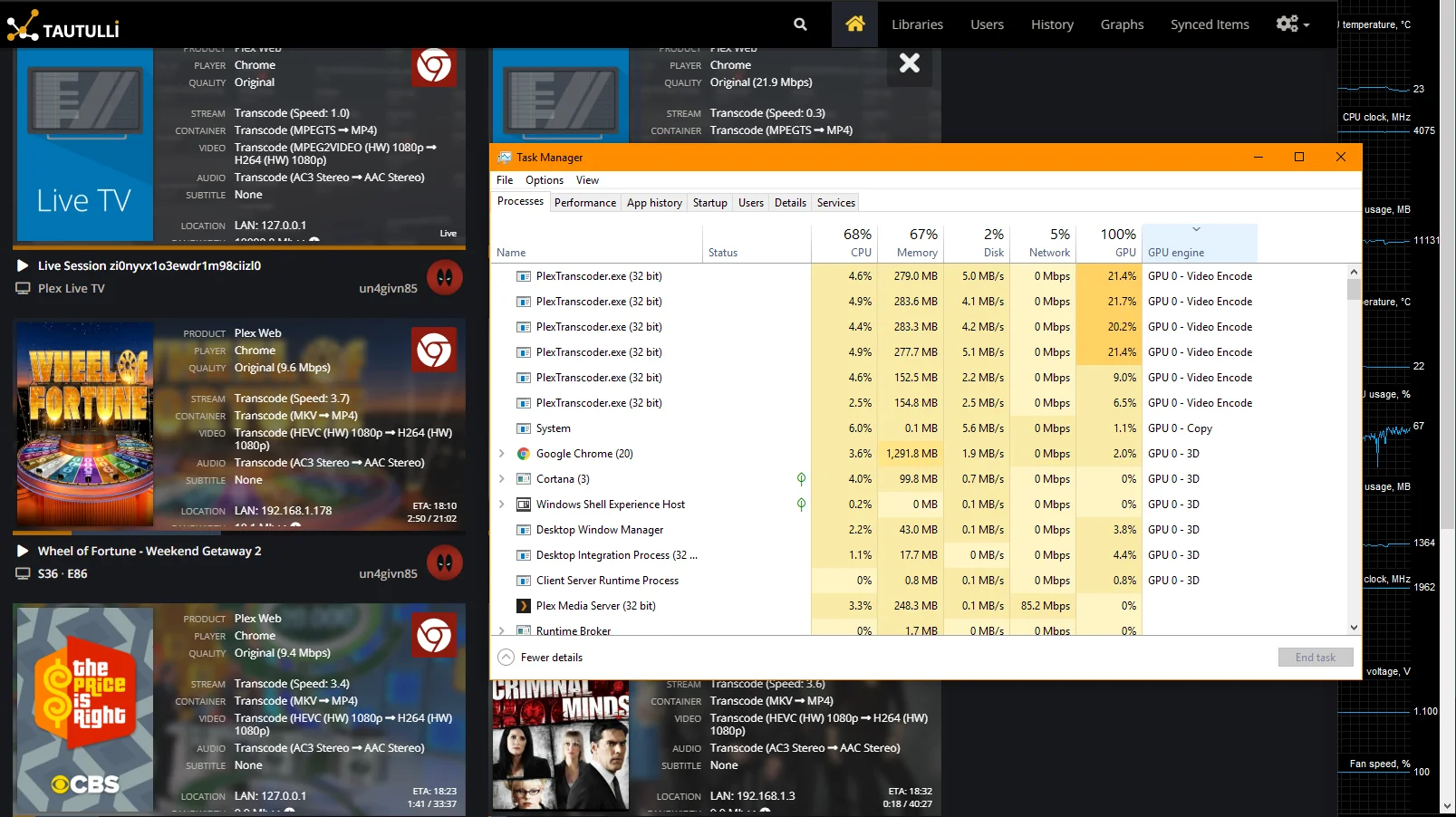
Some folks in the GitHub thread are saying this takes a full Plex reinstall, I did not have to do this, but YMMV.
All credit for the tool and the patch goes to it's creator(s).
Plex Server Improvements (9-26-24)
- Convert to using RAM for transcoding.
Configured Settings for RAM Transcoding
- Created new "Path" variable named
RAM Transcode Path: /RAM - Container path is
/RAM - Host path is
/dev/shm - Access Mode is
Read/Write - Modified Plex in
Settings > Transcoderto reflect the transcoding directory change of/RAM - Restarted Plex server to apply changes
RAM Transcoding Instructions
Configure a path if not one exists:
Name: Transcode
Container Path: /transcode
Host Path: /dev/shm/
That's all that's needed for the container setup
Then, inside Plex settings
Settings > Transcoder > Transcoder temporary directory/transcode
Side note: the host path can be /dev/shm/ or /tmp
They are both RAM drives /dev/shm/ using no more than 1/2 your RAM while /tmp will use up to all of it., neither of which will use more than 1/2 of your available RAM.
There's no wrong answer which you use.
I am using Intel 10100 w/ Quick Sync RAM transcoding.. This is all i had to do to get it running...
Step 1:
In the container, I created a path from the RAM to /transcode, so the location transcodes occur in are in the system ram shared with the unRaid OS.
in the container (binhex-plexpass) in my case... *you need plexpass active for quick sync transcoding...
Name: Transcode
Container Path: /transcode
Host Path: /dev/shm
Then you will need to go into the docker container and change transcoding inside plex to /transcode under settings-transcoder-transcoder temporary directory
Step 2:
This was required for my system to use Quicksync properly as the out-of-box docker container wouldn't work naturally. I followed this guide to give permissions and change access settings for the docker to properly use the iGPU driver for transcoding.
Guide i followed: https://forums.unraid.net/topic/77943-guide-plex-hardware-acceleration-using-intel-quick-sync/
Those two steps is all i needed to get mine working on the Intel 10100 for video transcoding, Audio still uses the CPU unfortunately, but that has minimal impact on the CPU overhead as i can run 20+ streams at the same time transcoding with no issue.. The only way i have found to get the iGPU to perform hardware transcoding on both video and audio is to use a Linux VM, but when i tried it out the system resources required to run the linux VM to gain this was not worth it. In linux gaining audio transcode my system would only do 17 transcodes at the same time, but in the docker container, I could get 20 before maxing out the CPU.
- Migrate data from existing drive and remove current "Transcode" ("Nvme" drive also or both) drive to prepare for installation of new Samsung SSDs.
- Install new Samsung SSDs, setup as ZFS Mirrored, and migrate data from existing disks to new ZFS array.
ZFS Videos From Space Invader One
ZFS Essentials: Array Disk Conversion to ZFS or Other Filesystems - No Data Loss, No Parity Break!
ZFS Essentials: Auto-Converting Folders to Datasets on Unraid
Mastering ZFS: Easily Auto Snapshot & Replicate a ZFS Dataset - Part A
Mastering ZFS: Snapshot to Rsync Replication to Non-ZFS Destinations - PART B
- Setup folders per container as ZFS datasets.
- Setup replication and backups for ZFS datasets including on server and off.
- Remove Syncthing and other deprecated backup tools.