# Storage

# How To Merge Checkpoints That Have Multiple Differencing Disks

[Original Article](https://wikipedia.mutschlerhome.com/attachments/316)

<main class="" data-bi-name="content" dir="ltr" id="bkmrk-article-01%2F15%2F2025-5" lang="en-us" role="main"><div class="content "><div class="display-flex justify-content-space-between align-items-center flex-wrap-wrap page-metadata-container"><div class="margin-right-xxs">- Article
- <time aria-label="Article review date" class="" data-article-date="" data-article-date-source="calculated" datetime="2025-01-15T08:00:00.000Z">01/15/2025</time>
- <button class="contributors-button link-button" data-bi-name="contributors" type="button">5 contributors</button>

</div></div><nav aria-label="In this article" class="doc-outline display-none-print margin-bottom-sm" data-bi-name="intopic toc" id="bkmrk-in-this-article-intr">## In this article

1. [Introduction](https://learn.microsoft.com/en-us/troubleshoot/windows-server/virtualization/merge-checkpoints-with-many-differencing-disks#introduction)
2. [Merging checkpoints that you can view in Hyper-V Manager](https://learn.microsoft.com/en-us/troubleshoot/windows-server/virtualization/merge-checkpoints-with-many-differencing-disks#merging-checkpoints-that-you-can-view-in-hyper-v-manager)
3. [Merging checkpoints that you can't view in Hyper-V Manager](https://learn.microsoft.com/en-us/troubleshoot/windows-server/virtualization/merge-checkpoints-with-many-differencing-disks#merging-checkpoints-that-you-cant-view-in-hyper-v-manager)

</nav></div>*Applies to:* Windows Server 2022, Windows Server 2019, Windows Server 2016

## Introduction

This article describes methods that you can use to merge checkpoints into a virtual machine (VM) if Hyper-V has generated many differencing disks. The method that you use depends on the details of the situation.

## Merging checkpoints that you can view in Hyper-V Manager

Checkpoints that you can view in Hyper-V Manager are the simplest to handle. Usually, you can use the **Delete Checkpoint** command on the context menu to delete these checkpoints.
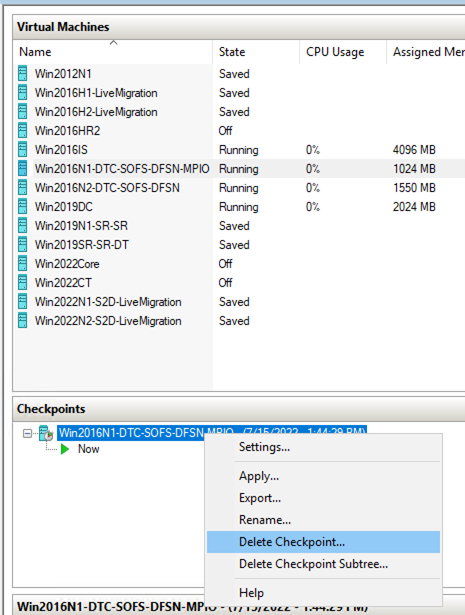
<span class="mx-imgBorder">![Screenshot of a checkpoint in Hyper-V Manager in which the context menu includes the Delete Checkpoint command.](https://learn.microsoft.com/en-us/troubleshoot/windows-server/virtualization/media/merge-checkpoints-with-many-differencing-disks/delete-checkpoint.png)</span>

In some cases, **Delete Checkpoint** and **Delete Checkpoint Subtree** don't appear on the context menu. This can occur if third-party backup software generates checkpoints but doesn't delete them after a backup operation.

In these cases, you can still use the Delete key to delete the checkpoint.

In summary, to delete checkpoints in Hyper-V Manager (and merge the differencing disk files), follow these steps:

<div class="content ">1. In Hyper-V Manager, select the virtual machine.
2. In the **Checkpoints** list, right-click the checkpoint that you want to delete, and then take one of the following actions: 
    - Select **Delete Checkpoint**.
    - If **Delete Checkpoint** isn't available, select the checkpoint, and then select **Del**.

<div class="heading-wrapper" data-heading-level="h2">  
</div></div>## Merging checkpoints that you can't view in Hyper-V Manager

You might encounter a situation in which Hyper-V Manager doesn't show checkpoints for a specific VM. At the same time, the corresponding file system folder shows many differencing disk files. This can occur if third-party backup software generates checkpoints but doesn't delete them after a backup operation.

You can merge the differencing disk files in one of two ways, depending on whether you can shut down the VM.

### When you can shut down the VM

To merge the differencing disk files, shut down the VM. Typically, the differencing disk files merge as part of the VM shutdown process.

### When you can't shut down the VM

You can merge differencing disks into an online VM. However, this is a multi-step process that involves Windows PowerShell scripts. To do this, follow these general steps:

<div class="content ">1. Back up all the differencing disk files (VHD files).
2. [Create and run the `Get-VHDChain` function](https://learn.microsoft.com/en-us/troubleshoot/windows-server/virtualization/merge-checkpoints-with-many-differencing-disks#getchain). This step is described in detail later in this section.
3. [Create and run merge commands](https://learn.microsoft.com/en-us/troubleshoot/windows-server/virtualization/merge-checkpoints-with-many-differencing-disks#mergechain). This step is described in detail later in this section.
4. Change the VM settings to point to the merged parent VHD.
5. Start the VM. A successful startup means that the merge completed successfully.

<div class="heading-wrapper" data-heading-level="h4">  
</div></div>#### Create and run the Get-VHDChain function

<div class="content "><div class="heading-wrapper" data-heading-level="h4">  
</div>1. On the Hyper-V host server, open an administrative PowerShell Command Prompt window.
2. Copy the following script, and then paste it into the PowerShell window:
    
    <div class="codeHeader" data-bi-name="code-header" id="bkmrk-powershellcopy"><span class="language">PowerShell</span><button class="action position-relative display-none-print" data-bi-name="copy" type="button">Copy</button><div aria-hidden="true" class="successful-copy-alert position-absolute right-0 top-0 left-0 bottom-0 display-flex align-items-center justify-content-center has-text-success-invert has-background-success is-transparent">  
    </div></div>```
    function Get-VHDChain {
        [CmdletBinding()]
        param(
            [string]$ComputerName = $env:COMPUTERNAME,
            [string[]]$Name = '*'
        )
        try {
            $VMs = Get-VM -ComputerName $ComputerName -Name $Name -ErrorAction Stop
        }
        catch {
            Write-Warning $_.Exception.Message
        }
        foreach ($vm in $VMs){
            $VHDs = ($vm).harddrives.path
            foreach ($vhd in $VHDs){
                Clear-Variable VHDType -ErrorAction SilentlyContinue
                try {
                    $VHDInfo = $vhd | Get-VHD -ComputerName $ComputerName -ErrorAction Stop
                }
                catch {
                    $VHDType = 'Error'
                    $VHDPath = $vhd
                    Write-Verbose $_.Exception.Message
                }
                $i = 1
                $problem = $false
                while (($VHDInfo.parentpath -or $i -eq 1) -and (-not($problem))){
                    If ($VHDType -ne 'Error' -and $i -gt 1){
                        try {
                            $VHDInfo = $VHDInfo.ParentPath | Get-VHD -ComputerName $ComputerName -ErrorAction Stop
                        }
                        catch {
                            $VHDType = 'Error'
                            $VHDPath = $VHDInfo.parentpath
                            Write-Verbose $_.Exception.Message
                        }
                    }
                    if ($VHDType -ne 'Error'){
                        $VHDType = $VHDInfo.VhdType
                        $VHDPath = $VHDInfo.path
                    }
                    else {
                        $problem = $true
                    }
                    [pscustomobject]@{
                        Name = $vm.name
                        VHDNumber = $i
                        VHDType = $VHDType
                        VHD = $VHDPath
                    }
                    $i++
                }
            }
        }
    }
    ==================================
    
    ```
    
    This script defines a `Get-VHDChain` function that identifies the VHD chain (the set of differencing disks for the VM).
3. Run the following command:
    
    <div class="codeHeader" data-bi-name="code-header" id="bkmrk-powershellcopy-1"><span class="language">PowerShell</span><button class="action position-relative display-none-print" data-bi-name="copy" type="button">Copy</button><div aria-hidden="true" class="successful-copy-alert position-absolute right-0 top-0 left-0 bottom-0 display-flex align-items-center justify-content-center has-text-success-invert has-background-success is-transparent">  
    </div></div>```
    Get-vhdchain -name <virtual machine name>
    
    ```
    
     Note
    
    In this command, &lt;*virtual machine name*&gt; represents the name of the virtual machine.
    
    When the script runs, you should see output that resembles the following output.
    
    <span class="mx-imgBorder">![Screenshot of the output of the Get-VHDChain script.](https://learn.microsoft.com/en-us/troubleshoot/windows-server/virtualization/media/merge-checkpoints-with-many-differencing-disks/get-vhdchain-run.png)</span>
4. Make sure that `Get-VHDChain` runs without errors.
    
     Important
    
    If the `Get-VHDChain` output contains errors, you have to remove the affected differencing disks from the folder. In the following example, Disk 24 generated an error and must be removed from the differencing disk folder.
    
    <span class="mx-imgBorder">![Screenshot of the output of the Get-VHDChain script when the script generates an error.](https://learn.microsoft.com/en-us/troubleshoot/windows-server/virtualization/media/merge-checkpoints-with-many-differencing-disks/get-vhdchain-error.png)</span>

<div class="heading-wrapper" data-heading-level="h4">  
</div></div>#### Create and run merge commands

<div class="content "><div class="heading-wrapper" data-heading-level="h4">  
</div>1. The following instructions create a script in *C:\\temp\\merge.txt* to merge the disks. Follow these steps:
    
    
    1. On the local *C:* drive, create a folder that is named *temp*.
    2. Open an Administrative PowerShell window, and then run the following command:
        
        <div class="codeHeader" data-bi-name="code-header" id="bkmrk-powershellcopy-2"><span class="language">PowerShell</span><button class="action position-relative display-none-print" data-bi-name="copy" type="button">Copy</button><div aria-hidden="true" class="successful-copy-alert position-absolute right-0 top-0 left-0 bottom-0 display-flex align-items-center justify-content-center has-text-success-invert has-background-success is-transparent">  
        </div></div>```
        $vm = Read-Host("please enter the VMname") 
        
        ```
    3. At the command prompt, enter the virtual machine name.
    4. Copy the following script, and then paste it at the command prompt.
        
        <div class="codeHeader" data-bi-name="code-header" id="bkmrk-powershellcopy-3"><span class="language">PowerShell</span><button class="action position-relative display-none-print" data-bi-name="copy" type="button">Copy</button><div aria-hidden="true" class="successful-copy-alert position-absolute right-0 top-0 left-0 bottom-0 display-flex align-items-center justify-content-center has-text-success-invert has-background-success is-transparent">  
        </div></div>```
        $vhds=Get-VM $vm | Select-Object -Property VMId | Get-VHD 
        if (Test-Path '.\merge.txt'){Remove-Item -Path '.\merge.txt'}
        foreach($vhd in $vhds){
        $chain=[ordered]@{}
            while ($vhd.ParentPath){
                $chain.add($vhd.Path,$vhd.ParentPath)
                $vhd=Get-VHD -Path $vhd.ParentPath
                }
        $chain.GetEnumerator() | ForEach-Object {
            $line='Merge-VHD -Path "{0}" -Destination "{1}"' -f $_.key, $_.value
            $line | Out-File -FilePath .\merge.txt  -Append
            }    
        }
        
        ```
        
        The script should resemble the following script:
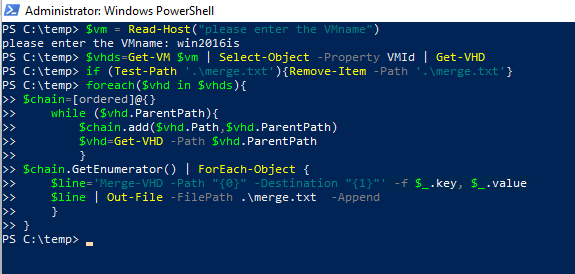
        
        <span class="mx-imgBorder">![Screenshot of the script after it's pasted into a PowerShell window.](https://learn.microsoft.com/en-us/troubleshoot/windows-server/virtualization/media/merge-checkpoints-with-many-differencing-disks/mergescript-pasted.png)</span>
2. Open *C:\\temp\\merge.txt*. This file contains a list of command line commands that are grouped into pairs. Each pair of commands defines the merge operations for a single differencing disk.
3. Copy the first command of the first pair, paste it at the command prompt, and then run it. Then, do the same for the second command of the first pair. These operations merge the differencing disk that the commands address.
4. After the disk merges, repeat the preceding steps for the next differencing disk in the list. Continue for all the differencing disks that the *merge.txt* file addresses.

</div><div class="margin-block-xs" data-bi-name="inline-notification" id="bkmrk-"></div><div aria-atomic="true" aria-live="assertive" aria-relevant="additions" class="visually-hidden" id="bkmrk--1" role="alert"></div><div aria-atomic="true" aria-live="polite" aria-relevant="additions" class="visually-hidden" id="bkmrk--2" role="status"></div></main><section class="font-size-sm margin-top-md" data-bi-name="site-feedback-section" data-test-id="site-user-feedback-footer" id="bkmrk--3"></section>