Emulation Management - One Liners
- Create .M3U Playlist From .CHD Files (Windows)
- Create .CHD From .ISO Files
- Create .CHD From .CUE Files
- Create .ISO From .CHD Files
- Create .CUE From .CHD Files
- Create .GDI From .CHD Files
- Create .CHD From .GDI Files
- CHDMan Windows Instructions
- CHDMan Linux Instructions
Create .M3U Playlist From .CHD Files (Windows)
# Get the current directory
$folderPath = Get-Location
# Remove existing .m3u files in the current directory
Get-ChildItem -Path $folderPath -Filter *.m3u | Remove-Item -Force
# Get all .chd files in the current directory
$chdFiles = Get-ChildItem -Path $folderPath -Filter *.chd
# Group .chd files by base name (without the disc part and extension)
$groupedFiles = $chdFiles | Group-Object { $_.BaseName -replace '\s+\(Disc\s+\d+\)$', '' }
foreach ($group in $groupedFiles) {
# Determine the .m3u file name (without disc number and extension)
$m3uFileName = Join-Path $folderPath ($group.Name + ".m3u")
# Create or overwrite the .m3u file and write each .chd file name to it
$group.Group | ForEach-Object {Add-Content -Path $m3uFileName -Value $_.Name}}
Create .CHD From .ISO Files
Windows
for /r %%i in (*.iso) do chdman createcd -i "%%i" -o "%%~ni.chd" >> logLinux
#!/bin/bash

# Grab .iso file
for f in ./*.iso
do
	name=${f%.iso} # Remove '.iso' from file name
	chdman createcd -i "$name.iso" -o "$name.chd" --force
done
Create .CHD From .CUE Files
Windows
for /r %%i in (*.cue) do chdman createcd -i "%%i" -o "%%~ni.chd" >> logLinux
parallel chdman createcd -i {} -o {.}.chd ::: *.cue
The below script and the attached version above does not work. Need to test and change accordingly.
#!/bin/bash

# Grab .cue file
for f in ./**/*.cue
do
	name=${f%.cue} # Remove '.cue' from file name
	chdman createcd -i "$name.cue" -o "$name.chd" --force
done
Create .ISO From .CHD Files
Windows
for %%i in (*.chd) do (
chdman extractcd -i "%%i" -o "%%~ni.cue" -ob "%%~ni.iso"
del "%%~ni.cue"
) >> log
Linux
#!/bin/bash

# Grab .chd file
for f in ./**/*.chd
do
	name=${f%.chd} # Remove '.chd' from file name
	chdman extractcd -i "$name.chd" -o "$name.iso" --force
done
Create .CUE From .CHD Files
Windows
for /r %%i in (*.chd) do chdman extractcd -i "%%i" -o "%%~ni.cue" >> log
Linux
#!/bin/bash

# Grab .chd file
for f in ./**/*.chd
do
	name=${f%.chd} # Remove '.chd' from file name
	chdman extractcd -i "$name.chd" -o "$name.cue" --force
done
Create .GDI From .CHD Files
Windows
Linux
#!/bin/bash

# Grab .chd file
for f in ./**/*.chd
do
	name=${f%.chd} # Remove '.chd' from file name
	chdman extractcd -i "$name.chd" -o "$name.gdi" --force
done
Create .CHD From .GDI Files
Windows
Linux
#!/bin/bash

# Grab .gdi file
for f in ./**/*.gdi
do
	name=${f%.gdi} # Remove '.gdi' from file name
	chdman createcd -i "$name.gdi" -o "$name.chd" --force
done
CHDMan Windows Instructions
Introduction
The file formats to adopt for CDs and other optical supports.
We have talked about a format, derived from researches we had on MAME, in order to be able to represent these supports in a compressed way, without losing the integrity of the data and that these can remain scrappable.
This format is the CHD (Compressed Hunks of Data), datas that could be useful for SEGA CD, PS1, PC Engine...
Unfortunately, the classic user will have difficulties to use the converter, which is a command line executable.
So here is a Zip file, with automated scripts, to convert from BIN+CUE (Redump format) to CHD, and vice versa.
It has been added also for the GDI format, which is for the Dreamcast.
For PS1 games protected by LibCrypt, normally you have SBI (Subchannel Information) files, you keep them and put them with the CHDs, otherwise your games will not pass.
If you ever lose them or make a bad manipulation, these files are available on the files of each corresponding disk at Redump, next to the re-downloadable CUE files.
Software
You can download the software by clicking on CHDMAN.zip below.

In this zip you will find 6 files :
| File name | Description |
|---|---|
| chdman.exe | CHDMAN software |
| CUE or GDI to CHD.bat A .bat file that allows you to convert your CUE or GDI roms to CHD. | |
| Extract CHD to CUE.bat | A .bat file that allows you to convert your CHD roms to BIN+CUE. |
| Extract CHD to GDI.bat | A .bat file that allows you to convert your CHD rom to GDI. |
| README_EN.txt | |
| README_EN.txt |
Readme file content
-
CUE or GDI to CHD
Compresses all types of BIN disk files with a CUE or GDI header to CHD (v5) format.
Searches all subfolders and creates CHD (v5) files in the folder where the files are placed with CHDMAN. -
Extract CHD to CUE Decompresses a CHD (v5) file to a BIN+CUE file. The CUE format is used by games on CD. On the Raspberry Pi, CHD is supported by TurboGrafx-CD / PC Engine CD, Sega CD / Mega CD and Dreamcast.
-
Extract CHD to GDI
Unzips a CHD (V5) file to GDI. (GDI is a disk format for Dreamcast).
Automated use
Convert your game from BIN/CUE or GDI to CHD
- Put "chdman.exe" and "CUE or GDI to CHD.bat" in the folder containing your game as below.
Example for the game "Grandia (France)":
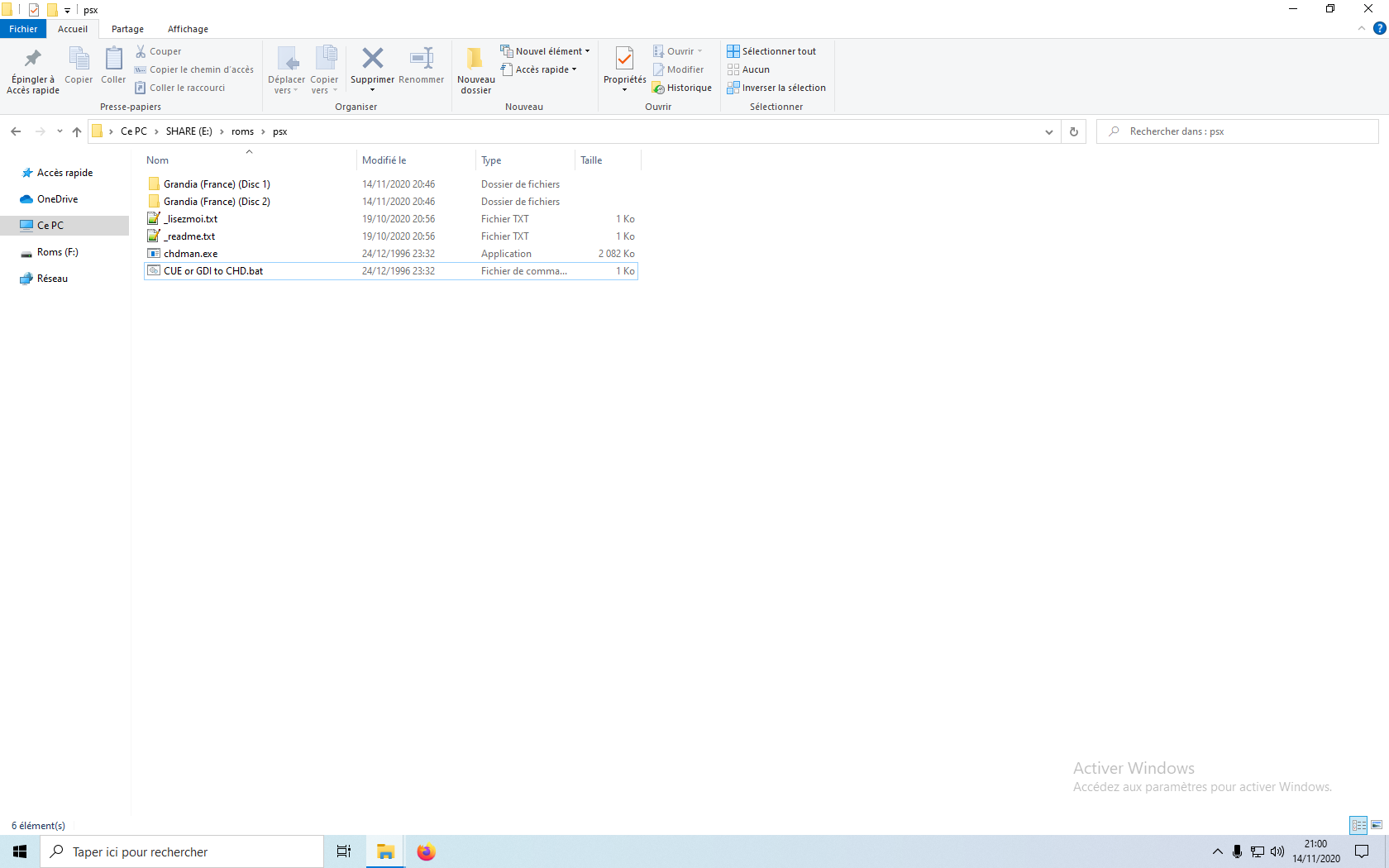
- Click on the file "CUE or GDI to CHD.bat" to start the conversion.
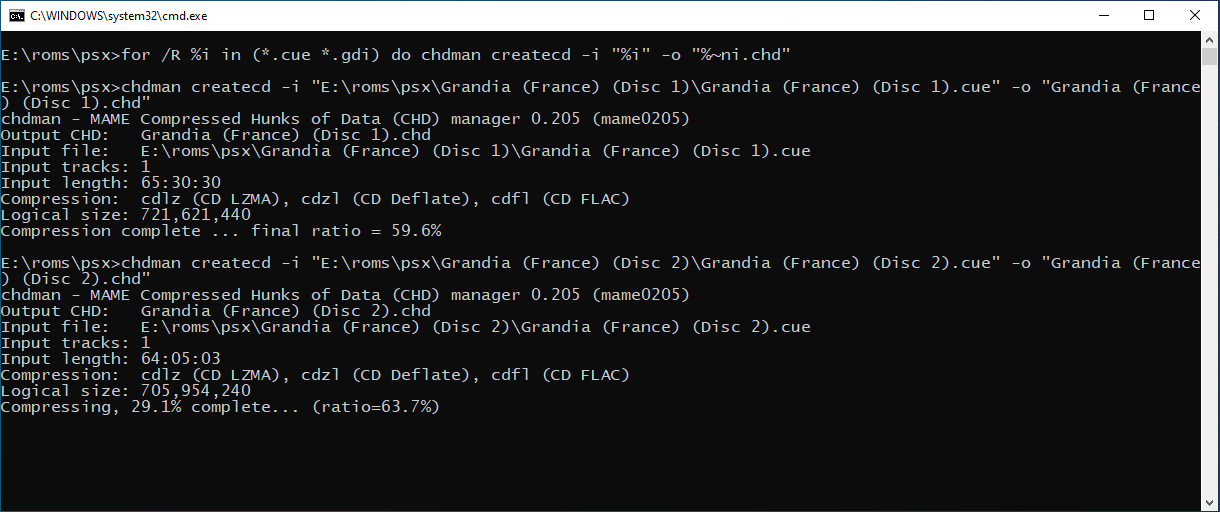
- Once the CMD window above has closed automatically, your conversion is complete.
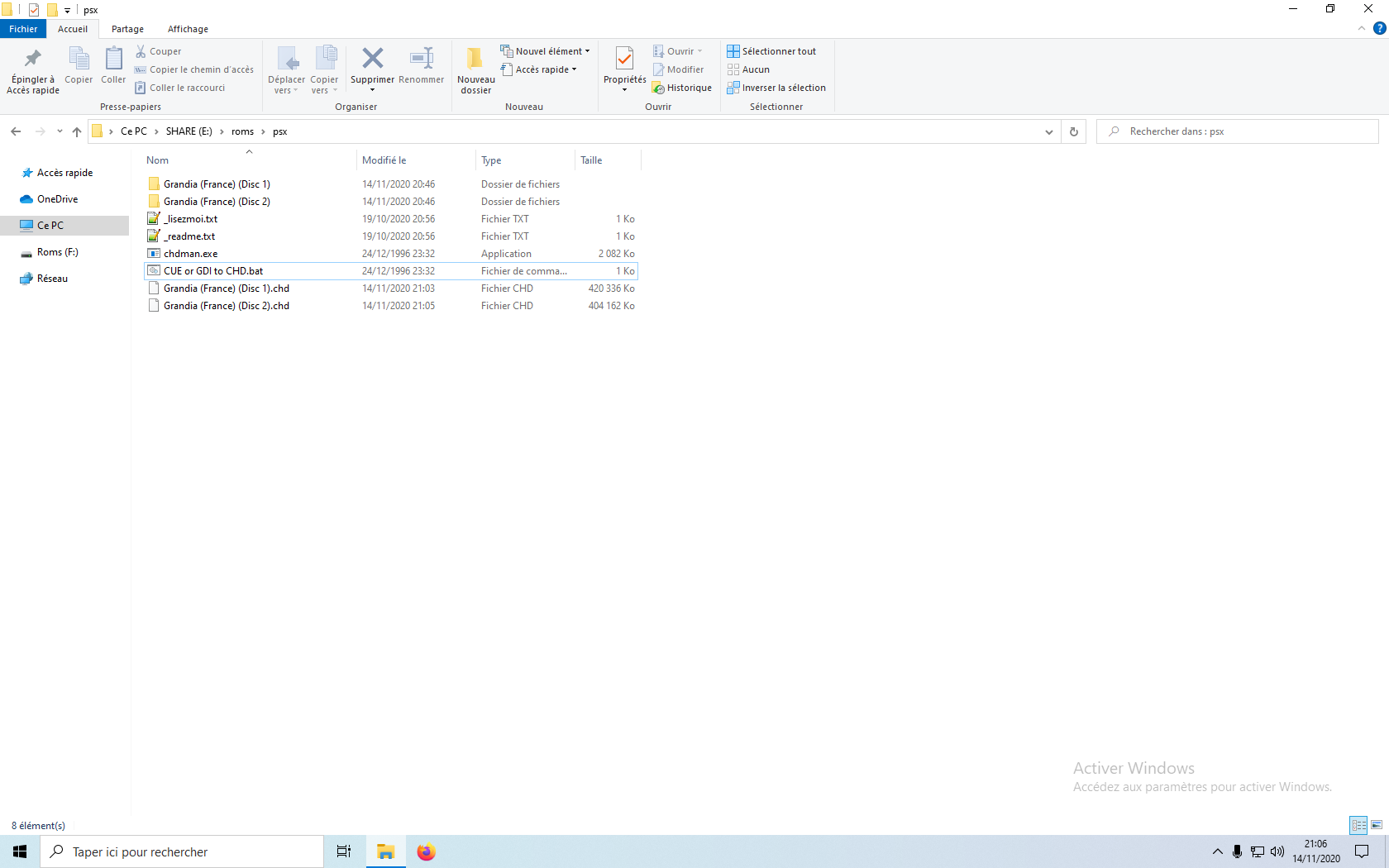
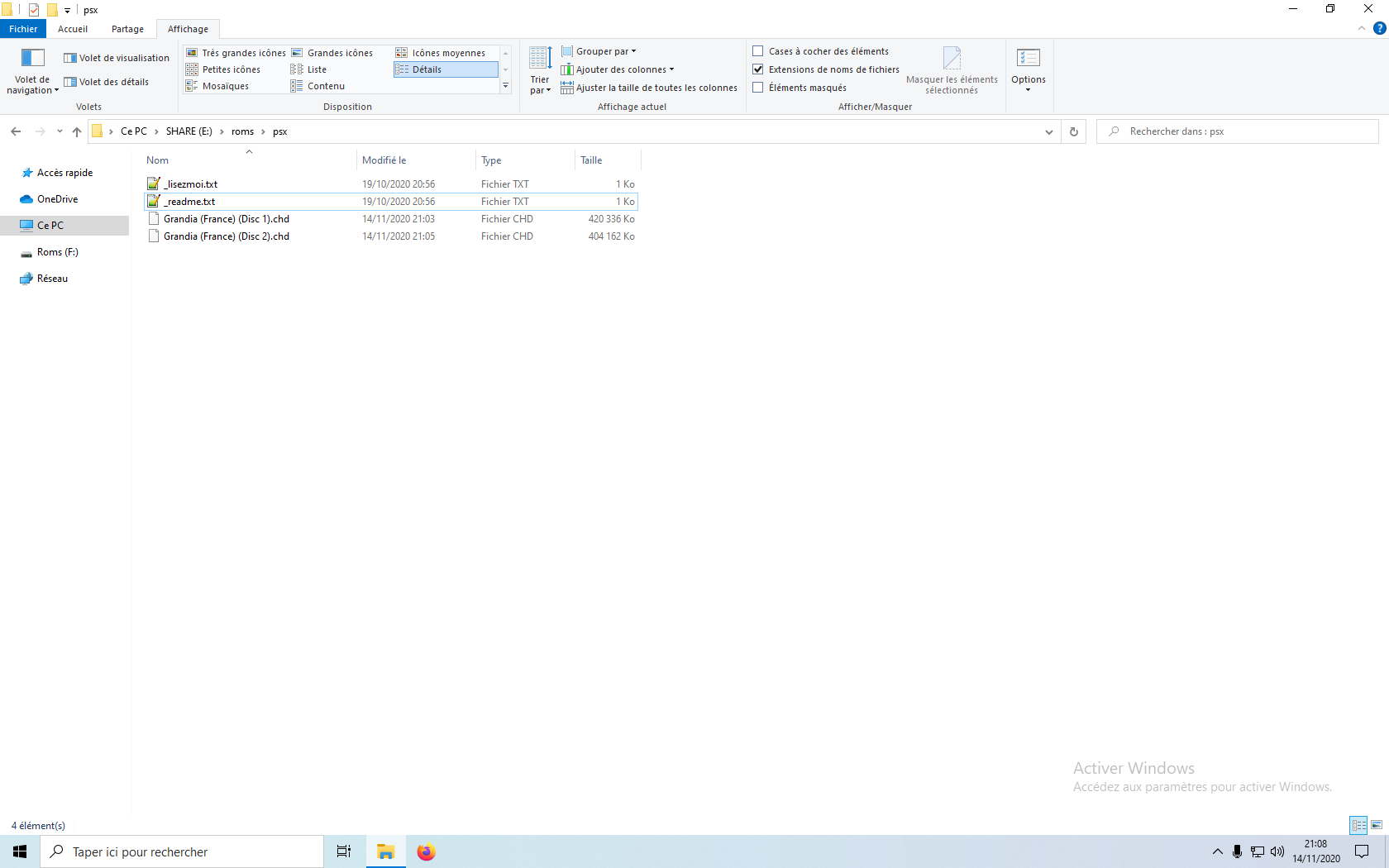
- You can delete "chdman.exe" and "CUE or GDI to CHD.bat", your rom is ready.
You can also run the .bat file to start the conversion of several games at once.
Convert your game from CHD to BIN/CUE
-
Put "chdman.exe" and "Extract CHD to CUE.bat" in the folder containing your game as below.
Example for the game "Grandia (France)": -
Click on the file "Extract CHD to CUE.bat" to start the conversion.
-
Once the CMD window above has closed automatically, your conversion is complete.
-
You can delete "chdman.exe" and "Extract CHD to CUE.bat", your rom is ready.
You can also run the .bat file to start the conversion of several games at once.
Convert your game from CHD to GDI
-
Put "chdman.exe" and "Extract CHD to GDI.bat" in the folder containing your game as below.
Example for the game "Grandia (France)": -
Click on the file "Extract CHD to GDI.bat" to start the conversion.
-
Once the CMD window above has closed automatically, your conversion is complete.
-
You can delete "chdman.exe" and "Extract CHD to GDI.bat", your rom is ready.
You can also run the .bat file to start the conversion of several games at once.
Create the .M3U file
In CHD conversion for multi-disk games, you have to make a M3U file to declare all the disks.
The .M3U file is a list of the different CDs for a game that allows you to switch from one CD to another in a simple way by using the disc change combination (Hotkey + L. STICK to the LEFT or to the RIGHT).
Example for the game "Grandia (France)":
- Create a
M3Ufile via Notepad++ named "Grandia (France).m3u". - In the file, fill in the
CHDfiles of the game:
Grandia (France) (Disc 1).chd
Grandia (France) (Disc 2).chd- On Windows, you must have the extension view enabled to create this file:
- Go to
Viewat the top of the Windows Explorer window. - Check "File name extensions" at the top right.
- Go to
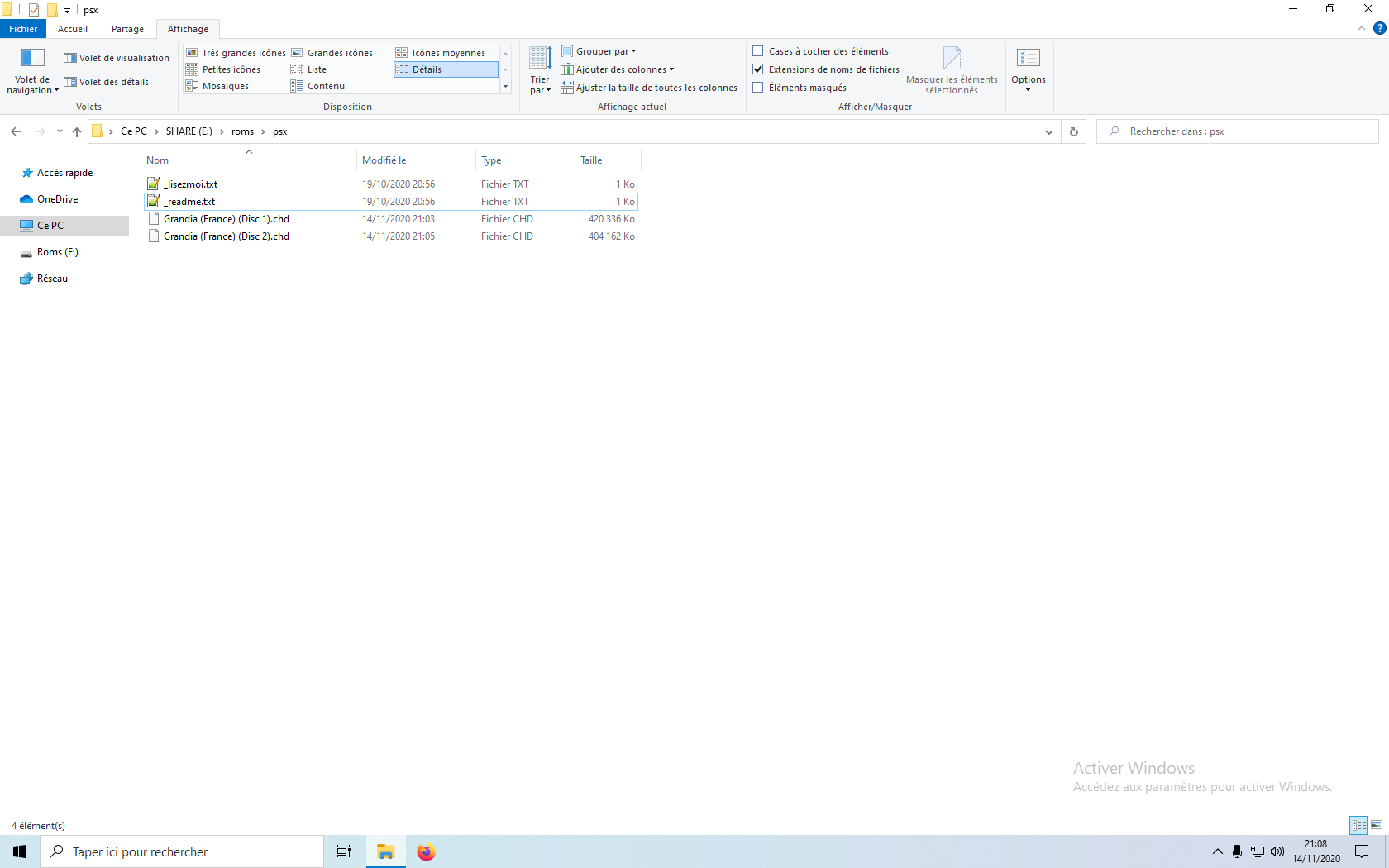
- Confirm the extension change
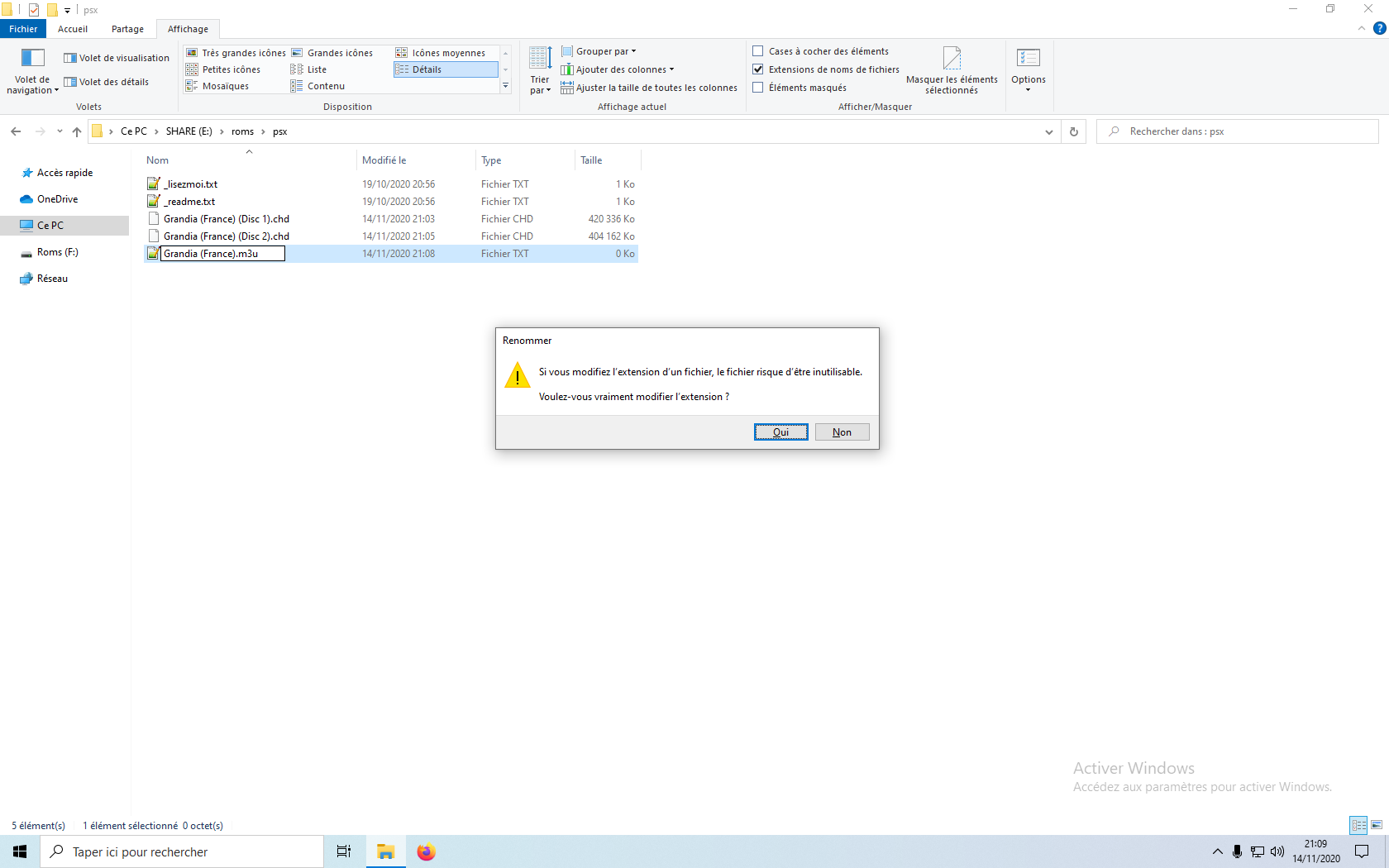
CHDMan Linux Instructions
Introduction
The file formats to adopt for CDs and other optical supports.
We have talked about a format, derived from researches we had on MAME, in order to be able to represent these supports in a compressed way, without losing the integrity of the data and that these can remain scrappable.
This format is the CHD (Compressed Hunks of Data), datas that could be useful for SEGA CD, PS1, PC Engine...
Unfortunately, the classic user will have difficulties to use the converter, which is a command line executable.
So here is a Zip file, with automated scripts, to convert from BIN+CUE (Redump format) to CHD, and vice versa.
It has been added also for the GDI format, which is for the Dreamcast.
For PS1 games protected by LibCrypt, normally you have SBI (Subchannel Information) files, you keep them and put them with the CHDs, otherwise your games will not pass.
If you ever lose them or make a bad manipulation, these files are available on the files of each corresponding disk at Redump, next to the re-downloadable CUE files.
Software
Some Linux distributions can give you chdman via aptitude with the mame-tools package. Some others don't have any mame-tools and you need to build it:
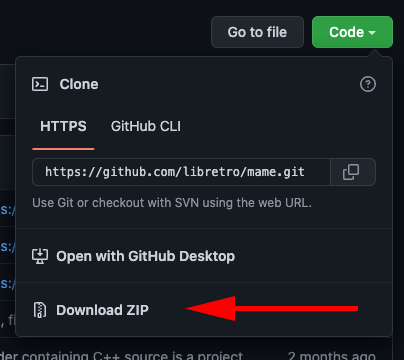
- Go to https://github.com/libretro/mame
- Download the content by clicking on the
Codegreen button then, in the visible menu, click onDownload ZIP
- Uncompress the downloaded archive and go inside the extracted directory. You should retrieve the same content than into the given link in the first step.
- From your, use this command:
make tools- At the end, you should be able to find chdman into the
builddirectory.
Here is a link to download files to automate format conversions:
In this zip you will find 6 files:
| File name | Description |
|---|---|
| ConvertFromChdToCue.sh | A .sh file that allows you to convert your CHD roms to BIN/CUE format. |
| convertFromChdToGdi.sh | A .sh file that allows you to convert your CHD roms to GDI format. |
| convertFromChdToIso.sh | A .sh file that allows you to convert your CHD roms to ISO format. |
| convertFromCueToChd.sh | A .sh file that allows you to convert your BIN/CUE roms to CHD. |
| convertFromGdiToChd.sh | A .sh file that allows you to convert your GDI roms to CUE. |
| convertFromIsoToChd.sh | A .sh file that allows you to convert your ISO roms to CUE. |
| README_EN.txt | |
| README_FR.txt |
Contents of the readme file
-
convertFromChdToCue.sh
Decompresses a CHD (V5) file into a BIN+CUE file.
The CUE format is used by games on CD. CHD is supported by 3DO, Amiga CD32, Amiga CDTV, Dreamcast, Mega CD, Neo-Geo CD, PC Engine CD, PlayStation and Saturn. -
convertFromChdToGdi.sh
Decompresses a CHD (V5) file into a GDI file.
The GDI format is used by disk-based games for Dreamcast. -
convertFromChdToIso.sh
Decompresses a CHD (V5) file into an ISO file.
The ISO format is used by disk-based games for PlayStation 2. -
convertFromCueToChd.sh
Compresses any type of BIN disk files with a CUE header to the CHD (v5) format. Searches all subfolders and creates CHD (v5) files in the folder where the files are placed with CHDMAN.
-
convertFromGdiToChd.sh
Compresses any type of BIN disk files with a GDI header to the CHD (v5) format. The GDI format is used by disk-based games for Dreamcast.
-
convertFromIsoToChd.sh
Compresses any type of BIN disk files with a ISO header to the CHD (v5) format. The ISO format is used by disk-based games for PlayStation 2.
Automated use
Convert your game from BIN/CUE to CHD
-
Put "convertFromCueToChd.sh" in the folder containing your game as below.
Example for the game "Grandia (France)" : -
In your Terminal, execute the file with the command
./convertCueToChd.shto start the conversion. -
Once your Terminal window has finished, your conversion is complete.
-
You can delete "convertFromCueToChd.sh", your rom is ready.
Convert your game from GDI to CHD
-
Put "convertFromGdiToChd.sh" in the folder containing your game as below.
Example for the game "Resident Evil - Code - Veronica (France)" : -
In your Terminal, execute the file with the command
./convertFromGdiToChd.shto start the conversion. -
Once your Terminal window has finished, your conversion is complete.
-
You can delete "convertFromGdiToChd.sh", your rom is ready.
Convert your game from ISO to CHD
-
Put "convertFromIsoToChd.sh" in the folder containing your game as below.
Example for the game "Shadow of the Colossus (Europe, Australia) (En,Fr,De,Es,It)" : -
In your Terminal, execute the file with the command
./convertFromIsoToChd.shto start the conversion. -
Once your Terminal window has finished, your conversion is complete.
-
You can delete "convertFromIsoToChd.sh", your rom is ready.
Convert your game from CHD to BIN/CUE
-
Put "convertFromChdToCue.sh" in the folder containing your game as below.
Example for the game "Grandia (France)" : -
In your Terminal, execute the file with the command
./convertFromChdToCue.shto start the conversion. -
Once your Terminal window has finished, your conversion is complete.
-
You can delete "convertFromChdToCue.sh", your rom is ready.
Convert your game from CHD to GDI
-
Put "convertFromChdToGdi.sh" in the folder containing your game as below.
Example for the game "Resident Evil - Code - Veronica (France)" : -
In your Terminal, execute the file with the command
./convertFromChdToGdi.shto start the conversion. -
Once your Terminal window has finished, your conversion is complete.
-
You can delete "convertFromChdToGdi.sh", your rom is ready.
Convert your game from CHD to ISO
-
Put "convertFromChdToIso.sh" in the folder containing your game as below.
Example for the game "Shadow of the Colossus (Europe, Australia) (En,Fr,De,Es,It)" : -
In your Terminal, execute the file with the command
./convertFromChdToIso.shto start the conversion. -
Once your Terminal window has finished, your conversion is complete.
-
You can delete "convertFromChdToIso.sh", your rom is ready.
Create the .M3U file
In CHD conversion for multi-disk games, you have to make a M3U file to declare all the disks.
The .M3U file is a list of the different CDs for a game that allows you to switch from one CD to another in a simple way by using the disc change combination (Hotkey + L. STICK to the LEFT or to the RIGHT).
Example for the game "Grandia (France)":
- Create a
M3Ufile via Notepad++ named "Grandia (France).m3u". - In the file, fill in the
CHDfiles of the game:
Grandia (France) (Disc 1).chd
Grandia (France) (Disc 2).chd- On Windows, you must have the extension view enabled to create this file:
- Go to
Viewat the top of the Windows Explorer window. - Check "File name extensions" at the top right.
- Go to
- Confirm the extension change