How to Rename an Active Directory Domain Name
In this short article, we will show you how to properly change an Active Directory domain name from test.com to resource.loc. In fact, it is not the best idea to rename an Active Directory domain. In large and complex AD infrastructure, it is better to migrate users, computers, and servers to a new domain. However, for simple and small AD environments (test, pre-prod, or DMZ ), you can easily rename your AD domain according to this guide
Before you start, make sure that:
- You have an up-to-date backup of your domain controllers;
- Replication works correctly in your domain and there are no critical errors of domain controllers or DNS (How to check Active Directory health);
- There is no Exchange in your domain. You cannot rename an AD domain if Exchange is deployed in it (except for Exchange Server 2003);
- To rename a domain, you need Windows Server 2003 or newer (in my example, the functional level of my AD domain and forest is Windows Server 2016).
First of all, create a DNS zone for your new domain on your current domain controllers. To do it, open the dnsmgmt.msc snap-in, create a new primary Forward Lookup Zone with the name resource.loc and replicate it on all DNS servers in your old test.com domain.
You can create a new DNS zone using PowerShell:
Add-DnsServerPrimaryZone -Name resource.loc -ReplicationScope "Domain" –PassThru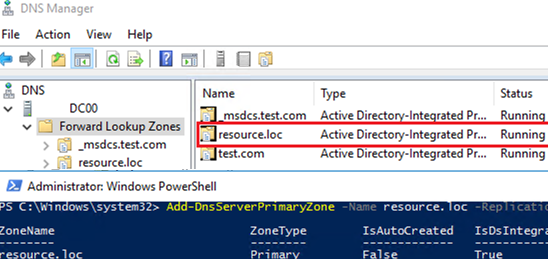
Wait till the new DNS zone is replicated on all DCs.
Run the rendom /list command to generate a Domainlist.xml file with the current AD forest configuration.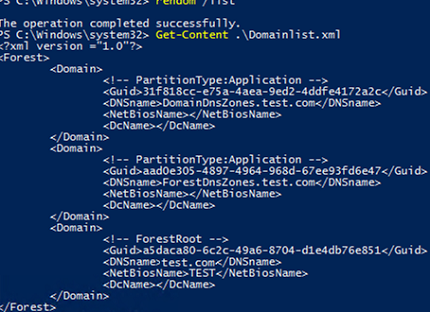
Get-Content .\Domainlist.xml<Forest>
<Domain>
<!-- PartitionType:Application -->
<Guid>6944a1cc-d79a-4bdb-9d1b-411fd417bbbc</Guid>
<DNSname>DomainDnsZones.test.com</DNSname>
<NetBiosName></NetBiosName>
<DcName></DcName>
</Domain>
<Domain>
<!-- PartitionType:Application -->
<Guid>bb10d409-4897-4974-9781-77dd94f17d47</Guid>
<DNSname>ForestDnsZones.test.com</DNSname>
<NetBiosName></NetBiosName>
<DcName></DcName>
</Domain>
<Domain>
<!-- ForestRoot -->
<Guid>b91bcb80-7cbc-49b7-8704-11d41b77d891</Guid>
<DNSname>test.com</DNSname>
<NetBiosName>TEST</NetBiosName>
<DcName></DcName>
</Domain>
</Forest>Open the Domainlist.xml and replace all old domain names with the new ones:
Notepad .\Domainlist.xml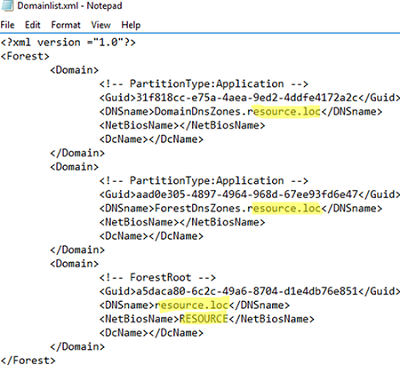
Save the file and run this command:
rendom /showforestThe command will show the changes to be made in the configuration.
The following command will upload Domainlist.xml with the new configuration of AD partitions to the domain controller with the Domain naming master FSMO role:
rendom /upload
The FSMO role owners can be displayed as follows:
netdom query fsmo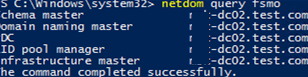
After that, you won’t be able to make changes to the AD forest configuration because it will be locked.
The rendom /prepare command will check the availability of all DCs in the forest and if they are ready to be renamed.
Make sure that the command has not returned any errors.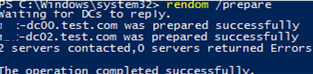
Waiting for DCs to reply.
mun-dc02.test.com was prepared successfully
mun-dc00.test.com was prepared successfully
The operation completed successfully.
The command below will rename the domain (domain controllers will be unavailable for some time and restarted automatically to apply new settings):
rendom /execute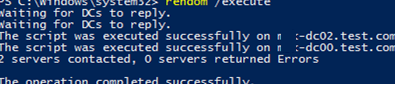
Waiting for DCs to reply.
The script was executed successfully on mun-dc02.test.com
The script was executed successfully on mun-dc00.test.com
2 servers contacted, 0 servers returned Errors
The operation completed successfully.
Make sure that the new domain name is displayed in the domain properties. Note that the full computer name did not change.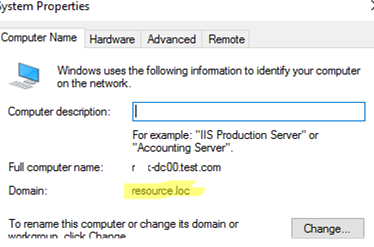
You must provide an account name in the format newdomain\username to login to the DC.
To get to the DC, specify the account from the domain. On Windows Core domain controllers you can specify a different username by pressing ESC several times.
Run the following command to update GPO bindings:
gpfixup /olddns:test.com /newdns:resource.loc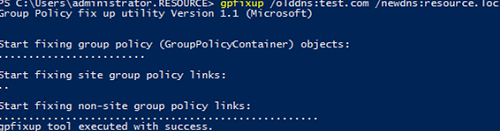
Group Policy fix up utility Version 1.1 (Microsoft)
Start fixing group policy (GroupPolicyContainer) objects:
Start fixing site group policy links:
Start fixing non-site group policy links:
gpfixup tool executed with success.
Then update the NetBIOS domain name:
gpfixup /oldnb:TEST /newnb:RESOURCEThen add new names on each domain controller manually and make them primary ones:
netdom computername %COMPUTERNAME%.test.com /add:%COMPUTERNAME%.resource.loc
netdom computername %COMPUTERNAME%.test.com /makeprimary:%COMPUTERNAME%.resource.loc
Restart the DCs:
Shutdown –f –r –t 0Only domain controllers need to be manually renamed. The rest of the computers and servers can be rebooted twice and they will automatically switch to the new domain.
This must be done after /execute and BEFORE executing the rendom /clean command.
Or you can use the commands above to rejoin computers to the new domain.
The command below will remove links to your old domain from AD:
rendom /cleanUnlock the domain configuration:
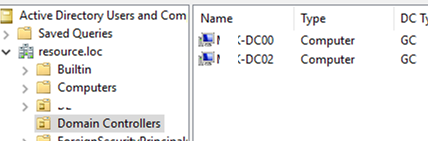
rendom /endOpen the ADUC (dsa.msc) console and make sure that it has connected to the new domain name and all OU structure, users and computers remain in place.
Note that you will have to do some extra steps to re-configure some services (CA, Failover Clusters) to a new domain.
After renaming your domain, check the AD replication state and errors on the DCs (see the link above).
Original Article