# Get-AllADDomainControllers
Gets a list of all Domain Controllers within the current domain.
## Install Active Directory module for Windows PowerShell
Run PowerShell as administrator and run the command below to install Active Directory module for Windows PowerShell.
```powershell
Add-WindowsFeature RSAT-AD-PowerShell
```
**Important:** You need to install the Active Directory module for Windows PowerShell. Otherwise, it can’t load the Get-ADDomainController cmdlet, and an error appears.
## Get-ADDomainController cmdlet
The [Get-ADDomainController](https://learn.microsoft.com/en-us/powershell/module/activedirectory/get-addomaincontroller) cmdlet is an excellent method to list the Domain Controller in the forest.
```powershell
Get-ADDomainController
```
## Get all Domain Controllers with full details
To get all Domain Controllers, you must run the **Get-ADDomainController** cmdlet, including the **-Filter** string with the wildcard (**\***).
```powershell
Get-ADDomainController -Filter *
```
All the Domain Controllers appear in the PowerShell output.
In our example, we only copied the first section of the output, which is the Domain Controller **DC01-2019**.
```powershell
ComputerObjectDN : CN=DC01-2019,OU=Domain Controllers,DC=exoip,DC=local
DefaultPartition : DC=exoip,DC=local
Domain : exoip.local
Enabled : True
Forest : exoip.local
HostName : DC01-2019.exoip.local
InvocationId : b44dc8cf-ce37-4046-b908-8504ff700efe
IPv4Address : 192.168.1.51
IPv6Address :
IsGlobalCatalog : True
IsReadOnly : False
LdapPort : 389
Name : DC01-2019
NTDSSettingsObjectDN : CN=NTDS Settings,CN=DC01-2019,CN=Servers,CN=Default-First-Site-Name,CN=Sites,CN=Configuration,DC=exoip,DC=local
OperatingSystem : Windows Server 2019 Standard
OperatingSystemHotfix :
OperatingSystemServicePack :
OperatingSystemVersion : 10.0 (17763)
OperationMasterRoles : {SchemaMaster, DomainNamingMaster, PDCEmulator, RIDMaster...}
Partitions : {DC=ForestDnsZones,DC=exoip,DC=local, DC=DomainDnsZones,DC=exoip,DC=local, CN=Schema,CN=Configuration,DC=exoip,DC=local, CN=Configuration,DC=exoip,DC=local...}
ServerObjectDN : CN=DC01-2019,CN=Servers,CN=Default-First-Site-Name,CN=Sites,CN=Configuration,DC=exoip,DC=local
ServerObjectGuid : 01218cb8-7c17-4d26-bb2a-cc80bc43059c
Site : Default-First-Site-Name
SslPort : 636
```
## List all Domain Controllers and Operating System
We can add only the objects we want to display in the output.
```powershell
Get-ADDomainController -Filter * | ft Name,Hostname,OperatingSystem,Enabled
```
The output appears.
```powershell
Name Hostname OperatingSystem Enabled
---- -------- --------------- -------
DC01-2019 DC01-2019.exoip.local Windows Server 2019 Standard True
DC02-2019 DC02-2019.exoip.local Windows Server 2019 Standard True
```
## Get all Domain Controllers and IP address
Get a list of Domain Controllers, including their IP address.
```powershell
Get-ADDomainController -Filter * | ft Name,IP*
```
The PowerShell output appears.
```powershell
Name IPv4Address IPv6Address
---- ----------- -----------
DC01-2019 192.168.1.51
DC02-2019 192.168.1.52
```
## Filter Domain Controllers
Filter the Domain Controllers and list only the DCs with the **Windows Server 2019** Operating System.
```powershell
Get-ADDomainController -Filter {OperatingSystem -like "Windows Server 2019*"} | ft Name,Hostname,OperatingSystem,Enabled
```
The output appears.
```powershell
Name Hostname OperatingSystem Enabled
---- -------- --------------- -------
DC01-2019 DC01-2019.exoip.local Windows Server 2019 Standard True
DC02-2019 DC02-2019.exoip.local Windows Server 2019 Standard True
```
## Count Domain Controllers
Get a count of all the Domain Controllers.
```powershell
Get-ADDomainController -Filter * | Select-Object name | Measure-Object | Select Count
```
## Export all Domain Controllers to CSV file
You can export a list of the Domain Controllers to a CSV file.
```powershell
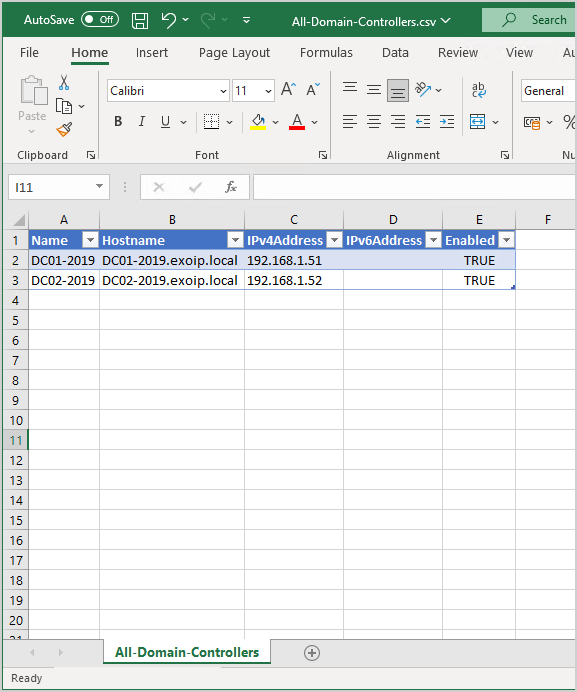
Get-ADDomainController -Filter * | Select-Object Name,Hostname,IP*,Enabled | Export-Csv "C:\temp\All-Domain-Controllers.csv" -NotypeInformation
```
Open the CSV file with your favorite application. In our example, it’s Microsoft Excel.
That’s it!
Read more: [Get Organizational Units with PowerShell »](https://www.alitajran.com/get-organizational-units-with-powershell/)
## Conclusion
You learned how to get all Domain Controllers with PowerShell. The PowerShell cmdlet *Get-ADDomainController* is an excellent way to list all Domain Controllers in the organization.