Active Directory - One Liners
- Count Members of an AD Group
- Get LAPS Password
- Get-AllADDomainControllers
- Powershell to Get All Unique Properties in AD
- Force Active Directory replication on a domain controller
- List all users hidden from the GAL
- Get Groups From AD User
- Get Unique Departments From Active Directory
- Get ACL for Files and Folders
Count Members of an AD Group
(Get-ADGroup "Enforce MFA" -Properties *).Member.Count
Get LAPS Password
Get-LapsADPassword mut7gpc202 -AsPlainText
Get-AllADDomainControllers
Gets a list of all Domain Controllers within the current domain.
Install Active Directory module for Windows PowerShell
Run PowerShell as administrator and run the command below to install Active Directory module for Windows PowerShell.
Add-WindowsFeature RSAT-AD-PowerShellImportant: You need to install the Active Directory module for Windows PowerShell. Otherwise, it can’t load the Get-ADDomainController cmdlet, and an error appears.
Get-ADDomainController cmdlet
The Get-ADDomainController cmdlet is an excellent method to list the Domain Controller in the forest.
Get-ADDomainControllerGet all Domain Controllers with full details
To get all Domain Controllers, you must run the Get-ADDomainController cmdlet, including the -Filter string with the wildcard (*).
Get-ADDomainController -Filter *All the Domain Controllers appear in the PowerShell output.
In our example, we only copied the first section of the output, which is the Domain Controller DC01-2019.
ComputerObjectDN           : CN=DC01-2019,OU=Domain Controllers,DC=exoip,DC=local
DefaultPartition           : DC=exoip,DC=local
Domain                     : exoip.local
Enabled                    : True
Forest                     : exoip.local
HostName                   : DC01-2019.exoip.local
InvocationId               : b44dc8cf-ce37-4046-b908-8504ff700efe
IPv4Address                : 192.168.1.51
IPv6Address                :
IsGlobalCatalog            : True
IsReadOnly                 : False
LdapPort                   : 389
Name                       : DC01-2019
NTDSSettingsObjectDN       : CN=NTDS Settings,CN=DC01-2019,CN=Servers,CN=Default-First-Site-Name,CN=Sites,CN=Configuration,DC=exoip,DC=local
OperatingSystem            : Windows Server 2019 Standard
OperatingSystemHotfix      :
OperatingSystemServicePack :
OperatingSystemVersion     : 10.0 (17763)
OperationMasterRoles       : {SchemaMaster, DomainNamingMaster, PDCEmulator, RIDMaster...}
Partitions                 : {DC=ForestDnsZones,DC=exoip,DC=local, DC=DomainDnsZones,DC=exoip,DC=local, CN=Schema,CN=Configuration,DC=exoip,DC=local, CN=Configuration,DC=exoip,DC=local...}
ServerObjectDN             : CN=DC01-2019,CN=Servers,CN=Default-First-Site-Name,CN=Sites,CN=Configuration,DC=exoip,DC=local
ServerObjectGuid           : 01218cb8-7c17-4d26-bb2a-cc80bc43059c
Site                       : Default-First-Site-Name
SslPort                    : 636
List all Domain Controllers and Operating System
We can add only the objects we want to display in the output.
Get-ADDomainController -Filter * | ft Name,Hostname,OperatingSystem,EnabledThe output appears.
Name      Hostname              OperatingSystem              Enabled
----      --------              ---------------              -------
DC01-2019 DC01-2019.exoip.local Windows Server 2019 Standard    True
DC02-2019 DC02-2019.exoip.local Windows Server 2019 Standard    True
Get all Domain Controllers and IP address
Get a list of Domain Controllers, including their IP address.
Get-ADDomainController -Filter * | ft Name,IP*The PowerShell output appears.
Name      IPv4Address  IPv6Address
----      -----------  -----------
DC01-2019 192.168.1.51
DC02-2019 192.168.1.52
Filter Domain Controllers
Filter the Domain Controllers and list only the DCs with the Windows Server 2019 Operating System.
Get-ADDomainController -Filter {OperatingSystem -like "Windows Server 2019*"} | ft Name,Hostname,OperatingSystem,EnabledThe output appears.
Name      Hostname              OperatingSystem              Enabled
----      --------              ---------------              -------
DC01-2019 DC01-2019.exoip.local Windows Server 2019 Standard    True
DC02-2019 DC02-2019.exoip.local Windows Server 2019 Standard    True
Count Domain Controllers
Get a count of all the Domain Controllers.
Get-ADDomainController -Filter * | Select-Object name | Measure-Object | Select CountExport all Domain Controllers to CSV file
You can export a list of the Domain Controllers to a CSV file.
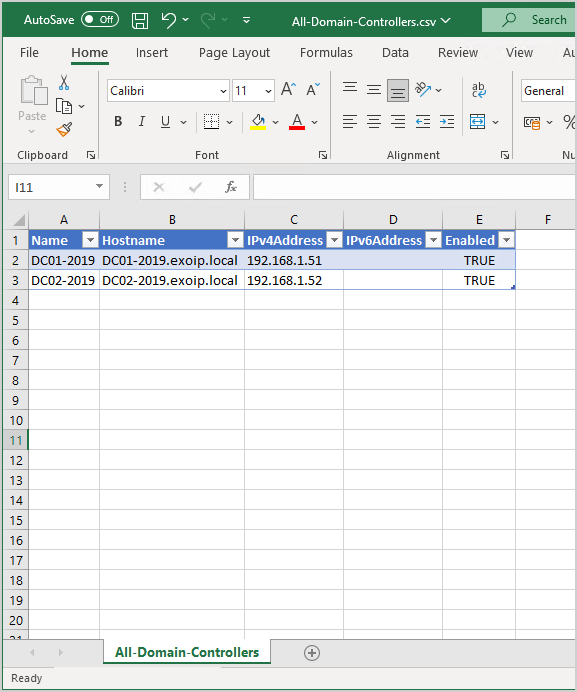
Get-ADDomainController -Filter * | Select-Object Name,Hostname,IP*,Enabled | Export-Csv "C:\temp\All-Domain-Controllers.csv" -NotypeInformationOpen the CSV file with your favorite application. In our example, it’s Microsoft Excel.
That’s it!
Read more: Get Organizational Units with PowerShell »
Conclusion
You learned how to get all Domain Controllers with PowerShell. The PowerShell cmdlet Get-ADDomainController is an excellent way to list all Domain Controllers in the organization.
Powershell to Get All Unique Properties in AD
get-aduser -filter * -property title | Select-Object title | sort-object title -uniqueForce Active Directory replication on a domain controller
To force Active Directory replication run the command ‘repadmin /syncall /AeD’ on the domain controller. Run this command on the domain controller in which you wish to update the Active Directory database. For example, if DC2 is out of Sync, run the command on DC2.
A = All Partitions
e = Enterprise (Cross Site)
D = Identify servers by distinguished name in messages.
By default, this does a pull replication – which is how AD works by default. If you want to do a push replication use the following command:
repadmin /syncall /APeDP = Push
You want to do a push replication if you make changes on a DC and you want to replicate those changes to all other DC’s. For example, you make a change on DC1 and you want all other changes to get that change instantly, run repadmin /syncall /APeD on DC1.
For all repadmin syntax please see:
http://technet.microsoft.com/en-us/library/cc736571(v=ws.10).aspx
List all users hidden from the GAL
Get-ADUser -Filter {msExchHideFromAddressLists -eq "TRUE"} |Select-Object UserPrincipalNameGet Groups From AD User
Get-ADPrincipalGroupMembership adminrgastineau | Select-Object nameGet Unique Departments From Active Directory
get-aduser -filter * -property department | Select-Object -ExpandProperty department | sort-object -uniqueGet ACL for Files and Folders
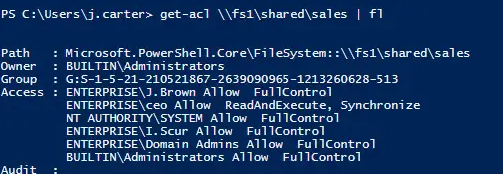
The first PowerShell cmdlet used to manage file and folder permissions is get-acl; it lists all object permissions. For example, let’s get the list of all permissions for the folder with the object path \\fs1\shared\sales
Get-acl \\fs1\shared\sales | Format-List